

Importing from Qase
QAM Hub imports directly from Qase over its API. You paste a Qase API token, pick the projects you want, review a preview of exactly what will be created, and start the import. It brings across suites, test cases with their steps and test data, priority and custom fields, tags, milestones, and test runs with each result's history, including failed step notes, stack traces and the Qase defects filed from them. One QAM Hub project is created per Qase project. The wizard is available on every plan, and only Organization Admins can run it.
What you need before you start#
- A Qase API token. Create it in Qase under your profile → API tokens. Use the token of someone who can see every project you want to bring across. A workspace owner's or admin's token also lets the wizard read your team, which it uses in the Team step.
- The API address, on Qase Enterprise only. Qase Cloud needs nothing else. On Qase Enterprise, open Qase Enterprise or a custom API address in the wizard and enter the API address of your workspace, not the address you open in the browser.
- Room in your plan. The preview checks the selection against your plan's limits before anything is written, so it helps to know roughly how many projects and cases you are moving.
The token is used only for that one import and is deleted from our servers the moment it finishes. A second import asks for it again.
Step 1. Open the import wizard#
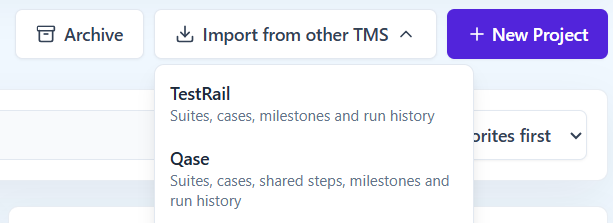
On the Organization Home page, click Import from other TMS and choose Qase. On a brand-new workspace the same choice appears in the welcome popup.
Step 2. Connect your Qase workspace#
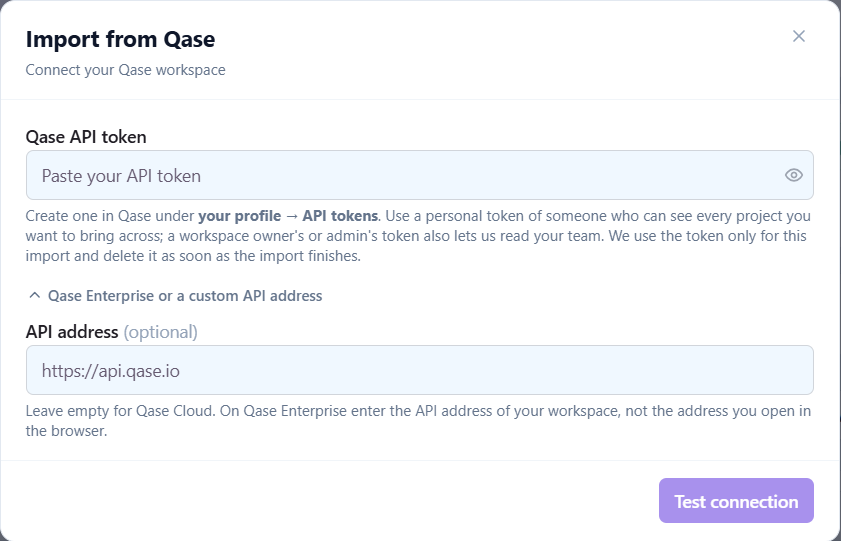
Paste the API token. If you are on Qase Enterprise, expand Qase Enterprise or a custom API address and enter your workspace's API address; leave it empty for Qase Cloud. Click Test connection. The wizard checks the token against Qase before it lets you continue, so a wrong token or a wrong address shows up here rather than halfway through an import.
Step 3. Choose projects, decide on the structure, read the preview#
Pick the Qase projects to bring across. Two decisions in this step shape what you get:
- How the suite tree lands. Either each top-level Qase suite becomes a QAM Hub suite with its nested suites as groups, or each project becomes one suite with the whole tree as groups. Teams with a few large functional areas usually prefer the first; teams with a deep tree under one root, the second. Nesting deeper than 6 levels is folded into the deepest allowed group with the original path kept in its name, and cases that sit outside any suite go to Cases without a suite.
- Suite preconditions. QAM Hub suites have no preconditions of their own, so by default a Qase suite's preconditions are placed at the top of the Pre-conditions of every case in it. Switch this off in the project step if your suite preconditions are notes rather than real setup steps.
You also choose how much run history to bring: the 50 or 200 most recent runs per project, or all of them.
The preview then shows counts per project, what happens to every Qase field it found, and any plan limit the selection does not fit. An import that would exceed a limit is refused rather than stopped halfway, so adjust the selection or the plan first. If the wizard recognises a project you have already imported, it says so and keeps Start import disabled until you confirm: importing the same project twice creates a second, separate copy and never updates the first one.
Mapping fields in the preview#
The field mapping is editable before anything is written. For each Qase field you can create a QAM Hub field with your own name and type, send it into Pre-conditions, Priority or Automated Status, append it to Steps or Expected Result, or skip it. Defaults that work for most teams:
| Qase field | Default in QAM Hub |
|---|---|
| Priority | The built-in Priority field, with its options replaced by your Qase priorities |
| Automation | Automated Status: Automated becomes Yes, To be automated becomes Backlog |
| Severity, Type, Layer, Behavior, Status, Flaky | Custom fields |
| Your own Qase custom fields | Custom fields: selectbox and radio as dropdowns, multiselect as comma-separated text |
| Case key (for example DEMO-12) | A "Qase ID" field on every case, useful while automated tests still report Qase IDs |
| Parameters of parameterised cases | Appended to Steps |
Fields that no case uses are not created. Custom fields beyond your plan's per-project limit are listed in the preview as skipped, so this is the moment to decide which ones earn a slot. See Using Custom Fields and Plans, Seats and What Each Plan Includes for the limits.
Step 4. Invite your team#
When the token can read your Qase team, the Team step lists the people found in the selected projects. Choose who comes in as a Member, which takes a paid seat, and who comes in as a Viewer, which takes a free viewer seat, and optionally send the invitation emails. Imported results then point at the right accounts instead of at an anonymous author.
Step 5. Start the import and let it run#
The import runs in the background. You can close the wizard and come back; reopening it shows the progress of the import that is still going rather than offering to start a second one. Only one import, TestRail or Qase, runs per organization at a time.
What gets imported#
| From Qase | What arrives in QAM Hub |
|---|---|
| Suites | Suites and groups, in the structure you chose in step 3 |
| Test cases | Title, description, preconditions, postconditions, steps with test data and expected results, original dates and the author when that person is in your workspace. Steps keep their numbering, sub-steps as 2.1, 2.2, and each expected result sits under the same number. Shared steps are expanded inline. Gherkin cases keep their scenario text as written |
| Fields | As set in the preview mapping |
| Tags | Tags |
| Linked issues | Requirements linked to the case, when Qase returns them through its tracker integrations |
| Milestones, runs and results | The 50 or 200 most recent runs per project, or all of them. Each result keeps its history, tester, date and comment, plus failed step notes, the stack trace of automated results, time spent and the Qase defects filed from it. Run tags and the run environment become run tags |
| Result statuses | Statuses with a QAM Hub equivalent map onto it. Qase statuses with no equivalent, such as Invalid, are added as custom statuses on Standard and Advanced (up to 3). On Start, which has no custom statuses, they arrive as Untested |
| Attachments | Images on test cases and on results, up to 5 per case and 5 per result |
What does not come across#
- A milestone set on a case itself. Milestones come across on runs.
- Runs older than the window you chose.
- Custom fields past your plan's per-project limit, and the individual options of a multiselect once it becomes text.
- Qase's users and permissions as such. People come in through the Team step and get QAM Hub roles.
- Automated results going forward. Point your reporters at the new project instead, as described in Uploading Playwright Reports and Uploading JUnit XML Reports with the CLI.
When the import finishes#
The final report lists what was imported and what was skipped, per project, with a link into each new project. If one project fails it is removed completely, so nothing half-imported is left behind, and the other projects in the same import are kept.
What to check on the first day:
- Open a few of the largest cases and confirm the steps, test data and expected results read the way they did in Qase, especially cases that used shared steps or parameters.
- Open an imported run with failures and check that failed step notes, stack traces and linked defects are there.
- If your automated tests still report Qase IDs, use the Qase ID field while you rename them to
TC-<number>, which is how QAM Hub links an automated test to a manual case. The mechanics are in Mapping Automated Test Results to Test Cases.
Keep Qase readable for one billing cycle. The import takes an afternoon; agreeing that the team now records results in one place takes longer, and it helps to be able to compare.
Frequently asked questions#
Does run history come across, or only test cases?#
Run history comes across. You choose the 50 or 200 most recent runs per project, or all of them, and each result keeps its tester, date, comment, failed step notes, stack trace and linked defects.
Can I import from Qase Enterprise?#
Yes. Enter your workspace's API address under Qase Enterprise or a custom API address. It is the API address, not the one you open in the browser.
What happens to my Qase API token?#
It is used for that import and deleted from our servers when the import finishes. A later import asks for a new one.
Which plan do I need?#
Any plan. On Advanced, QA Madness can run the import and the field mapping together with you. On Start, Qase result statuses without an equivalent arrive as Untested because Start has no custom statuses, and only 5 custom fields per project are available.