

Billing, Subscriptions and Seat Changes
Billing in QAM Hub is handled by the Organization Owner from the billing area of the organization settings, and payments run through Stripe. From there you can subscribe at the end of the trial, switch between Standard and Advanced, switch between monthly and annual billing, add or remove paid seats, update the card, download invoices and cancel. Seat changes apply to the subscription as soon as they are made, so the number you pay for and the number of people who can edit stay in step. No other role can see or change any of this.
Before you start#
- You must be the Organization Owner. There is one per organization. Org admins can manage users and projects but not billing.
- Decide the seat count first. Count the people who create or edit test cases, checklists, runs and reports. Viewers do not consume paid seats, at one free viewer per paid seat.
- Decide the interval. Annual is quoted per seat per month, charged once for the year, and works out around 10% cheaper per seat than monthly. Monthly can be stopped at any time.
- Check the current per-seat prices for both plans on the pricing page before you commit to a seat count.
- Have the card ready, or the billing contact who has it. Card details are entered on Stripe's own hosted pages, never inside QAM Hub.
Subscribing for the first time#
- Open the organization settings and go to the billing area.
- Choose Standard or Advanced. If you are not sure, compare the two in Plans, Seats and What Each Plan Includes.
- Choose monthly or annual billing.
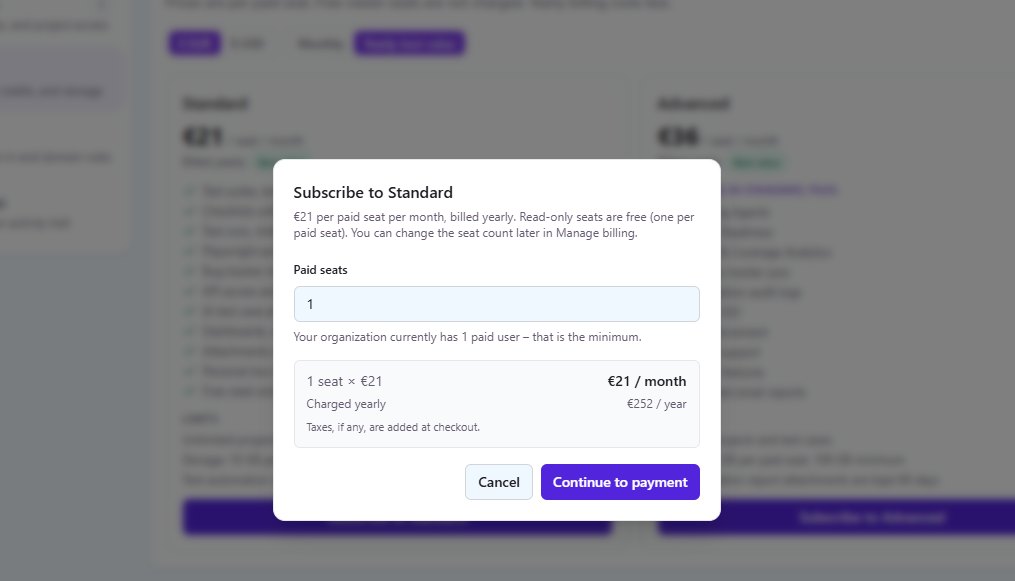
- Set the number of paid seats.
- Continue to checkout. You are taken to a Stripe-hosted checkout page to enter payment details and the billing address used on invoices.
- Complete the payment. You are returned to QAM Hub and the subscription becomes active. If you were on a trial, the trial caps lift at that point.
Adding or removing seats#
Seat count is a number you change on the subscription, not something that happens automatically when you invite someone. Change it in the billing area and the subscription updates to match. Adding seats takes effect immediately, so a new hire can be invited the same day.
Removing seats is the one that needs a moment of thought. Reduce the seat count only after the people who no longer need edit access have been removed or moved to viewer seats. If the organization is using more seats than the subscription pays for, QAM Hub will not silently drop someone: it asks you to resolve the mismatch. Work in that order and the change is uneventful.
- Remove or downgrade the users first, in the organization members list. See Inviting and Managing Users.
- Return to the billing area and set the new seat count.
- Confirm. The subscription is updated with the new quantity.
Changing plan or interval#
Both changes are made in the billing area and take effect on the subscription.
Moving from Standard to Advanced turns on the Advanced features for the whole organization: quality and coverage analytics, Release Readiness, scheduled email reports, the knowledge base for AI context, audit logs, Google SSO, organization-wide 2FA enforcement and priority support. Storage and the retention window for Playwright videos and traces increase at the same time.
Moving from Advanced to Standard turns those off. Nothing you created is deleted, but the features stop being available: scheduled report emails stop being sent, status stops syncing back from your tracker, traceability stops being published into Jira, and analyses that were already generated stay readable while new ones cannot be started. Issue creation from a run keeps working on Standard, so the tracker connection itself survives the downgrade. If your team has organization-wide 2FA enforcement or Google SSO switched on, sort out how people will sign in before you downgrade, not after.
Switching from monthly to annual, or back, changes how you are charged for the same plan. It does not change what the plan includes.
Invoices, card details and cancellation#
Invoices, receipts, the payment method and cancellation live in the Stripe customer portal, which you open from the billing area. That is deliberate: card data never touches QAM Hub. In the portal you can:
- download invoices and receipts for finance;
- update the card or replace an expired one;
- update the billing address and tax details that appear on invoices;
- cancel the subscription.
Cancelling stops future charges. Your data stays in QAM Hub, and use of the workspace is blocked once the paid period ends, the same behaviour as an expired trial. Subscribing again restores access to the same workspace.
If a payment fails#
A failed charge does not lock a paying team out of their work. QAM Hub warns the Organization Owner and gives you the chance to fix the payment method in the portal. Update the card, and the retry clears the balance. Treat the warning as a real deadline rather than a notification to dismiss, because an unresolved failure eventually ends the subscription like any cancellation.