

Connecting Redmine
To connect Redmine, a Redmine administrator first enables the REST API; then a QAM Hub Project Admin opens Project Settings → Integrations, clicks Set up on the Redmine card, enters your Redmine address, the project and an API access key, picks the Redmine tracker for bugs, verifies and saves. Bugs filed from QAM Hub become issues in that project with priorities mapped to your instance's own priority names, and their status is read back as open, in progress or done. On the Standard and Advanced plans, Redmine issues can also come in as requirements. How tracker integrations work in general is in Connecting an Issue Tracker.
What you need#
- The REST API switched on. In Redmine, an administrator enables it under Administration → Settings → API ("Enable REST web service"). It is off by default on a fresh install.
- Your Redmine address, for example
https://redmine.yourcompany.com. It must be reachable from the internet, because QAM Hub calls it from its servers. - An API access key, shown in Redmine under My account on the right ("API access key"). The account needs permission to add issues in the project.
- The project: its identifier, numeric id or URL.
Step 1. Connect#
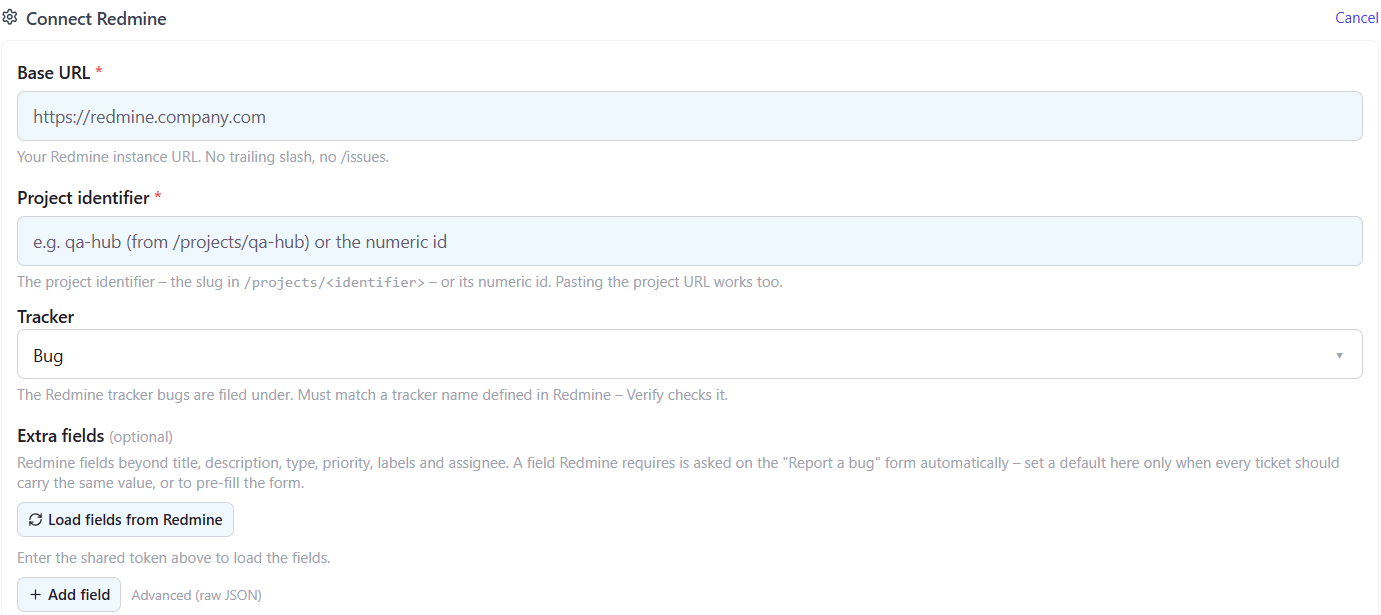
- Click Set up on the Redmine card. Enter the Base URL, the project and the Tracker for new bugs, usually Bug (Feature and Support are the other defaults; custom trackers work too).
- Choose Shared account or Personal accounts, and for a shared account paste the API access key.
- Click Verify. It checks the key, the project and that the tracker is enabled for that project.
- Click Save and connect.
Step 2. Preset fields (optional)#
Under Extra fields you can preset your Redmine custom fields and the standard ones: Category, Target version, Start date, Due date, Estimated hours and Private, each as a fixed value or a pre-filled value on the bug form. A common setup is a fixed Target version for the release under test, so every QA bug lands in the right version without anyone choosing it.
Redmine only tells non-admin accounts the names of custom fields, not their types. To get proper dropdowns for list-type custom fields, load the fields once with an administrator's API key; with an ordinary key, values are entered as text.
Filing bugs into Redmine#
A bug becomes an issue in the project under the chosen tracker, with a Markdown description (rendered by Redmine's own text formatting), the mapped priority and the screenshots attached. Redmine has no labels, so the "default labels" option other trackers have is not shown. Status is read back as open, in progress or done.
Importing issues as requirements (Standard and Advanced)#
On the Requirements page, open Redmine sync and filter by tracker, status and updated date. A typical filter pulls every Feature issue updated in the current release cycle.
Publishing back to Redmine (Standard and Advanced)#
With Publish on, QAM Hub adds a note to the issue's history with the requirement link, the covering test cases and where a bug was found. On Redmine 5.0 and later that note is edited in place as coverage changes; on older versions a new note is added instead. It never changes the issue's subject, description or status.
Troubleshooting#
- Every request fails with 403 or 401. The REST API is not enabled on the instance, or the key belongs to an account without access to the project.
- Verify cannot reach the server. Redmine is only available inside your network or VPN. QAM Hub needs to reach it over the internet.
- "Tracker is not enabled for this project". Enable the tracker in the Redmine project's settings, or pick one that is.
- Custom fields appear as plain text. Load the fields once with an administrator's key.