

Tags and Test Organization
QAM Hub organizes tests in two complementary ways: a structural hierarchy of suites and groups that gives every test case a stable home, and tags — flexible, cross-cutting labels layered on top. Together they let you both navigate tests by structure and slice them by attribute.
The organizational hierarchy#
QAM Hub arranges testing as a tree:
- Suites — the top-level containers in a project. A suite is one of two types: a Test Cases suite or a Checklist suite (checklists use a lighter model with dynamic columns).
- Groups — optional, hierarchical folders inside a suite. They can be nested several levels deep (up to about six) to mirror features, modules, or product areas, and can be reordered or moved between parents.
- Test cases — live inside a suite, either directly or within a group, and can be drag-reordered. Each case carries a project-wide case number (e.g.
TC-142) that is unique across the whole project.
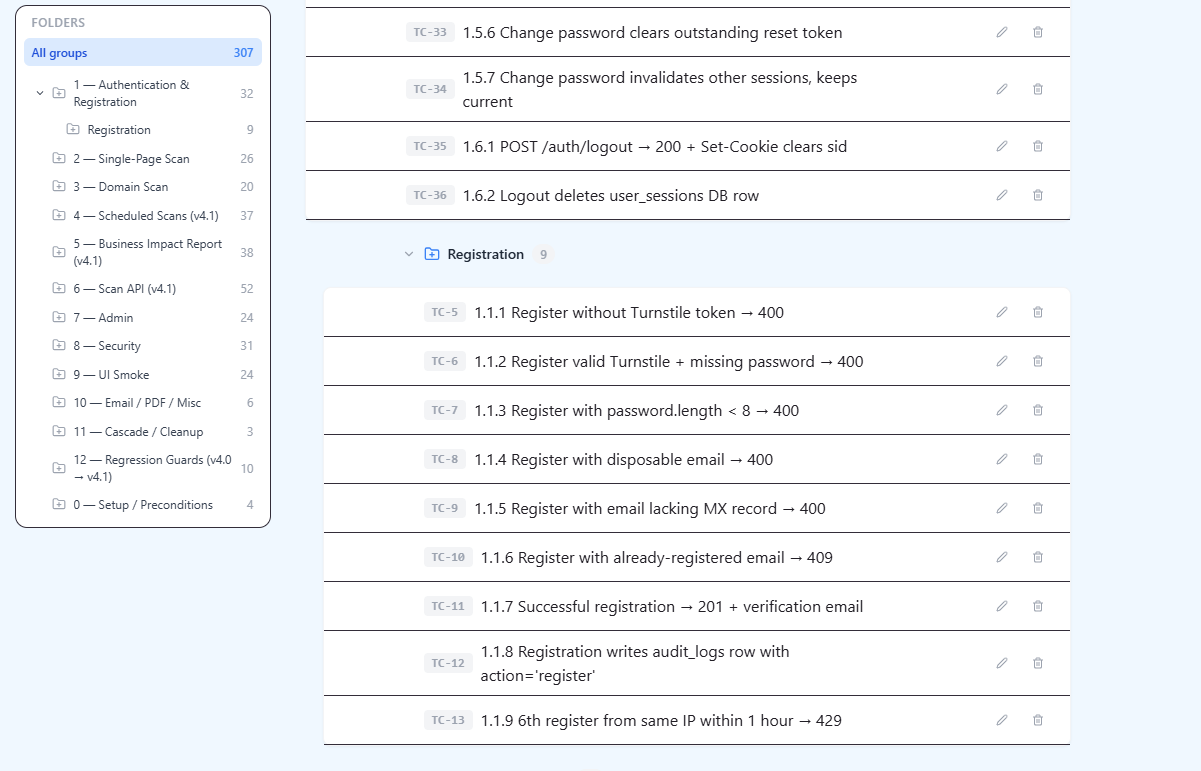
This structure gives every test case a navigable home. Tags then add a second, flexible dimension on top of it.
What tags are#
A tag is a colored, named label you attach to any test case to mark cross-cutting attributes that don't fit the suite/group tree — things like smoke, regression, flaky, mobile, payments, or a sprint name.
- Project-scoped and unique by name within a project — each project has its own tag namespace.
- Color-coded — every tag has a color (default indigo), so tags read at a glance as colored pills.
- Flat, not hierarchical — unlike groups, tags don't nest; they're a simple labeling layer.
- A case can carry many tags, and a tag can apply to many cases.
Creating and applying tags#
Manage tags in project Settings → Tags: type a name, pick a color, and add it. Tags appear as colored badges, each with a delete control.
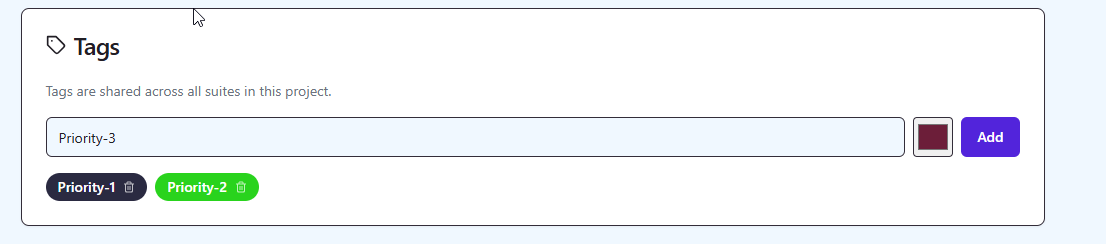
To apply tags:
- On a single case — a tags dropdown lists all project tags as a checklist of colored options; pick any combination or clear all.
- In bulk — select many cases at once and add, remove, clear, or replace their tags in a single action (up to 500 cases at a time) — ideal for labeling a whole batch as regression or moving a sprint label.
Filtering by tags#
The test case list can be filtered by tags. Selecting one or more tags shows every case carrying any of them (OR logic), and the tag filter combines with other filters — text search, automation status, and custom fields. This makes tags the primary tool for slicing your inventory across the rigid suite/group structure — for example, "show every smoke case regardless of which suite it lives in."
Who can manage tags#
Tag creation, editing, deletion, and assignment are available to all authenticated project members. All tag operations are recorded in the audit log, and tag assignments are captured in each test case's version history.