

Connecting Linear
To connect Linear, a Project Admin opens Project Settings → Integrations, clicks Set up on the Linear card, enters the team key and a Linear personal API key, verifies and saves. That is all Linear needs: no email and no base URL. Bugs filed from QAM Hub are created in that team with their priority mapped to Linear's, and Linear's status is read back as open, in progress, done or cancelled. On the Standard and Advanced plans, Linear issues can also come in as requirements. How tracker integrations work in general is in Connecting an Issue Tracker.
What you need#
- The team key, the prefix of the team's issue IDs:
ENGinENG-123. - A Linear personal API key, created in Linear under Settings → Security & access → Personal API keys. Paste it exactly as Linear shows it; it is sent without a "Bearer" prefix.
Step 1. Connect#
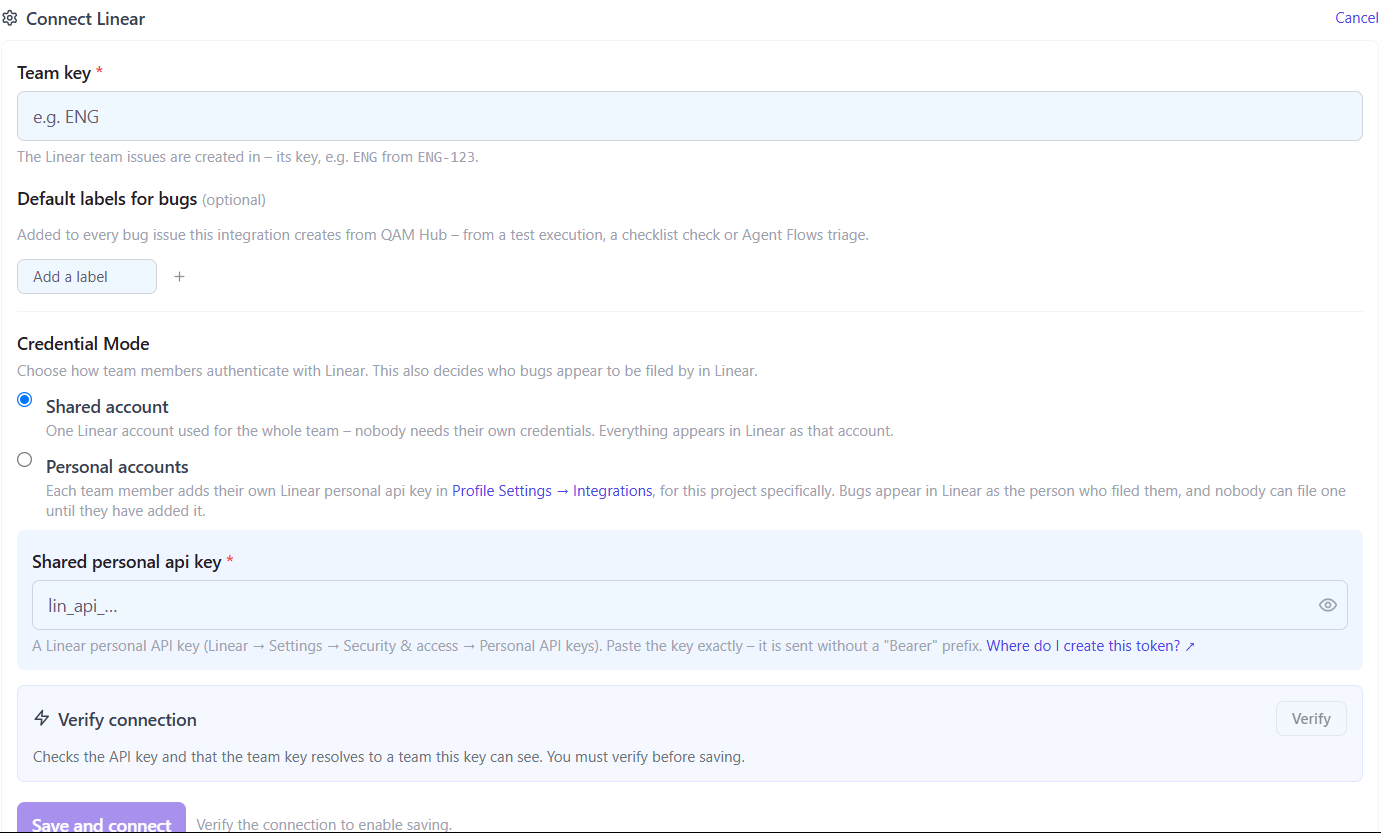
- Click Set up on the Linear card and enter the Team key.
- Optionally add Default labels for bugs, applied to every bug filed from a test execution, a checklist check or an Agent Flows finding.
- Choose Shared account or Personal accounts. For a shared account, paste the key into Shared personal api key; with personal accounts, each member adds their own key in Profile Settings → Integrations.
- Click Verify. It checks the key and that the team key resolves to a team this key can see. Verification is required before saving.
- Click Save and connect.
Filing bugs into Linear#
A bug becomes an issue in the connected team, with a Markdown description, your default labels, its priority mapped to Linear priority, and the screenshots attached. Its status is read back as open, in progress, done or cancelled and shown on the case, in run details and in the Defects report.
Importing issues as requirements (Standard and Advanced)#
On the Requirements page, open Linear sync, filter issues by labels, state and updated date, preview and import them as requirements.
Publishing back to Linear (Standard and Advanced)#
With Publish on, QAM Hub keeps one comment per issue with the requirement link, the covering test cases and where a bug was found, edited in place and removed when the link is removed. It never changes the issue's title, description or status.
Troubleshooting#
- Verify fails on the team. Use the team key, not the team name, and make sure the key's owner is a member of that team.
- Authentication fails with a valid key. Paste the key exactly as Linear shows it, without adding "Bearer".