

Connecting Jira
To connect Jira, a Project Admin opens Project Settings → Integrations, clicks Set up on the Jira card, enters the Jira URL, an Atlassian account email and an API token, and picks the Jira project for new bugs. QAM Hub then reads the issue types, the fields Jira requires, statuses and priorities from Jira itself, so the bug form your testers see asks for exactly what your Jira asks for. Filing and linking bugs works on every plan; pulling Jira issues in as requirements and publishing coverage back to them is on Standard and Advanced. The general behaviour of tracker integrations, shared for all trackers, is in Connecting an Issue Tracker.
What you need#
- Your Jira URL, the address of your Jira site, for example
https://yourcompany.atlassian.net. - An Atlassian account email and an API token for that account. Create the token in your Atlassian account under Account Settings → Security → API tokens. The account needs permission to create issues in the target Jira project.
- A decision on credentials. A shared account files every bug as one Jira user; personal accounts make each tester connect their own token and file as themselves. See Connecting an Issue Tracker for the trade-off.
Step 1. Connect to Jira#
In Project Settings → Integrations, click Set up on the Jira card. Enter the Jira URL, the email and the API token, and click Connect to Jira. The credentials are checked against Jira before anything is saved.
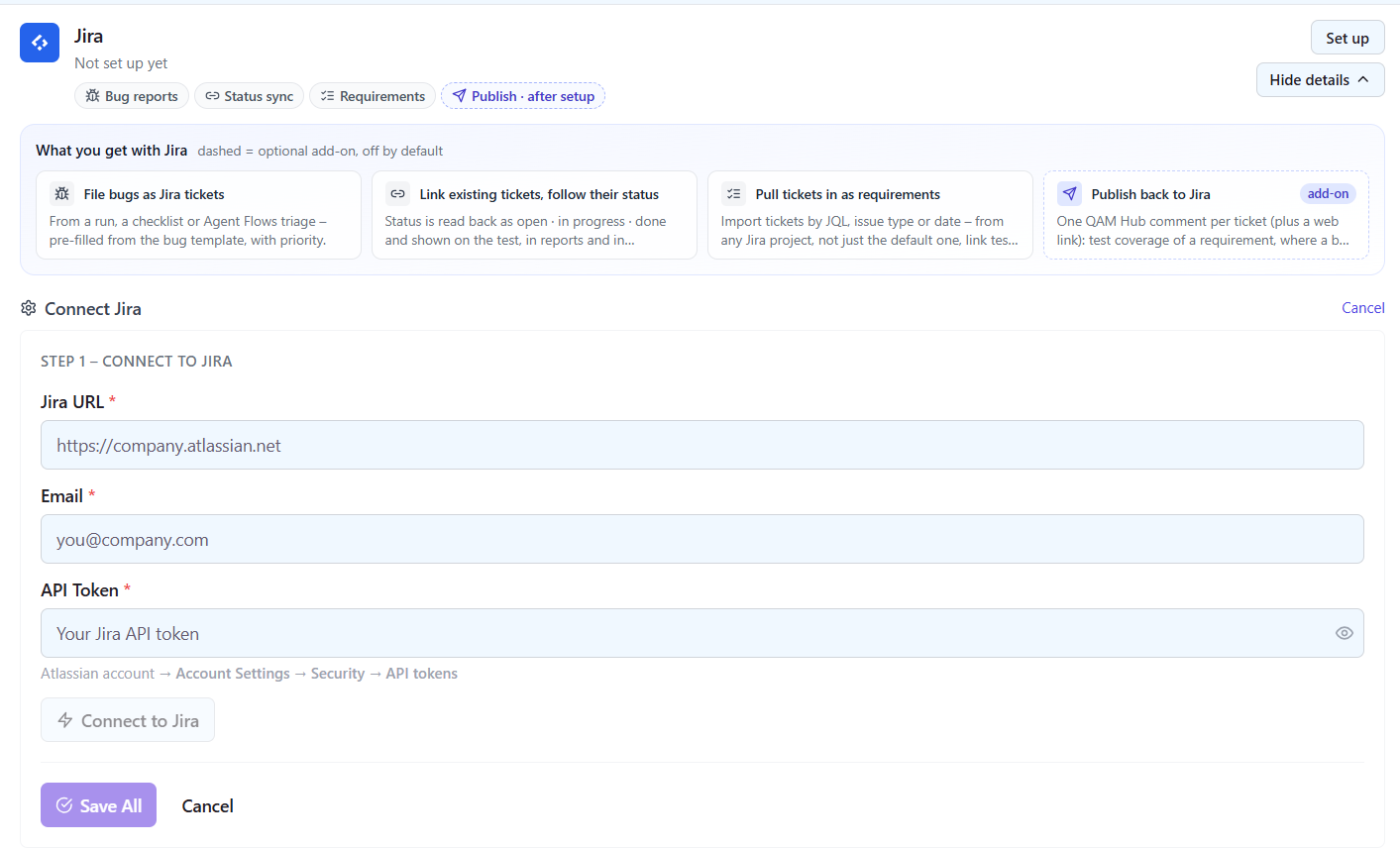
Step 2. Pick the project and review what was read from Jira#
Pick the Jira project bugs should go to. If your account cannot list projects, type the project key instead: the key is the prefix of the issue numbers, PROJ in PROJ-123. This is the default project for bugs filed from test runs and checklists.
Then review what QAM Hub read from Jira: the issue type for bugs, default labels to put on every bug, the fields Jira requires on that issue type, statuses and priorities. Nothing here needs a custom field id or JSON for ordinary fields.
Step 3. Set up extra fields, if your Jira needs them#
A field Jira requires on the issue type is asked on the Report a bug form automatically, with Jira's own values: dropdowns, multi-selects, cascading selects, user pickers, dates and numbers. Changing the issue type on the form reloads that type's required fields.
Under Extra fields on the Jira card, an admin can also pick any field from the create screen and either:
- give it a Fixed value, sent with every ticket and hidden from the form, which suits fields such as a team or a Tempo account that are always the same for this project; or
- mark it Ask when reporting with a pre-filled value the reporter can change.
Plugin fields whose format Jira does not describe, such as Sprint or Epic Link, take a raw JSON value through Advanced.
Step 4. Choose the credential mode and save#
Choose Shared account or Personal accounts and save. With a shared account, team members see "Configured by admin" in their profile and do not need to do anything. With personal accounts, each tester adds their own Jira API token in Profile Settings → Integrations before they can file bugs in this project. The mode is set per project, so one project can use a shared account while another asks for personal ones.
After saving, the card shows the saved connection at a glance: project, issue type, default labels, credential mode and priorities. Edit opens the full form with the saved values, and Verify connection re-checks the credentials at any time.
Filing bugs into Jira#
From a failed test, a checklist cell or an Agent Flows finding, the bug dialog opens pre-filled from your bug template, with the execution's screenshots attached. The Jira fields are read live: issue type, priority, assignee, labels, components and the required fields, each marked "required by Jira" with its real values. The assignee list is whoever Jira allows as an assignee in that project, which follows the project's permission scheme, so if someone is missing from the list, the fix is in Jira, not in QAM Hub. The description arrives in Jira as rich text, with headings, numbered steps, code blocks, tables and links, and screenshots are uploaded as real attachments.
Pulling Jira issues in as requirements (Standard and Advanced)#
On the Requirements page, open Jira sync and pick the Jira project to pull from. It can be any Jira project, not only the default one used for bugs, which matters when stories live in a product project and bugs in a QA or support project. Link the imported requirements to test cases and follow coverage in the Requirement Coverage report.
Publishing coverage back to Jira (Standard and Advanced)#
Publish to Jira is off by default and is switched on from the Jira card while Jira is the active tracker. QAM Hub only adds context to Jira issues you already work with: it never edits an issue's summary, description or status. Three events can be published, each with its own toggle:
- a requirement pulled from Jira gets a link back to it in QAM Hub;
- the list of test cases covering that requirement is kept up to date as cases are linked and unlinked;
- a bug reported or linked from QAM Hub gets a note of where it was found: the test case, the run or the checklist cell.
Two channels carry it, both on by default: a web link in the issue's Links panel, which does not notify watchers, and a single QAM Hub comment per issue, edited in place instead of re-posted. Web links need the "Link Issues" permission and issue linking enabled on the Jira site; when Jira refuses them, the comment still carries everything and the card shows why. Deleting a requirement or unlinking a bug in QAM Hub removes what was published for it, so Jira does not keep links to things that no longer exist.
Troubleshooting#
- Your project is not in the list. The account cannot list it. Type the project key instead.
- Create stays disabled on the bug form. A field Jira requires is still empty. Fill it, or give it a fixed value under Extra fields if it is always the same.
- Web links are not added. Issue linking is off on the Jira site, or the account lacks "Link Issues". The comment still works.
- "Credentials rejected by the tracker". The API token expired or was revoked. Save a new one on the card or in your profile.