

Connecting Trello
To connect Trello, a Project Admin opens Project Settings → Integrations, clicks Set up on the Trello card, enters the board, a Trello API key and a member token, picks the list where new bugs should land, verifies and saves. Bugs filed from QAM Hub become cards at the top of that list, and QAM Hub treats a card as done when it is archived, marked due complete, or sits in a list named like Done. On the Standard and Advanced plans, cards can also come in as requirements. How tracker integrations work in general is in Connecting an Issue Tracker.
What you need#
- The board: its URL or id.
- A Trello API key, from the Trello Power-Up admin portal, where you create a Power-Up for your workspace and generate the key.
- A member token for the account that will create cards, generated from the same page after the key. Trello needs both: the key identifies the app, the token the user.
Step 1. Connect#
- Click Set up on the Trello card and enter the board URL or id.
- Choose Shared account or Personal accounts, and for a shared account enter the API key and the token.
- Click Verify. Besides checking access, it loads the board's lists.
- Pick the List for new bugs. If you leave it empty, the first list on the board is used.
- Optionally add Default labels for bugs. Labels are matched by name on the board; missing ones are created without a colour.
- Click Save and connect.
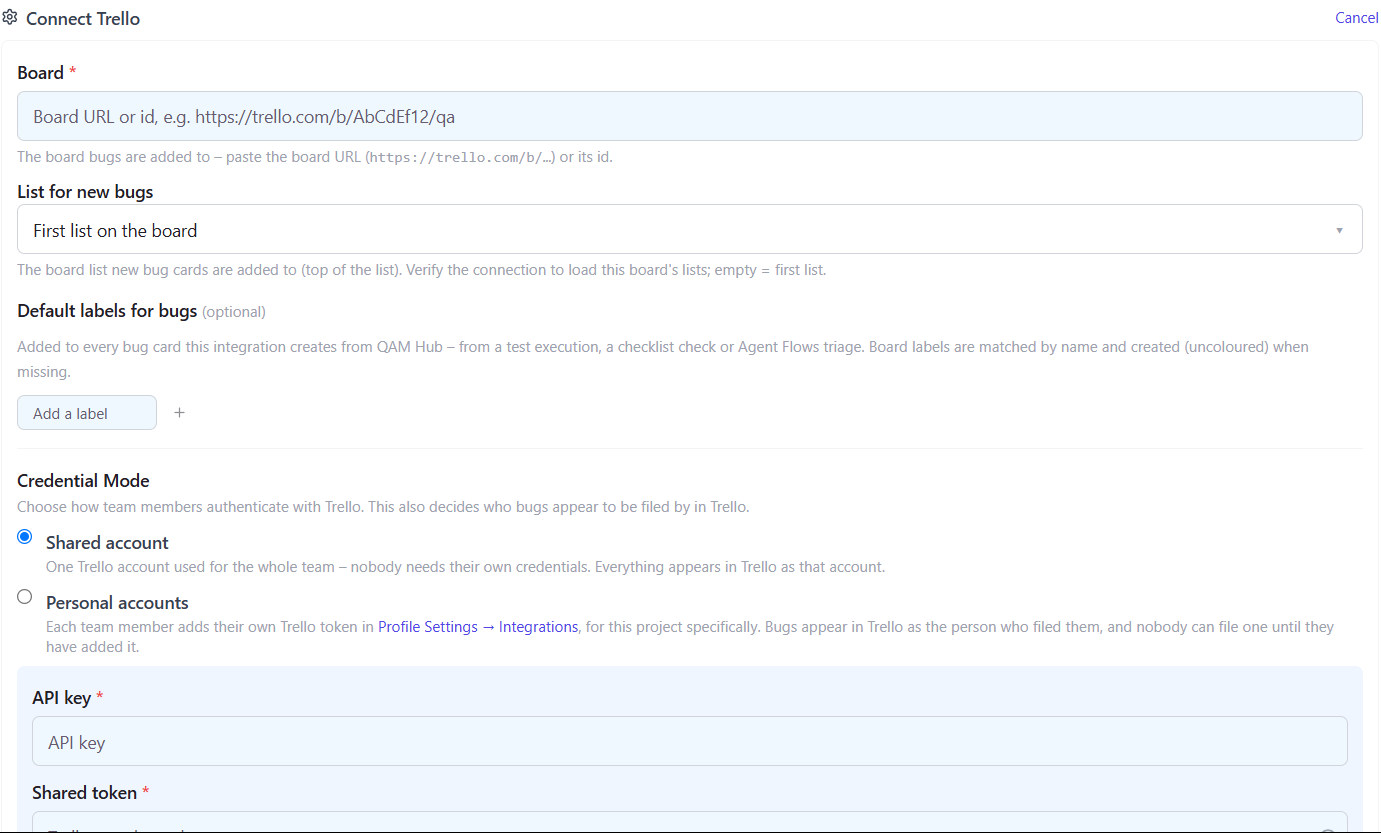
Filing bugs into Trello#
A bug becomes a card at the top of the chosen list, with a Markdown description, your default labels and the screenshots attached. Trello has no priority field, so the priority selector is not shown on the bug form for Trello.
How QAM Hub decides a card is done matters for the Defects report. A card counts as done when it is archived, when its due date is marked complete, or when it is in a list named Done, Complete, Finished, Closed, Released or Shipped. Any other card counts as open. If your board uses a different name for its final column, say "Verified", either rename it or archive cards when they are finished.
Importing cards as requirements (Standard and Advanced)#
On the Requirements page, open Trello sync, filter cards by labels, state and last activity, preview and import them as requirements. This fits small teams that plan features on a Trello board and want to see which of them have tests.
Publishing back to Trello (Standard and Advanced)#
With Publish on, QAM Hub keeps one Markdown comment per card with the requirement link, the covering test cases and where a bug was found, edited in place and removed when the link is removed. It never moves, renames or archives a card.
Troubleshooting#
- Verify fails with a valid key. The token is missing or was generated for a different key. Generate the token from the same Power-Up as the key.
- Fixed bugs still show as open. The card sits in a final list whose name QAM Hub does not recognize as done. See the list names above.
- The list picker is empty. Run Verify first; it loads the lists from the board.