

Uploading Playwright Reports
There are two ways to get your Playwright results into QAM Hub: upload the Playwright JSON report manually in the UI, or push results automatically from CI using the official reporter. This guide covers both — start with manual upload to try it, then move to the reporter for continuous integration.
Before you start#
- You need a project in QAM Hub. If you don't have one, see creating your organization and first project.
- To link automated results to manual cases, prefix your test titles with
TC-<number>(covered at the end of this guide).
Option 1 — Upload the JSON report manually#
Step 1 — generate the Playwright JSON report#
Run your tests with Playwright's JSON reporter:
npx playwright test --reporter=json > results.jsonThis produces a results.json file containing your run.
Step 2 — upload it to QAM Hub#
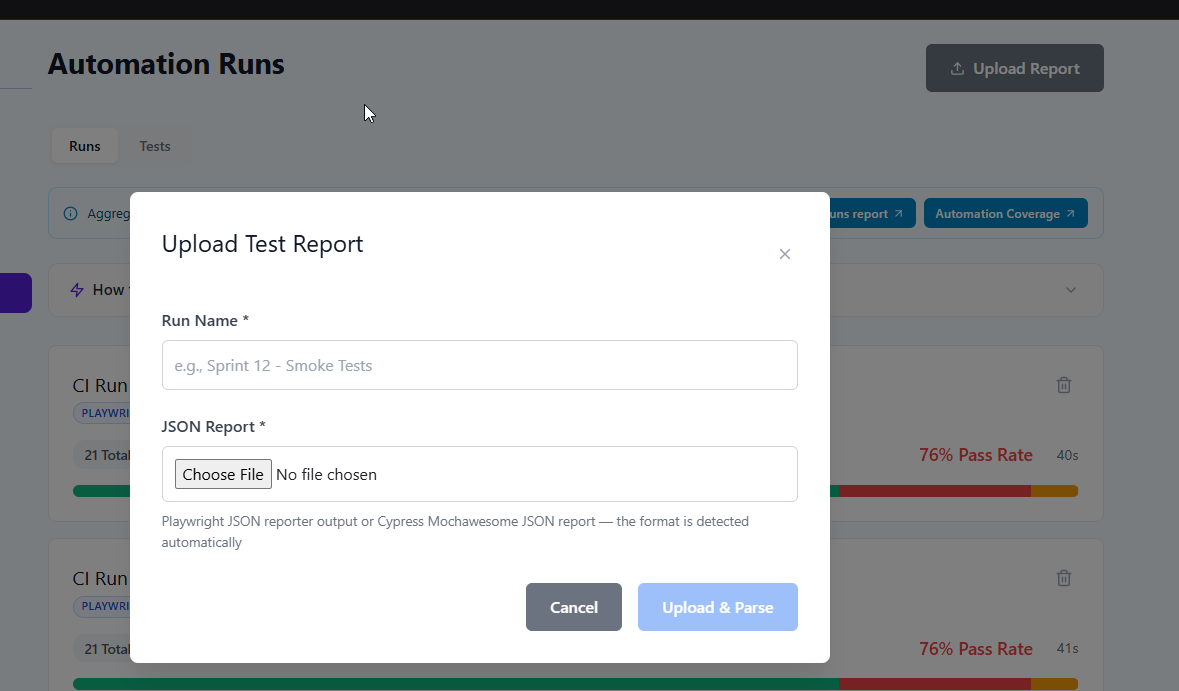
- Open your project and go to the Automation section.
- Drag and drop your
results.jsonfile into the upload area (or use the file picker). - QAM Hub detects the framework automatically — there's no separate setting for Playwright versus Cypress — and parses the report into a run.
Option 2 — push automatically from CI (recommended)#
For continuous integration, the official reporter submits results automatically when a run finishes, so there's no manual upload step. Install it (Playwright 1.30+ required):
npm i -D @qamadness/qam-playwright-reporterAdd it to the reporter array in playwright.config.ts, alongside the built-in json reporter it reads from:
import { defineConfig } from '@playwright/test';

export default defineConfig({
  reporter: [
    ['json', { outputFile: 'test-results/report.json' }],
    ['@qamadness/qam-playwright-reporter', {
      apiUrl: process.env.QAM_API_URL,
      projectId: process.env.QAM_PROJECT_ID,
      runName: `CI Run ${process.env.CI_BUILD_NUMBER ?? new Date().toISOString()}`,
      // apiToken is read from QAM_API_TOKEN by default
    }],
  ],
});
Generate an API token in QAM Hub under Profile → API Tokens, store it as the QAM_API_TOKEN environment variable (a CI secret), and find your project UUID on the Automation Runs page. For a fuller walkthrough, see the guide on test management for Playwright.
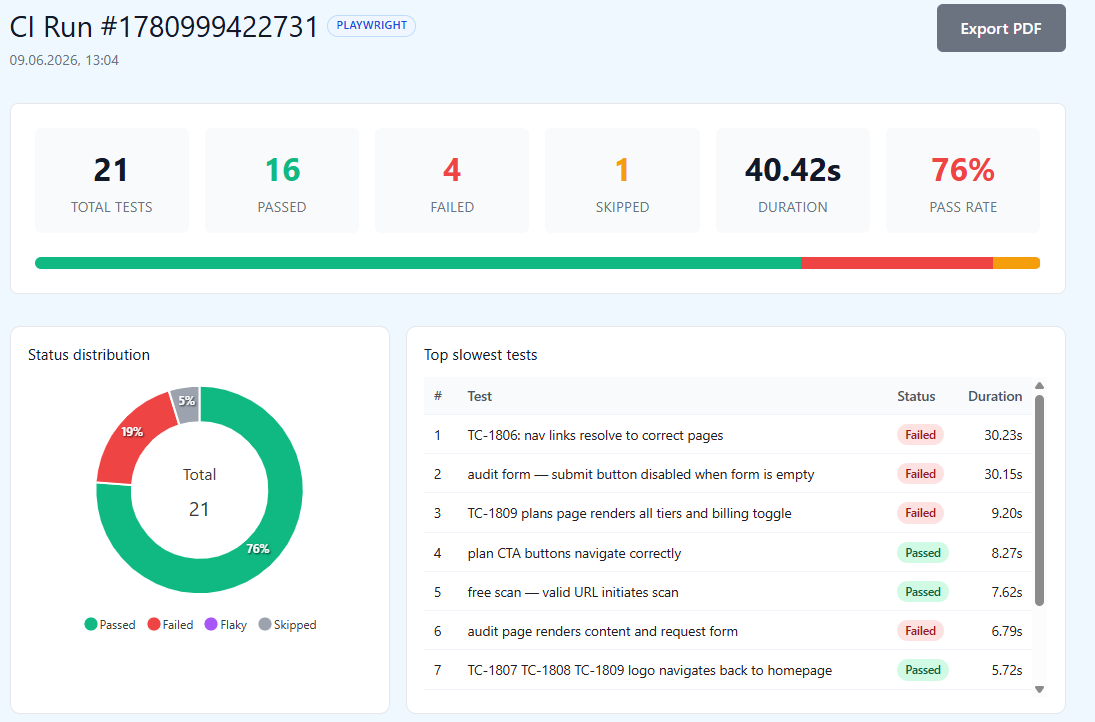
What you'll see after a run is in#
- Run summary — pass / fail / skipped / flaky counts and total duration.
- Per-test detail — each test with its status, error message and stack trace, retries, and a screenshot of the failure point.
- CI context (optional) — branch, commit, environment, and build URL, if your pipeline passed them with the report. A manual UI upload won't include these.
Linking results to manual test cases#
To connect an automated result to a manual case, prefix the test title with TC-<number>, matching the case number in QAM Hub:
test('TC-42: user can log in', async ({ page }) => {
  // ...
});
QAM Hub then links the run result to that manual case, so you can trace from the case to its automated execution history.