

Connecting Asana
To connect Asana, a Project Admin opens Project Settings → Integrations, clicks Set up on the Asana card, enters the Asana project ID or URL and a personal access token, verifies and saves. Bugs filed from QAM Hub become tasks in that Asana project, with tags and any custom fields you preset, and their state is read back as open or done. On the Standard and Advanced plans, Asana tasks can also come in as requirements. How tracker integrations work in general is in Connecting an Issue Tracker.
What you need#
- The Asana project: paste the project URL from the browser, or the numeric project ID (the long number in that URL).
- An Asana personal access token, created in Asana under My settings → Apps → Developer apps.
- Membership. The user who owns the token must be a member of the Asana project, otherwise tasks cannot be created there.
Step 1. Connect#
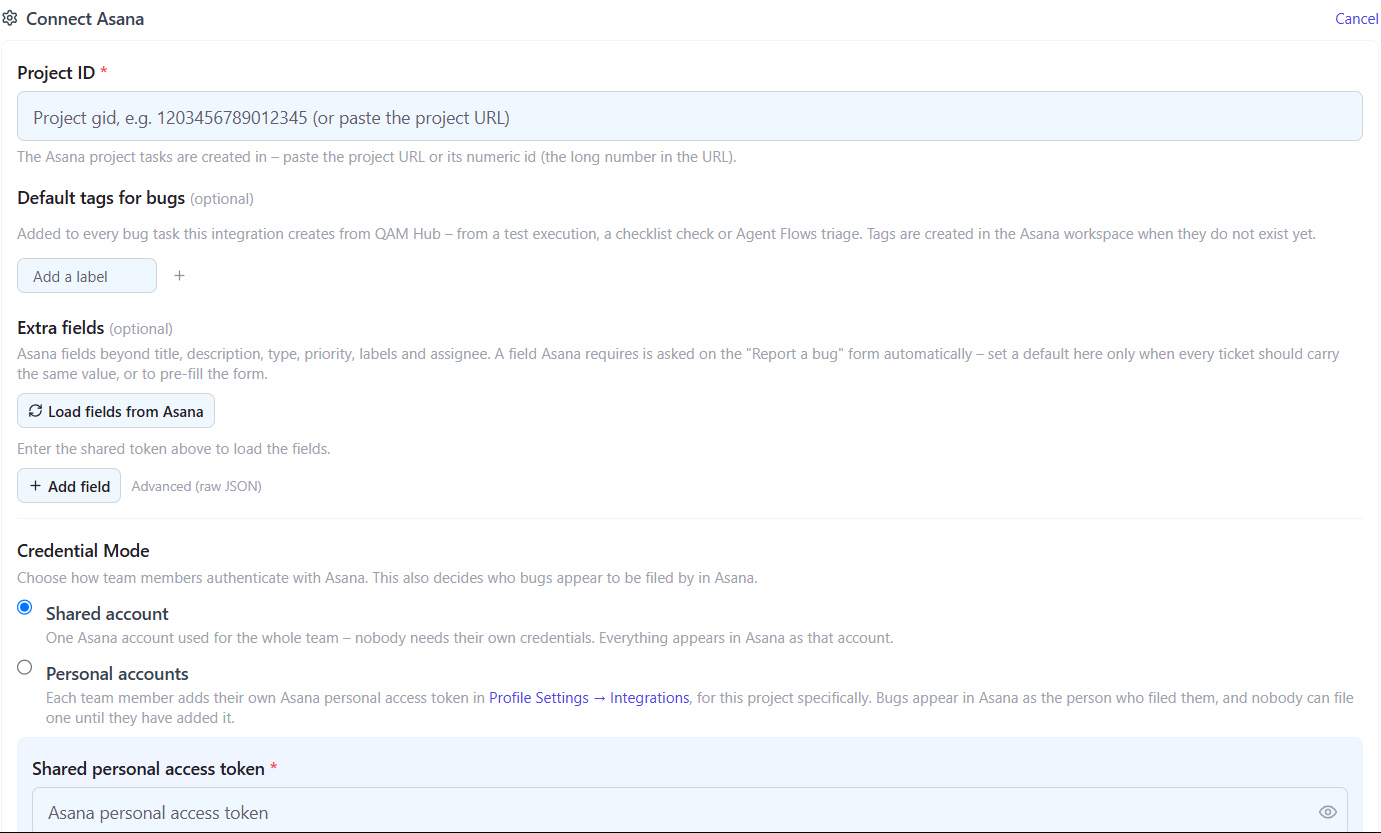
- Click Set up on the Asana card and enter the project ID or URL.
- Optionally add Default tags for bugs. Tags that do not exist in the workspace yet are created when the first bug is filed.
- Choose Shared account or Personal accounts. With a shared account, paste the token here; with personal accounts, each member adds their own in Profile Settings → Integrations, and tasks are created as them.
- Click Verify, then Save and connect.
Step 2. Preset custom fields (optional)#
Asana custom fields defined on the project, such as a severity, a component or a sprint field, can be set under Extra fields, either as a fixed value on every task or as a pre-filled value the reporter can change on the bug form.
Filing bugs into Asana#
A bug becomes a task in the connected project, with the description as rich text, your default tags, the preset custom fields and the screenshots attached. Asana has no built-in priority field, so if your team ranks bugs, add a priority custom field to the Asana project and set it through Extra fields. The task's state is read back as open or done and shown on the case, in run details and in the Defects report.
Importing tasks as requirements (Standard and Advanced)#
On the Requirements page, open Asana sync, filter tasks by tags, state and modified date, preview and import them as requirements. Teams that keep user stories in an Asana project can then link test cases to them and follow coverage in the Requirement Coverage report.
Publishing back to Asana (Standard and Advanced)#
With Publish on, QAM Hub keeps one comment per task with the requirement link, the covering test cases and where a bug was found, edited in place and removed when the link is removed. It never changes the task's name, description or completion.
Troubleshooting#
- Verify passes but task creation fails. The token's owner is not a member of the Asana project. Add them to the project in Asana.
- Project not found. Paste the project URL rather than the board or list view URL of a different object, or copy the numeric ID from the URL.