

Creating and Running Checklists
A checklist in QAM Hub is a suite of short checks, each a title with an optional note and no steps or expected result. You run it as a table with one column per pass: a browser, a device, an environment or a tester. Checklists suit the work where writing a full test case costs more than it returns: release sign-off, a daily smoke pass across platforms, an exploratory session's charter, a pre-release configuration review. They live next to your test cases, count in the same dashboards and reports, and can be filed as bugs into your tracker. Checklists are available on every plan.
Checks or test cases?#
Use a test case when a reader needs the exact steps and the expected result to repeat the test, and when you want execution history per case over many releases. Use a check when the item is a statement someone can confirm in seconds, such as "Rollback plan has been verified" or "Checkout works on Safari", and when the value is in covering many of them quickly across several columns. Most teams end up with both: test cases for regression, checklists for release gates and cross-platform smoke.
Step 1. Create a checklist suite#
Open Suites and click New Suite. Name the suite, choose the Checklist type and click Create.
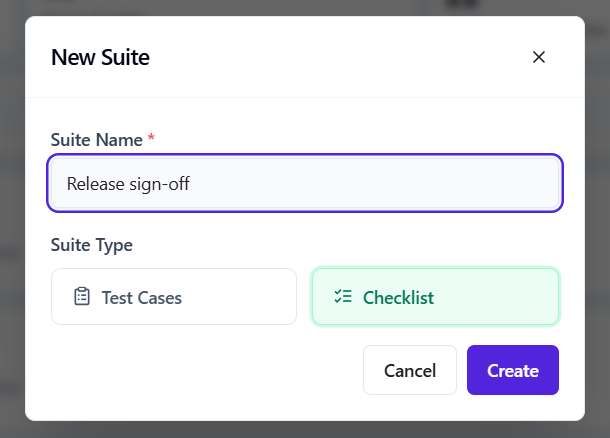
If the Checklist type is not offered, the Checklists module is switched off in the project. A Project Admin can switch it back on in Project Settings → General; nothing is deleted while it is off.
Step 2. Add checks and groups#
There are several ways to fill a suite, and they suit different moments:
- Add Check opens a dialog with a title, tags and an optional Details note for preconditions, test data or what exactly to look at. Use Add & Next, or press Enter, to keep adding without reopening it.
- Add a check… at the bottom of any group adds checks inline, one per Enter.
- Bulk Add, or the bulk-add icon on a group header, takes a pasted list, one check per line.
- Import / Export takes a CSV with the columns Group, Check, Tags and Note. Only Check is required, Group can use
>for sub-groups such asAuth > Login, and Tags is a semicolon-separated list. Download template gives you the exact file to fill in. - Generate drafts checks with AI from a description, for you to review before they are added.
Group related checks with Add Group; groups can nest. Drag a check, group or sub-group by its handle to reorder it or move it into another group. Moving checks does not break existing runs: they keep their results and re-group automatically.
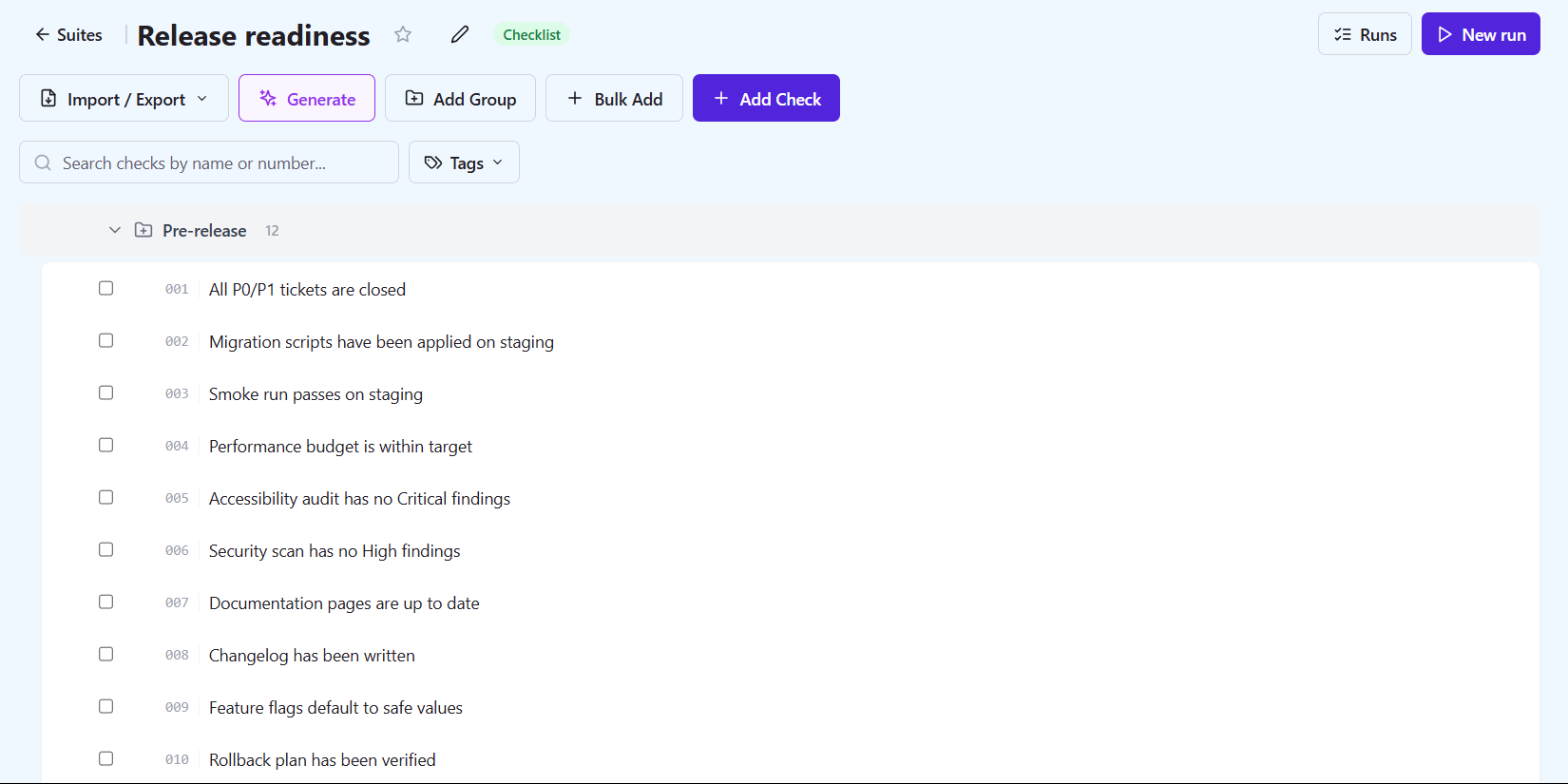
Every check gets a number that is never reused, the same way test case numbers work, so a reference to a check in a ticket or a report keeps pointing at the same item.
Step 3. Start a checklist run#
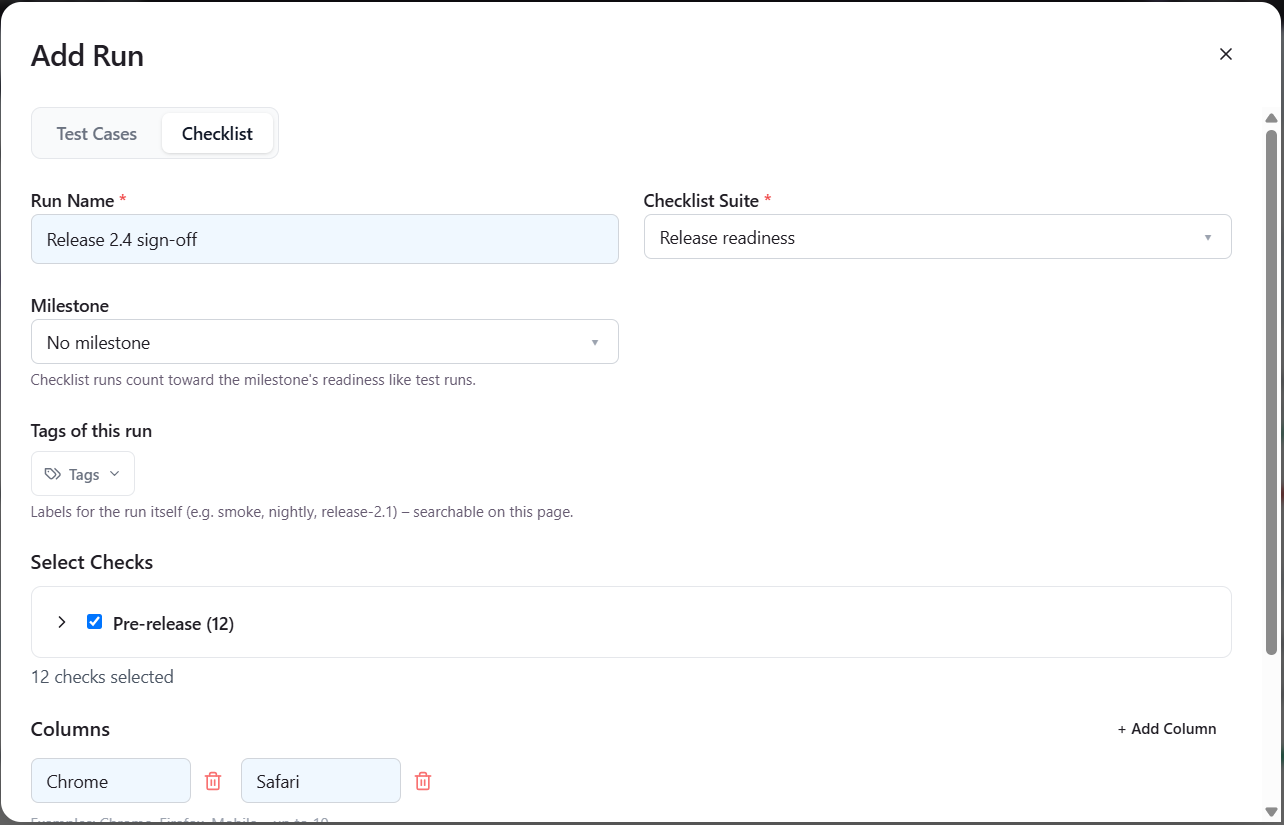
Click New run in the suite header, or Add Run on the Runs page and switch to the Checklist tab. Then:
- Name the run and pick the checklist suite.
- Optionally pick a milestone. The run then appears on the milestone page under Checklist runs and is found by the milestone filter on the Runs page.
- Choose which checks to include. The whole suite is selected by default.
- Define the Columns, up to 10. Each column is a separate pass with its own progress bar, for example Chrome, Firefox, Safari and Edge, or iOS and Android, or one column per tester.
- Tick Automatically add new checks to this run if the checklist will keep growing during the release; checks added to the suite later are appended to the run.
Checklist runs live on the same Runs page as test runs. The type badge and the Type filter tell them apart.
Step 4. Record results#
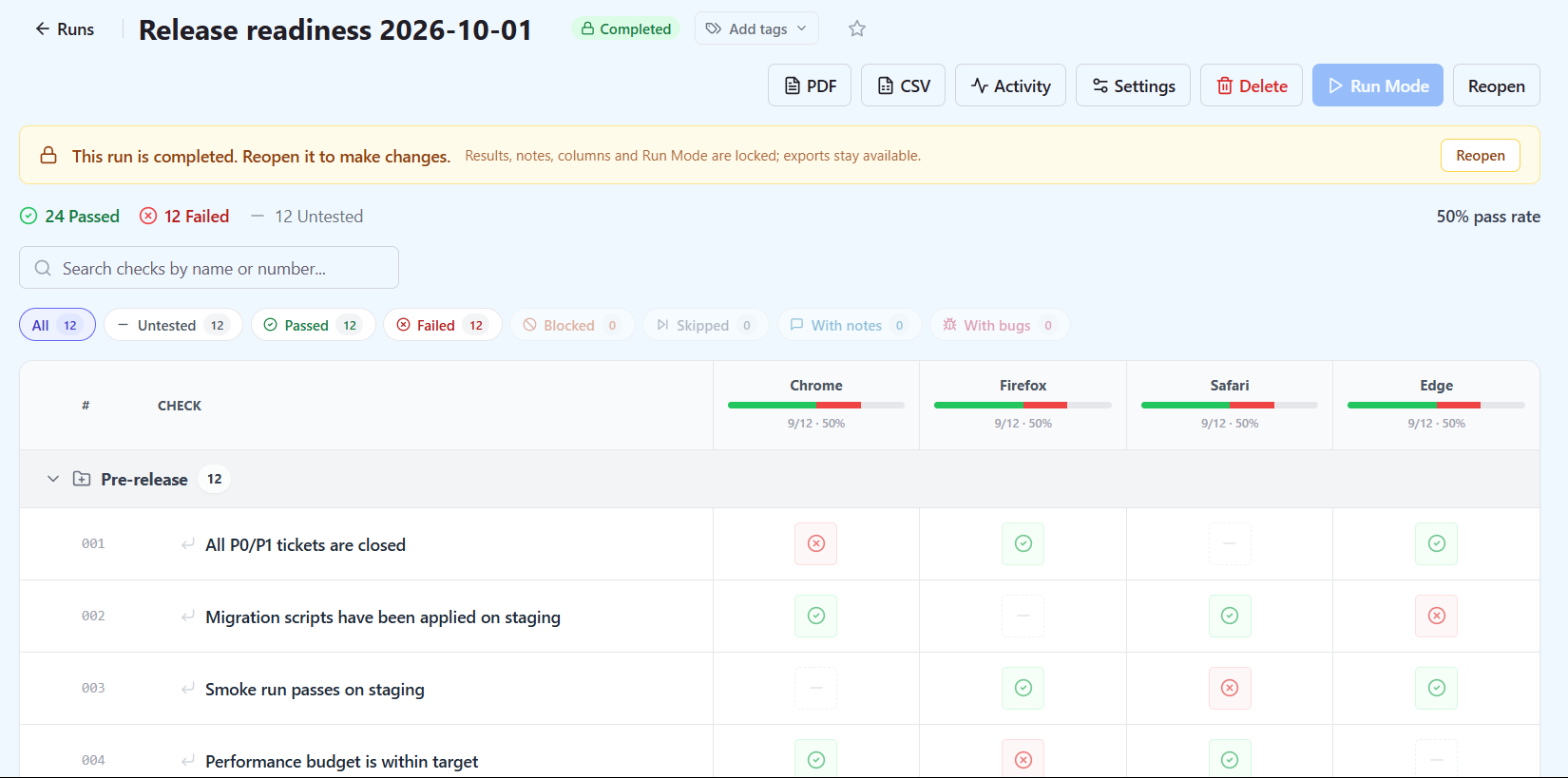
The run is a table: checks in rows, your columns across. Click any cell, then use the keyboard:
| Key | Result |
|---|---|
| P | Passed |
| F | Failed |
| B | Blocked |
| S | Skipped |
| 0 or Backspace | Clears the cell |
| Arrow keys | Move between cells |
After you set a status, focus moves to the next check in the column, so a whole pass can be recorded without touching the mouse. To mark everything that is left, open the column header menu and set every visible or selected check in that column to one status, which is handy for "everything else passed" at the end of a pass.
Open a column's settings, the gear icon on hover, to give it a tester, an environment label and an optional tag filter. With a tag filter set, checks without a matching tag are greyed out as out of scope for that column and excluded from its progress. That is how one checklist serves, for example, a desktop column and a mobile column with different items.
Step 5. File bugs from a failed check#
Mark a cell Failed and you can create an issue in the connected tracker, link an existing one, or type an issue ID by hand. A cell can hold several bugs; they show as status-coloured badges in the run and in Run Mode. The bug description is built from the project's checklist template, with the check, its note, the column and the run. Setting up the tracker is covered in Connecting an Issue Tracker.
Step 6. Complete the run#
Mark the run Done when the pass is over. A completed run is locked: results, notes and columns cannot change until someone reopens it from the run header, and checks that belong to a completed run cannot be deleted from the suite. Exports stay available: the run page exports to PDF and CSV.
Where checklist results show up#
- Dashboard and Suites page. Checks are counted separately from test cases.
- Milestones. A checklist run linked to a milestone counts toward it like a test run.
- Organization reports. The Include checklists toggle adds checklist results to the execution summary, test base growth, milestones and team activity, where "Checks set" counts the checklist results each person recorded.
Tips for checklists that stay useful#
- Write each check as a statement that is either true or false: "Changelog has been written", not "Changelog".
- Keep the note for what someone new would need: where to look, which account to use, what counts as done.
- Tag checks by platform or area, then use column tag filters instead of keeping near-duplicate checklists for each platform.
- When a check keeps failing in the same way and needs exact steps to reproduce, promote it to a test case.
Frequently asked questions#
How many columns can a checklist run have?#
Up to 10. Each one is a separate pass with its own progress bar, tester and environment label.
Can I reuse checks in another checklist?#
Yes. Select checks or whole groups and use Copy to suite… in the selection bar. Groups are recreated by name in the target suite, tags come along, each copy gets its own number, and the originals stay where they are. Move to suite moves them instead, keeping their numbers.
Which plan includes checklists?#
Every plan, including Start.