

Signing Up and Starting Your Trial
Signing up takes one form and one email confirmation. There is no plan to choose and no card to enter: every new workspace starts on a 30-day free trial of the Advanced plan with every feature switched on, and you pick the plan you continue on from the Billing page at the end of the trial. The person who signs up becomes the workspace Owner.
Before you start#
- Use a work email address. It becomes your sign-in identity and the address every workspace notification goes to.
- One mailbox equals one trial. Address aliases collapse to the mailbox they reach, so
[email protected]does not create a second trial. - Have your organization name ready. It becomes your workspace name and part of its URL, and your team will see it every day.
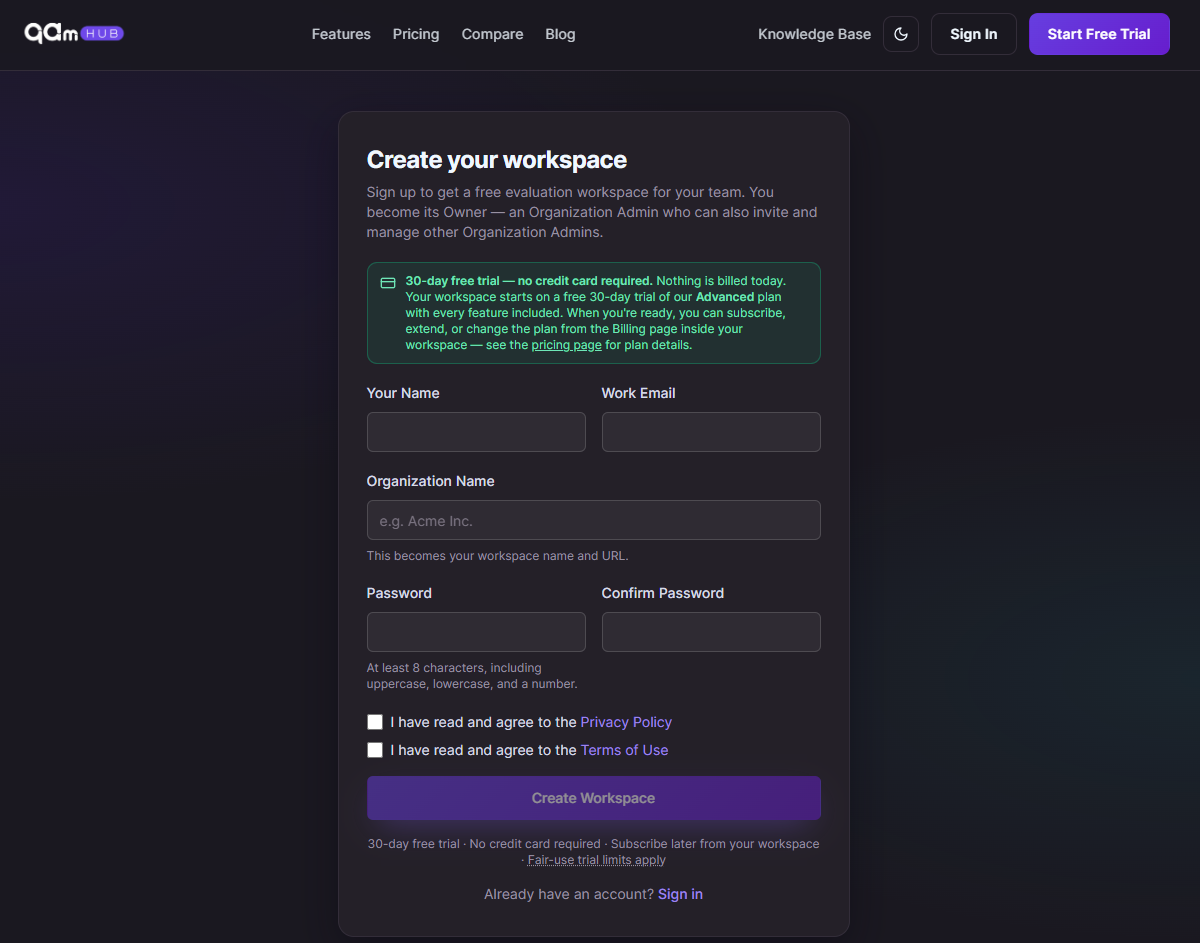
Step 1. Fill in the sign-up form#
- Your Name as your team will see it on runs and comments.
- Work Email. This is your sign-in address.
- Organization Name. This becomes your workspace name and URL.
- Password and Confirm Password. At least 8 characters, including an uppercase letter, a lowercase letter and a number.
That is the whole form. Nothing is billed today, and you are not asked to compare plans before you have seen the product.
Step 2. Confirm your email within 24 hours#
Nothing is created until you confirm. Open the confirmation link within 24 hours. If it has not arrived, check your spam folder and use the resend button on the confirmation screen.
One thing worth knowing about that screen: it says a link is on its way if the address is not already registered. The wording is deliberate. Sign-up answers identically whether or not an address has an account, so nobody can use the form to find out who has a workspace. If you already have one, no new link is sent and you should sign in instead.
Step 3. Choose how to fill your first workspace#
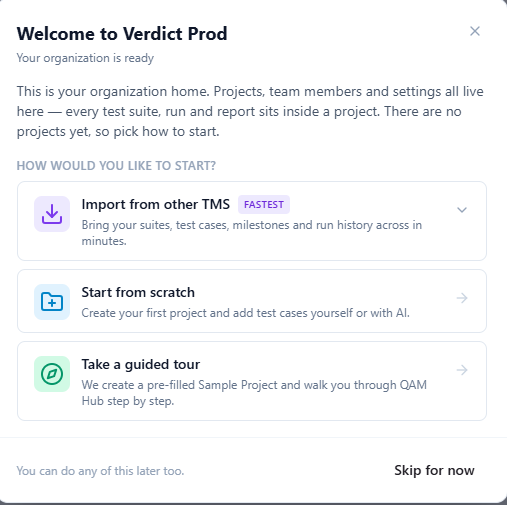
Confirming the link creates your organization and signs you in as its Owner, an Organization Admin who can also invite and manage other Organization Admins. A workspace has no projects yet, and every suite, run and report lives inside a project, so the first screen asks how you want to start:
- Import from other TMS. Bring your suites, cases, milestones and run history across. TestRail is supported today; Zephyr Scale, Xray for Jira, qTest and TestLink are marked as coming. See Importing from TestRail.
- Start from scratch. Create your first project and add test cases yourself or with AI. See Creating Your Organization and First Project.
- Take a guided tour. QAM Hub creates a pre-filled Sample Project and walks you through the product step by step. See Exploring the Sample Project.
You can do any of this later. The choices stay available on the Organization Home page after you dismiss the popup.
If you are evaluating rather than migrating, start with the tour. A test management system looks the same as every other one until there is history behind the screens, and the Sample Project is the fastest way to see a dashboard, a checklist run and an automation result with real data in them.
What the trial includes#
The trial runs on Advanced, so everything is switched on: test management, checklists, requirements and milestones, automation report import, the AI features, every report, and the Advanced-only capabilities such as release readiness analysis, quality and coverage analytics, organization audit logs, Google SSO and organization-wide 2FA enforcement.
Users, projects, storage, test cases and AI usage are capped for the trial so a trial workspace cannot be used as free hosting. Those caps lift when you subscribe, and the Billing page shows the current ones against your usage.
AI is included rather than sold separately. There are no credits to buy and no per-run charges: the allowance is sized so a working QA team does not run into it, it grows with the number of seats, and unusually heavy or automated use may be paused until the next month.
A countdown sits at the top of every page for the whole trial. It turns amber in the last week, and in that week only the Owner can act on it.
Inviting your team during the trial#
Invite people from Organization Settings. Two things matter for what you pay later. First, the organization role decides billing: Organization Admins and Members take a paid seat, while Viewers, the organization-level read-only role, take a free viewer seat, one free viewer per paid seat. Second, a Viewer can never hold write access on any project, which is what makes the free seat safe to hand to stakeholders and developers who only read results.
Details in Inviting and Managing Users and Understanding Roles and Permissions.
Choosing a plan at the end of the trial#
The plan decision belongs to the Owner and happens on the Billing page in Organization Settings, where the plan cards, your seat counts, your storage and your AI usage for the period are all on one screen. From there the Owner can subscribe, change the plan, or request an extension.
Two plans, both per seat: Standard covers test suites and cases, checklists, runs, requirements and milestones, automation results from Playwright, Cypress, WebdriverIO, Selenium and JUnit XML, issue creation and two-way sync with Jira, GitHub, GitLab, Linear, Asana, Redmine and Trello, AI generation and bug analysis, and every report you can build, save, pin and export. Advanced adds release readiness analysis, quality and coverage analytics, the knowledge base for AI context, scheduled email delivery of reports, organization audit logs, Google SSO, organization-wide 2FA enforcement and priority support.
Because the trial runs on Advanced, moving to Standard is the change worth thinking about before the trial ends. Ask which Advanced features your team actually used in the past month, and check the Billing page for seats and storage rather than guessing. Nothing disappears silently either way: a capability your plan does not include stays visible with an Upgrade badge and a link to the plans, so you can see what you gave up instead of wondering where a screen went.
Payment is handled by Stripe, so no card details reach QAM Hub. After the first checkout, payment method, invoices, plan and interval changes and cancellation all live behind Manage billing.
What happens when the trial ends#
Nothing is deleted. The workspace keeps every project, test case, run and attachment. What stops is use: the workspace locks until a plan is paid for, and the banner explains that to every member. Subscribing unlocks it immediately with everything still in place.
Frequently asked questions#
Do I need a credit card to start the trial?#
No. The trial runs for 30 days with no card. You add a payment method only when you decide to subscribe.
Which plan am I on during the trial?#
Advanced, with every feature included. You choose the plan you continue on at the end of the trial, from the Billing page.
Is my data deleted if I do not subscribe?#
No. The workspace is locked, not emptied. Subscribing unlocks it with everything still in place.
Who becomes the Owner of the workspace?#
The person who signs up. The Owner is an Organization Admin with two extra rights: managing billing, and inviting or removing other Organization Admins.
What if a colleague already created a workspace for our company?#
Ask them to invite you rather than signing up again. A second sign-up creates a second, separate workspace that shares nothing with the first.
Can I extend the trial?#
The Owner can request an extension from the trial banner or the Billing page.