

Connecting an Issue Tracker
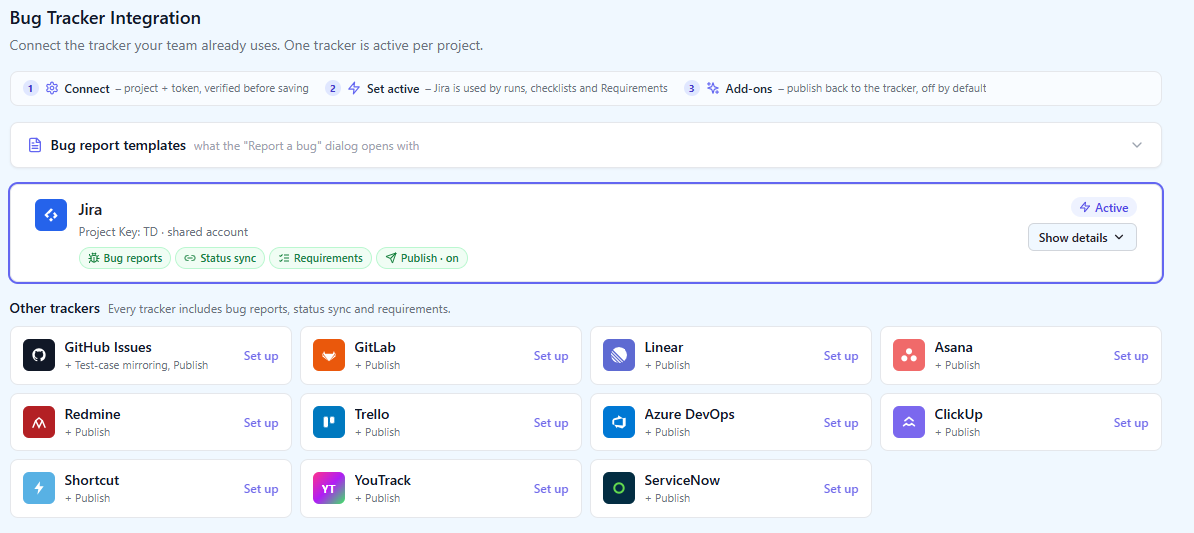
Each QAM Hub project connects to one issue tracker: Jira, GitHub Issues, GitLab, Linear, Asana, Redmine or Trello. Once it is connected, anyone executing a test run or a checklist can file a bug straight into that tracker, pre-filled with the steps, the expected and actual result and the screenshots, or link a ticket that already exists, and then follow its status from QAM Hub. On the Standard and Advanced plans the connection also brings tickets in as requirements and can publish coverage back onto them. A Project Admin sets it up in Project Settings → Integrations. This page explains how the integration works for every tracker; the setup steps for each one are on its own page.
Setup guide for your tracker#
| Tracker | What you connect | Guide |
|---|---|---|
| Jira | Jira URL, Atlassian account email and API token, a Jira project | Connecting Jira |
| GitHub Issues | A personal access token and one repository | Connecting GitHub Issues |
| GitLab | An access token with the api scope and a project, on GitLab.com or self-hosted | Connecting GitLab |
| Linear | A personal API key and a team key | Connecting Linear |
| Asana | A personal access token and a project ID | Connecting Asana |
| Redmine | Your instance URL, an API access key and a project identifier | Connecting Redmine |
| Trello | An API key, a member token and a board | Connecting Trello |
What each plan includes#
| Capability | Start | Standard and Advanced |
|---|---|---|
| File a bug from a failed test, a checklist cell or an Agent Flows finding | Yes | Yes |
| Link existing tickets to an execution and see them, with their status, on cases, runs and reports | Yes | Yes |
| Pull tickets in as requirements | No | Yes |
| Publish back to the tracker: one QAM Hub comment per ticket with coverage and where a bug was found | No | Yes, optional, off by default |
The full plan comparison is in Plans, Seats and What Each Plan Includes.
Three things to decide before connecting#
Which tracker a project uses#
One tracker is active per project, and the first one you set up is activated for you. Different projects in the same organization can use different trackers, which is how teams with a mixed toolchain usually handle it: the web project files into Jira, the mobile team's project into Linear.
Shared account or personal accounts#
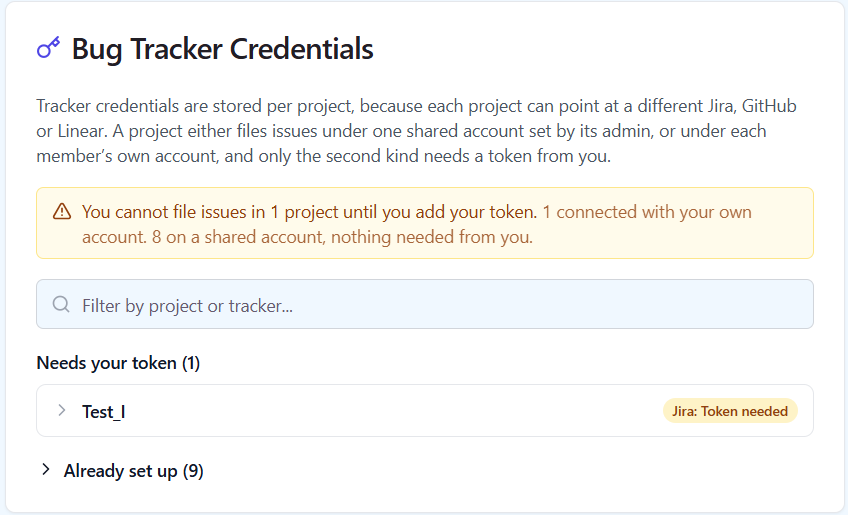
With a Shared account, one tracker account files bugs for the whole team; the admin enters its token once and nobody else configures anything. With Personal accounts, every member adds their own token in Profile Settings → Integrations, and tickets are authored by the person who found the bug. Shared is quicker to roll out; personal keeps the tracker's own history honest about who reported what. With a shared account, the bug description still names the QAM Hub user who reported it.
The choice is made per project, and so are personal tokens: a project pointing at a different Jira site or GitHub organization needs its own token. Profile Settings → Integrations lists every project with a tracker and shows which of them still need a token from you.
Who does it#
A Project Admin, or an Organization Admin, who is a Project Admin in every project. Everyone else sees the Integrations page read-only.
Bug report templates#
The Bug report templates card at the top of the Integrations tab decides what the bug dialog opens with. There are two tabs, because the facts differ: Test cases (steps, expected result, actual result, run) and Checklists (check, note, column, cell comment, run). For each, choose an empty description, the built-in default or your own template with variables for the case, the run, the reporter and the project, including custom fields. Templates are Markdown, and the formatting arrives native in every tracker: rich text in Jira and Asana, Markdown in GitHub, GitLab, Linear, Redmine and Trello. The Preview tab renders the template with sample data before you save it.
Filing and linking bugs#
- From a test execution. When a status asks for a comment, Save and continue in <tracker> saves the result and opens the bug dialog with the comment already in the description. On a run row, the bug icon offers Report a new bug or Link an existing ticket.
- From several cases at once. Select them and use Bug in the bulk toolbar: a new ticket is created once and attached to every selected case, with the other cases listed in its description. Up to 200 cases per action.
- From a checklist. Mark a cell Failed and create an issue, link one, or type an issue ID by hand. A cell can hold several bugs. See Creating and Running Checklists.
The bug dialog reads the tracker's own fields live: issue type, priority, assignee, labels and every field the tracker requires, marked as required with its real values. The execution's screenshots are attached for you. Remember these choices keeps your field values for the next bug in the same project. Linked tickets appear with their current status on the case, in run details and in the Defects report, and they stay visible even if the tracker is later disconnected.
Requirements and Publish (Standard and Advanced)#
On the Requirements page, sync tickets from the connected tracker as requirements, using the filters that tracker supports, then link them to test cases and track coverage in the Requirement Coverage report. Why this matters for release decisions is covered in Requirements Traceability Matrix.
Publish is an add-on on the tracker card, off until an admin turns it on. QAM Hub then keeps one comment per ticket, edited in place rather than re-posted, with the link to the requirement, the test cases that cover it and where a bug was found. It never edits a ticket's summary, description or status, and it removes what it published when the link is removed in QAM Hub.
Troubleshooting that applies to every tracker#
- "Credentials rejected by the tracker". The stored token has expired or been revoked. Save a new one on the card, or in Profile Settings → Integrations for a personal token. Linked tickets keep their last known status until then.
- Create and Link are disabled in the bug dialog. The project uses personal accounts and you have not connected yours. The dialog links straight to the right row in Profile Settings → Integrations.
- No bug actions in runs. The integration is not set to Active. A Project Admin switches it on by clicking the badge on the card.
- A field or file the tracker refused. The ticket is still created without it, and a message says what was left out.