

Connecting GitHub Issues
To connect GitHub Issues, a Project Admin opens Project Settings → Integrations, clicks Set up on the GitHub Issues card, enters the repository and a GitHub personal access token, verifies the connection and saves. QAM Hub then files bugs as issues in that repository, reads their state back as open or done, and on the Standard and Advanced plans imports issues as requirements. No email is needed, and GitHub Enterprise Server is supported. How tracker integrations work in general is in Connecting an Issue Tracker.
What you need#
- A repository. The integration works with one repository's Issues, written as
owner/repo. You can paste the full repository URL and QAM Hub extracts the owner and name. - A GitHub personal access token, created under the GitHub account (not the repository). Either a fine-grained token with Issues: Read and write on that repository, or a classic token with the
reposcope. - For GitHub Enterprise Server only, your instance's API address. For ordinary github.com repositories leave the API Base URL at its default.
Step 1. Enter the repository and labels#
Click Set up on the GitHub Issues card and fill in the Repository. Optionally add Default labels for bugs: they go on every issue filed from a test execution, a checklist check or an Agent Flows finding. These labels must already exist in the repository, otherwise issue creation fails; Verify warns about any that are missing.
Step 2. Choose the credential mode and add the token#
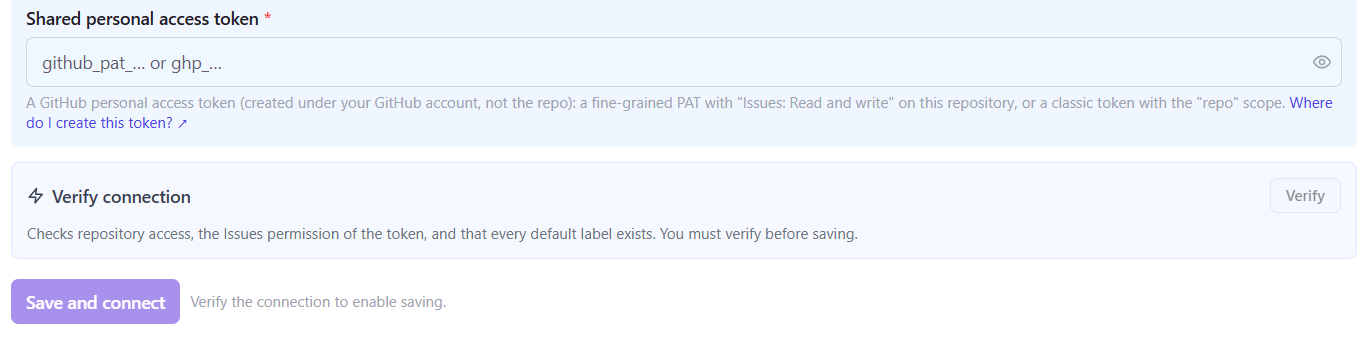
With Shared account, the default, one token files every issue for the whole team. With Personal accounts, each member adds their own token in Profile Settings → Integrations for this project, and issues appear in GitHub as filed by the person who found the bug. For a shared account, paste the token into Shared personal access token.
Step 3. Verify and save#
Click Verify. It checks access to the repository, the Issues permission of the token, and that every default label exists. For a first-time shared-token setup, verification is required before Save and connect becomes available.
Filing bugs into GitHub#
A bug filed from QAM Hub becomes an issue in the repository, with the description in Markdown and your default labels. GitHub has no attachment API, so screenshots stored in QAM Hub are embedded in the issue as secure links instead of uploaded files. Issues are not added to any GitHub Projects board automatically; if your team works from a board, add new issues to it with your own GitHub automation.
Importing issues as requirements (Standard and Advanced)#
On the Requirements page, open GitHub Issues sync and filter by:
- labels;
- issue type, using GitHub's Type field, for example Requirement (
*means any typed issue,nonemeans untyped; your organization's types are suggested as you type); - milestone, picked from the repository's milestones;
- assignee, state and updated date.
Preview the result and import. A sync brings up to 1,000 issues, fetched 100 at a time. The filters are remembered per project in your browser, and Reset filters returns to the defaults.
Publishing back to GitHub (Standard and Advanced)#
With Publish switched on for the GitHub card, QAM Hub keeps one comment per issue with the link to the requirement, the test cases that cover it and where a bug was found, edited in place and removed when the link is removed in QAM Hub. It never changes the issue's title, body or state.
Troubleshooting#
- Verify fails on permissions. A fine-grained token must be granted on this specific repository with Issues: Read and write. Organization repositories may also require the organization to approve fine-grained tokens.
- Issue creation fails with a label error. A default label does not exist in the repository. Create it in GitHub or remove it from the card.
- Bugs do not appear on your Projects board. Expected: the integration works with repository Issues, not boards.