

Importing from TestRail
QAM Hub imports directly from TestRail over its API: you give the wizard your TestRail URL, account email and an API key, pick the projects you want, review a preview of exactly what will be created, and start the import. It brings across suites and sections, test cases with steps and expected results, priority, type and custom fields, milestones, and the 50 most recent runs per project with their result history. One QAM Hub project is created per TestRail project. Organization Admins only.
What you need before you start#
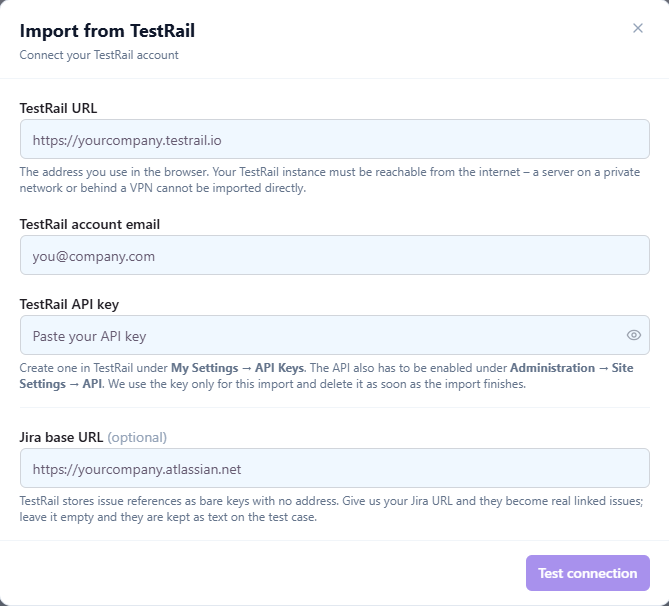
- Your TestRail URL, the address you use in the browser.
- Your TestRail account email.
- An API key from TestRail under My Settings → API Keys. The API also has to be enabled in TestRail under Administration → Site Settings → API, or the key will not work.
- A reachable instance. The import runs from our servers, so a self-hosted TestRail on a private network or behind a VPN cannot be imported directly.
- Optionally, your Jira base URL. TestRail stores issue references as bare keys with no address. Give us the Jira URL and case references and result defects become real linked issues in QAM Hub; leave it empty and they are kept as text on the test case.
The API key is used only for that one import and is deleted from our servers the moment it finishes. A second import asks for it again.
Step 1. Open the import wizard#
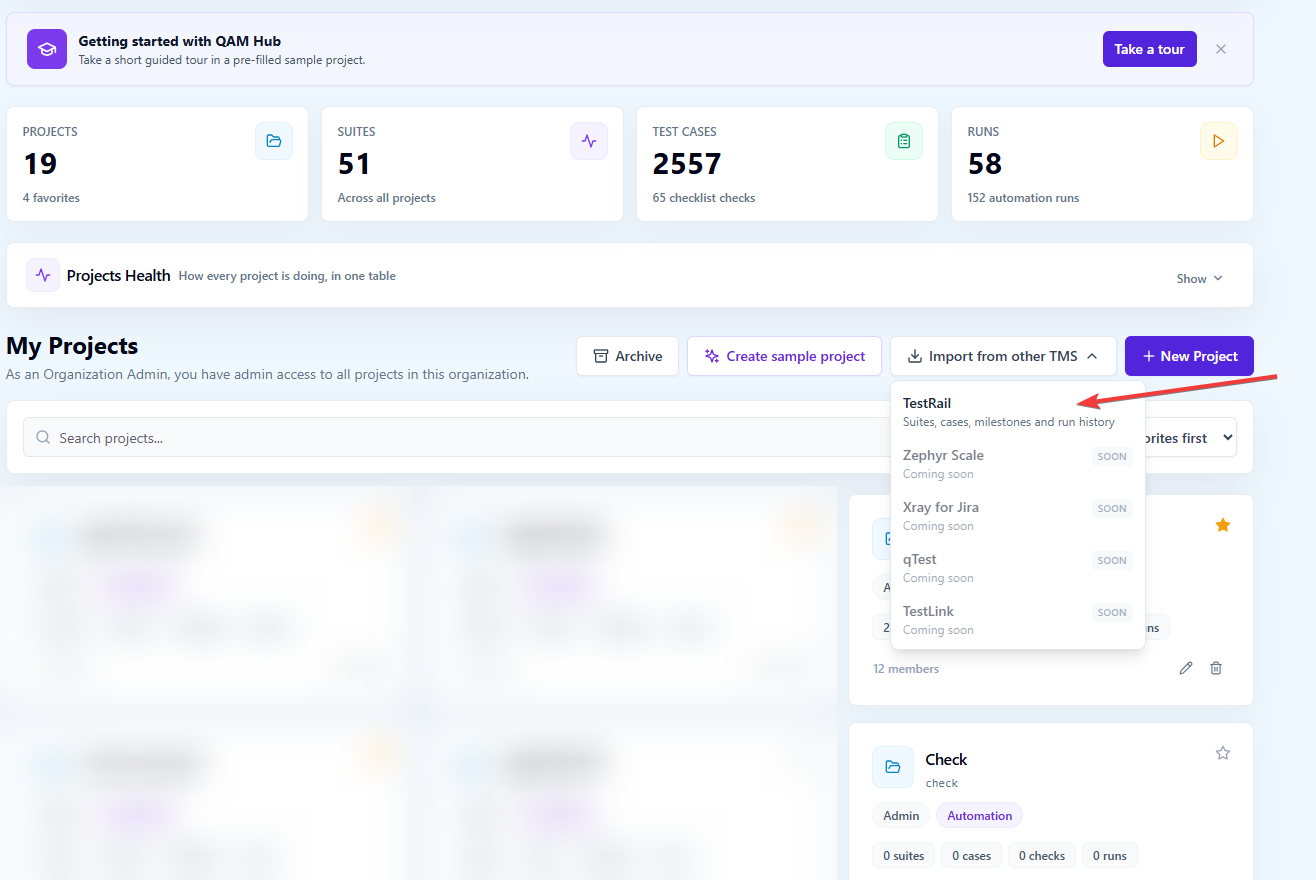
On the Organization Home page, click Import from other TMS and choose TestRail. On a brand-new workspace the same choice appears in the welcome popup.
The menu also lists Zephyr Scale, Xray for Jira, qTest and TestLink, marked as coming. Until they ship, those tools migrate through CSV, as described in Importing and Exporting Test Cases via CSV.
Step 2. Connect your TestRail account#
Enter the TestRail URL, your account email and the API key, add the Jira base URL if you want linked issues, and click Test connection. The wizard checks the credentials against TestRail before it lets you continue, so a wrong key or a disabled API surfaces here rather than halfway through an import.
Step 3. Choose projects and read the preview#
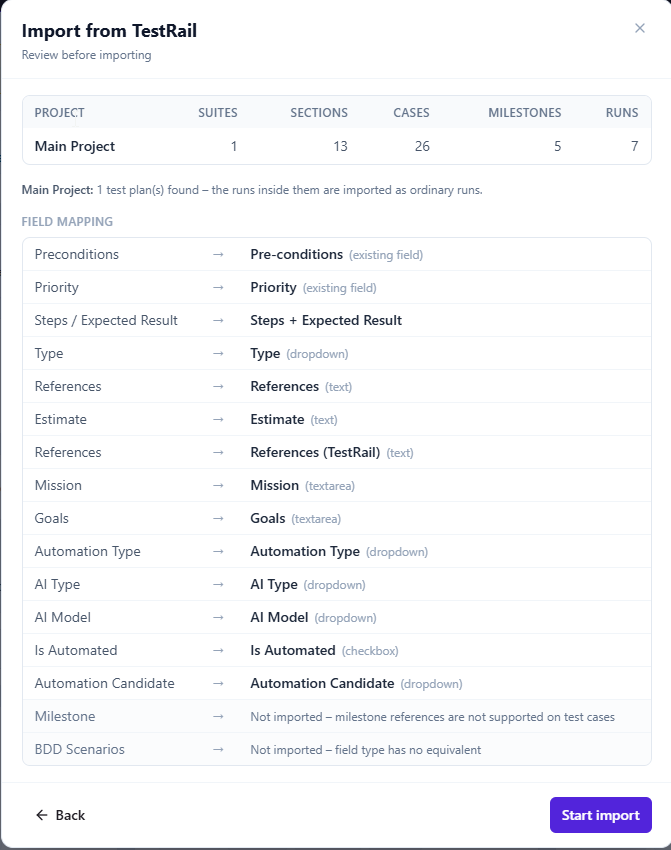
Pick the TestRail projects to bring across. The preview then shows exactly what will be created: counts per project, and what happens to every TestRail field it found. Read it. It is the cheapest moment to notice that a custom field will not fit or that you are about to import a project twice.
The preview also warns when the selection does not fit your plan's project, test case or storage limits. An import that would exceed a limit is refused rather than stopped halfway, so fix the selection or change the plan before starting.
If the wizard recognises a project you have already imported, it says so and keeps Start import disabled until you confirm. Importing the same project twice is allowed, but it creates a second, separate copy. It never updates the first one.
Step 4. Start the import and let it run#
The import runs in the background. Close the wizard and come back later; reopening it shows the progress of the run that is still going rather than offering to start a second one. Only one import can run per organization at a time.
Attachments make an import noticeably slower, because TestRail has to be queried once per test case. You can switch that step off if you want speed and can live without images.
What gets imported#
| From TestRail | What arrives in QAM Hub |
|---|---|
| Suites and sections | Sections become groups. Nesting deeper than 6 levels is folded into the deepest allowed group, with the original path kept in its name |
| Test cases | Title, preconditions, steps and expected result. The TestRail separated-steps format is rendered as a numbered list with the expectation next to each step. Steps and Expected Result hold 5,000 characters each; anything longer is truncated and counted in the report |
| Priority and Type | Mapped onto custom fields. Priority reuses the field every new project ships with, and its options are replaced with your own TestRail priority names, so no value is lost |
| Custom fields | String, Text, Integer, Checkbox, Dropdown and URL map directly. Multi-select becomes a comma-separated text field. A project holds 20 custom fields (Pre-conditions and Priority are built in and do not count); anything past that is listed as skipped in the preview |
| Milestones, runs and results | The 50 most recent runs per project with their full result history. Runs inside TestRail test plans are imported as ordinary runs carrying the plan name |
| Attachments | Images attached to test cases, up to 5 per case |
| Issue references | Real linked issues when you supply a Jira base URL, otherwise kept as text on the case |
What does not come across#
- Non-image attachments.
- Runs older than the 50 most recent in a project.
- Custom fields beyond the 20 a project holds, and the individual options of a multi-select once it becomes text.
- Users, roles and permissions. Invite your team in QAM Hub and assign roles there.
None of this is guesswork on our side: the exclusions come from what TestRail's own API exposes and from the shape of the QAM Hub data model. If you want the longer version of why exports and migrations lose things, we wrote it up in What You Actually Lose When You Export Test Cases from TestRail.
When the import finishes#
The final report lists what was imported and what was skipped, per project, with a link into each new project. If one project fails it is removed completely, so nothing half-imported is left behind, and the other projects in the same import are kept.
Three things worth doing on the first day after an import:
- Open a few of the biggest test cases and check that steps and expected results read the way they did in TestRail.
- Look at the custom fields the report listed as skipped and decide whether any of them earn one of your 20 slots.
- Open an imported run and confirm the result history is there, then read Running Tests and Recording Results before your team starts executing.
Keep TestRail running in parallel for a week. The import takes an afternoon; agreeing that the team now records results in one place takes longer.
Frequently asked questions#
How long does a TestRail import take?#
Most of the time goes into attachments, because TestRail is queried once per test case for them. A project of a few hundred cases without attachments is quick; the same project with attachments takes noticeably longer. The import runs in the background, so you can close the wizard and carry on.
Can I import from a self-hosted TestRail server?#
Only if it is reachable from the internet. An instance on a private network or behind a VPN cannot be imported directly.
What happens to my TestRail API key?#
It is used for that import and deleted when the import finishes. A later import asks for a new one.
Can I import the same project twice?#
Yes, and it creates a second, separate copy rather than updating the first. The wizard warns you and makes you confirm.
Do test run results come across, or only test cases?#
Results come across. The 50 most recent runs per project are imported with their full result history, and milestones come with them.
Who can run an import?#
Organization Admins. One import at a time per organization.
What if I am moving from a tool that is not TestRail?#
Export to CSV and use the CSV import, described in Importing and Exporting Test Cases via CSV. Zephyr Scale, Xray for Jira, qTest and TestLink have native importers on the way.