

Exploring the Sample Project
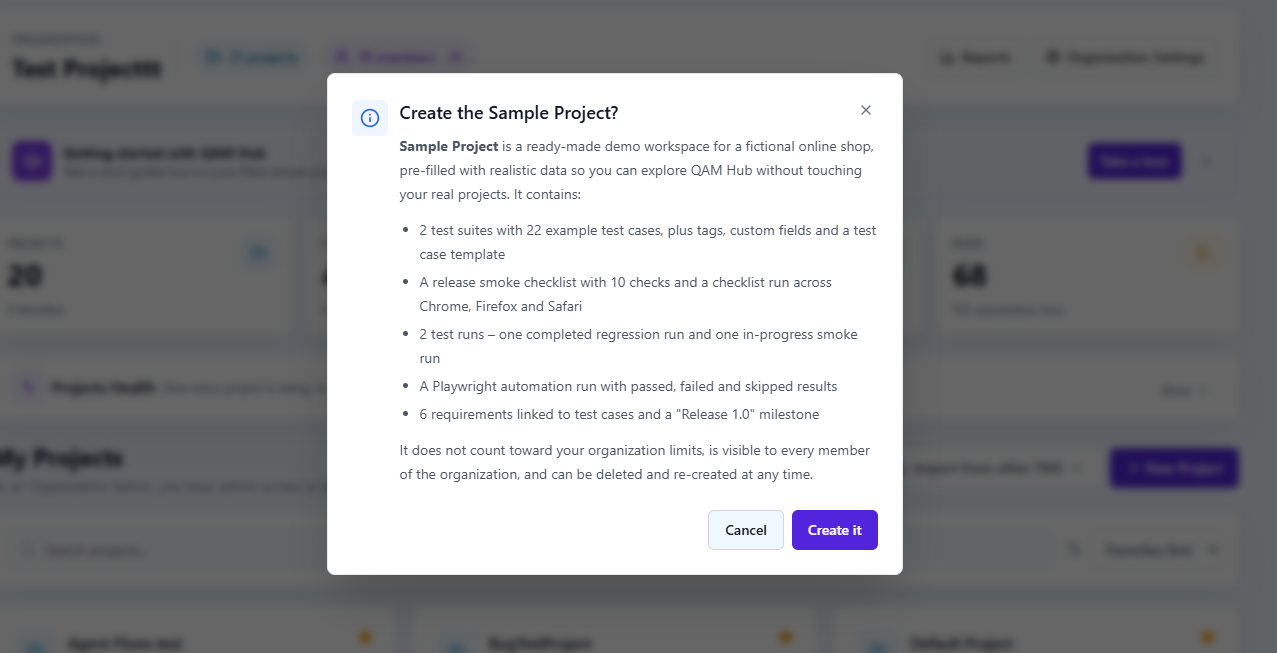
The Sample Project is a ready-made demo workspace for a fictional online shop, pre-filled with realistic test data so you can learn QAM Hub without touching your real projects. An Organization Admin creates it in one click from the Organization Home page, every member of the organization can open it without being added to it, it does not count toward your organization limits, and it can be deleted and created again whenever you want a clean copy.
What is inside it#
- 2 test suites with 22 example test cases, plus tags, custom fields and a test case template.
- A release smoke checklist with 10 checks and a checklist run across Chrome, Firefox and Safari.
- 2 test runs: one completed regression run and one in-progress smoke run.
- A Playwright automation run with passed, failed and skipped results.
- 6 requirements linked to test cases, and a "Release 1.0" milestone.
That combination is deliberate. Most screens in a test management system look empty and identical until there is history behind them, and a dashboard with one run on it teaches nothing. Here the trend widgets, the coverage report and the milestone burndown all have something to draw.
Creating it#
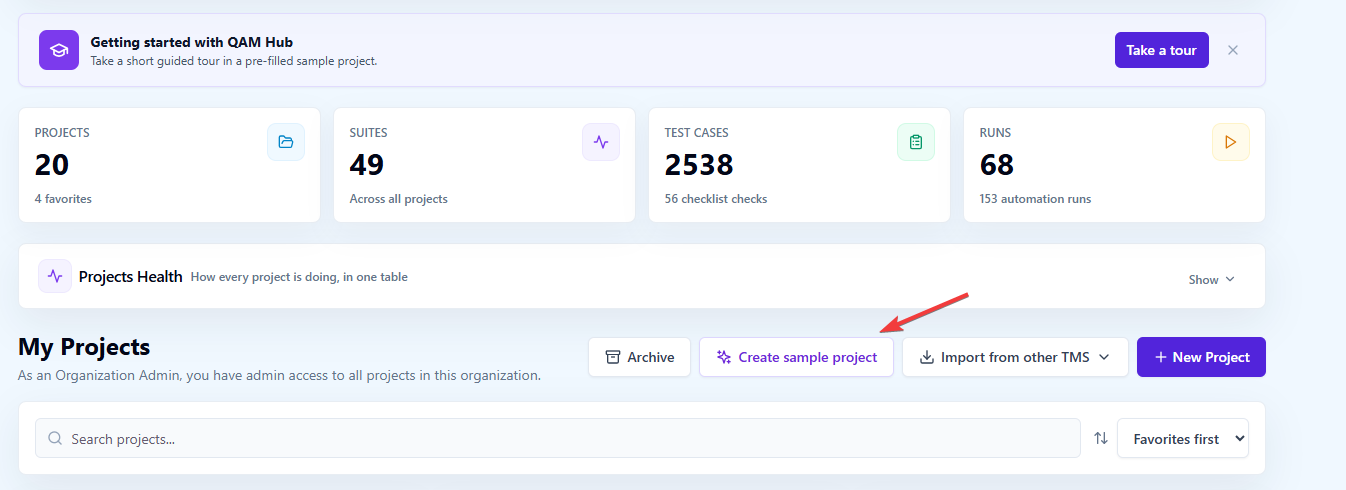
On the Organization Home page, use Create sample project. A dialog lists what will be created; confirm with Create it and QAM Hub opens the new project for you.
On a brand-new workspace there is a second route: the welcome popup offers Take a guided tour, which creates the Sample Project and starts the tour inside it in one step.
Who can see it#
Everyone in the organization. The Sample Project is org-wide demo content, so any member can open it without a project membership, and it shows up in the project list, the statistics and Projects Health for every member. That is intentional: a new colleague who joins on Thursday needs somewhere to take the tour on Thursday, not after somebody remembers to add them to a project.
It also stays outside your accounting. It does not count toward your organization's project or test case limits, so keeping it around costs you nothing.
The guided tour#
The tour runs in short chapters inside the Sample Project and remembers where you stopped, per person. It is role-aware, so an Organization Admin and a Viewer are shown different chapters. Chapters that depend on an optional module explain what to switch on rather than pretending the feature is missing; a chapter you only saw in that gated form is offered again once the module is enabled.
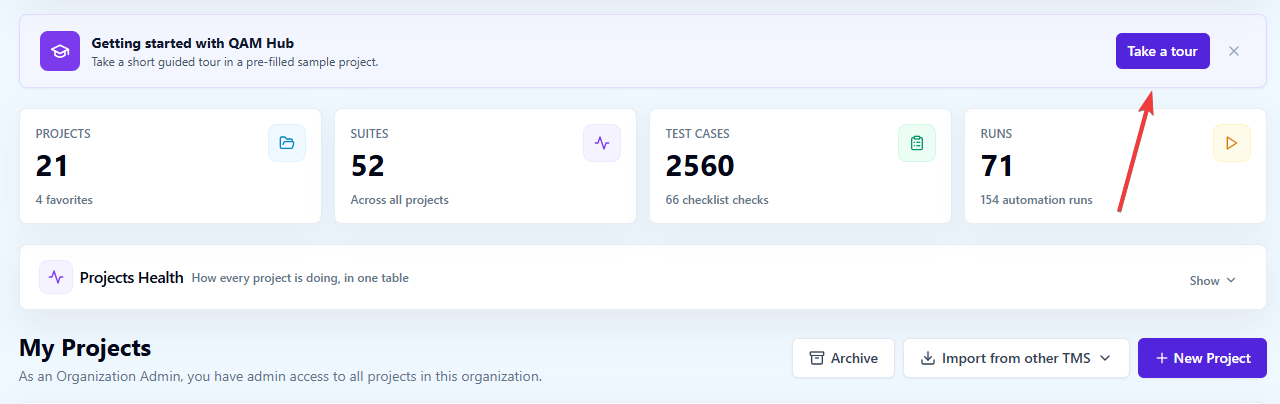
Start it from Take a tour on the Getting started card on Organization Home.
What to try first#
If you have twenty minutes and want a real sense of the product rather than a click-through, do these five things in order.
- Open the in-progress smoke run and record a few results. Use Run Mode and the keyboard: this is what your team does every day. See Running Tests and Recording Results.
- Fail a case and file a bug from it. Even without a tracker connected, you will see where the evidence, comments and attachments live.
- Open the checklist run. Three browsers as columns, checks as rows, keyboard entry with P, F, B and S. This is the feature most teams are still doing in a spreadsheet.
- Open the Playwright automation run and follow a failed automated test back to the manual case it covers. See Uploading Playwright Reports.
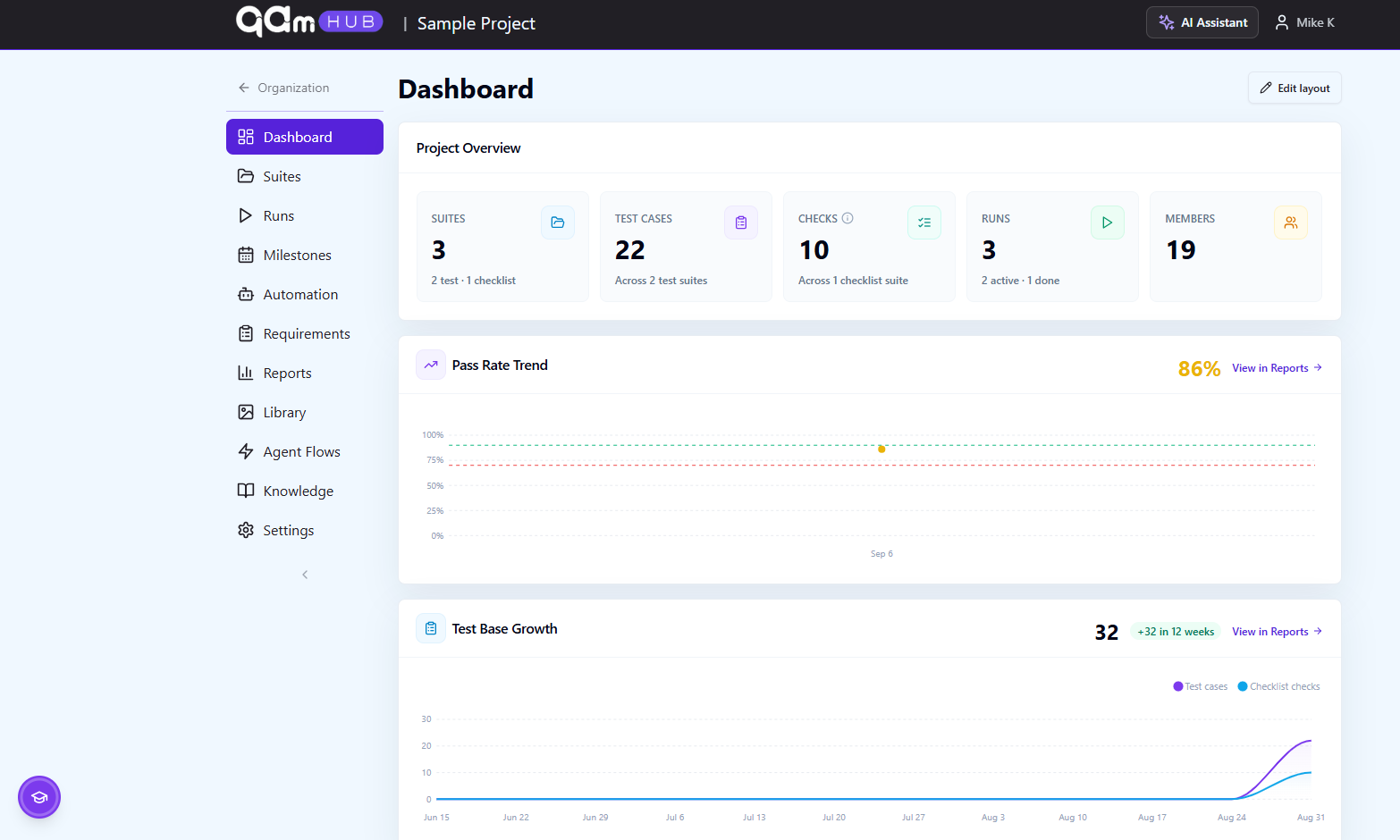
- Open the project dashboard and the Release 1.0 milestone. Pass rate trend, test base growth, freshness and the burndown all have data behind them here, which is exactly what a new project cannot show you.
Getting a clean copy#
Explore freely. Change cases, break runs, delete things: it is demo data and none of it touches your real projects. When you want it back the way it started, delete the Sample Project from the project list and create it again from Organization Home. You get a fresh copy of the same fixture.
Deleting and re-creating are Organization Admin actions. If the Sample Project option is not on your Organization Home page at all, the platform administrator has switched the feature off.
Using it for screenshots and demos#
The Sample Project is the right place to record a demo, take screenshots for your own internal documentation, or show a stakeholder what a release report looks like. It contains no customer data and it can be reset, which makes it safer than demoing on a live project and more convincing than demoing on an empty one.
Frequently asked questions#
Does the Sample Project count toward my plan limits?#
No. It is excluded from organization project and test case limits.
Can I edit or delete the demo data?#
Yes. Change anything you like. To start over, delete the project and create it again.
Do I need to add my colleagues to the Sample Project?#
No. Every member of the organization can open it without a membership.
Can a Viewer take the tour?#
Yes. The tour is role-aware and shows a Viewer the chapters that match read-only access.
Why can I not see the Sample Project option?#
Either it already exists, in which case open it from the project list, or the platform administrator has turned the feature off for the platform.
Is the Sample Project safe to use for a customer demo?#
Yes, and it is the recommended option. It holds fictional data for an imaginary online shop, so nothing customer-specific can leak into a recording or a screenshot.