

Uploading JUnit XML Reports with the CLI (Selenium, Robot Framework, WDIO and others)
Any test runner that writes a JUnit XML report can send its results to QAM Hub with one command after the tests: npx @qamadness/qam-hub-cli upload. That covers Selenium with JUnit 5, TestNG, pytest or NUnit, WebdriverIO, Robot Framework, Playwright for Java, Python and .NET, and most other runners. Nothing is added to your test code. The CLI reads the report your framework already writes, turns it into one run in your project, and links each test to its manual case when the test name carries a TC-<number> tag. Playwright (JS/TS) and Cypress have their own reporters with screenshots and traces; this article is for everything else.
What you need#
- Node.js 18 or newer on the machine that runs the upload. The CLI runs through
npx, so there is nothing to install or keep updated. GitHub and Azure hosted runners have Node already; on GitLab and Jenkins, use an image or agent that has it. - A personal API token from Profile → API & MCP. It is shown once, so copy it when you create it.
- The Automation module switched on in the project. It is on by default; if the Automation page is missing from the sidebar, switch it back on in Project Settings → General.
Step 1. Open the setup guide for your stack#
Open Automation in your project and expand Send results automatically. Pick your stack: Selenium with JUnit 5, TestNG or Playwright for Java (Maven or Gradle), Selenium, Playwright or Robot Framework for Python, Selenium or Playwright with NUnit for .NET, WebdriverIO, or Other for any tool that writes JUnit XML. The guide then shows the exact steps for that stack, with your server address, your project ID and the real report path already filled in.
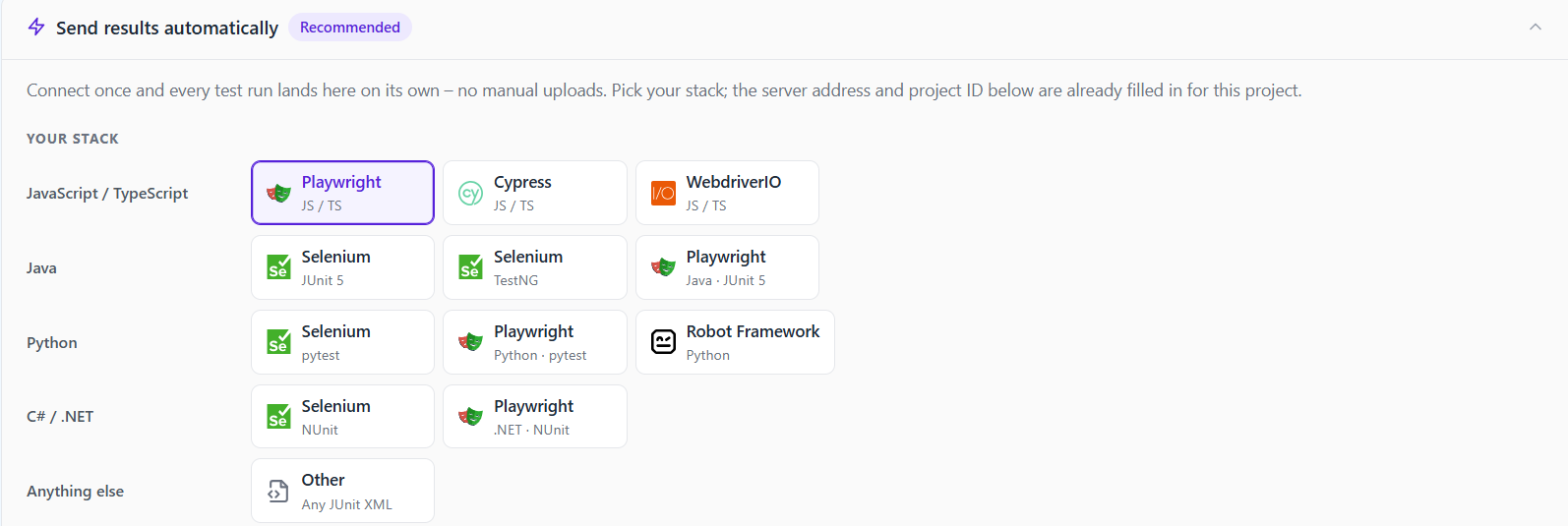
Use the Terminal switch (macOS / Linux or Windows PowerShell) so the commands match your shell. Every upload command is a single line, so it runs in any shell.
Step 2. Put the token in an environment variable#
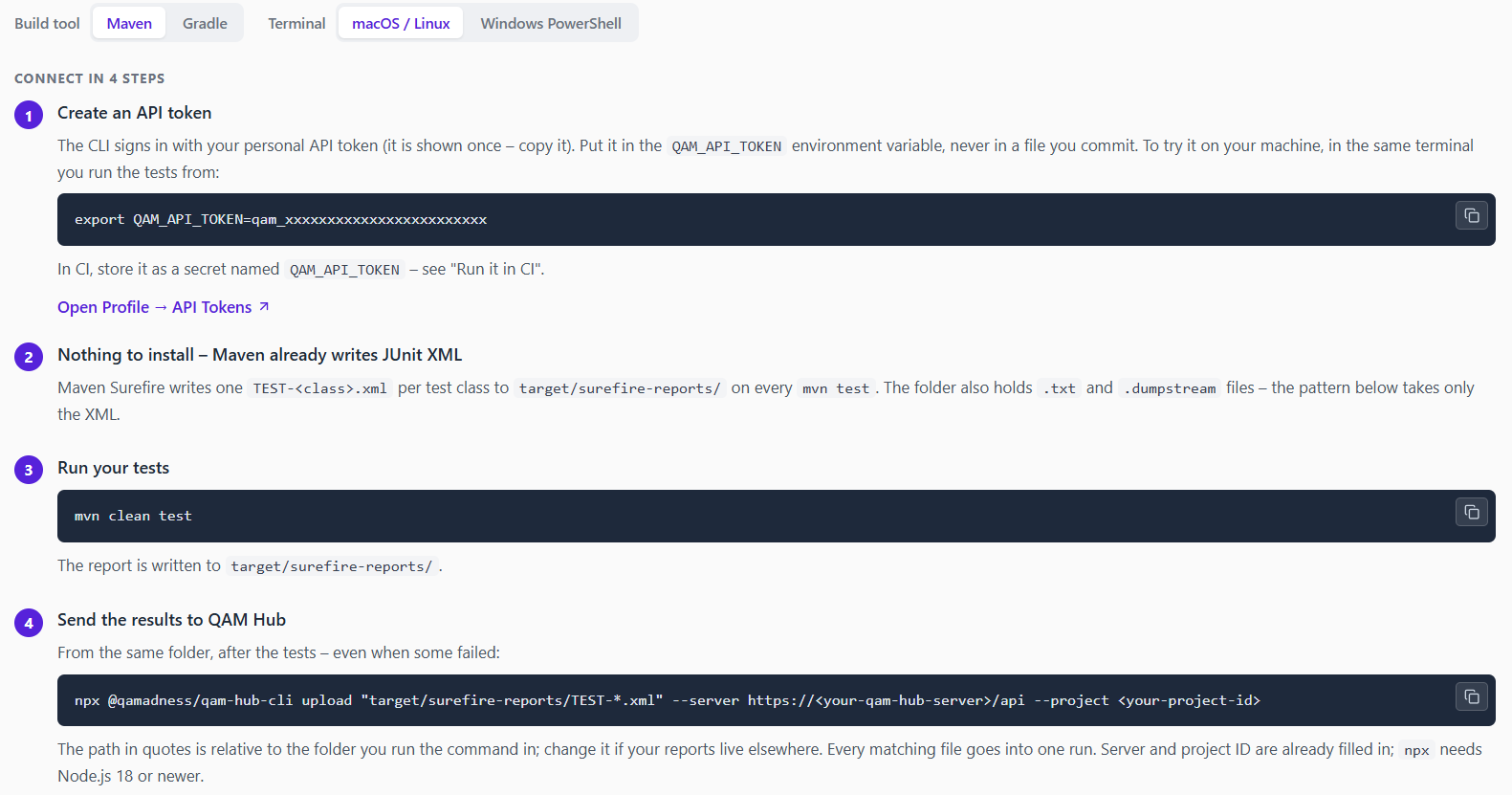
The CLI reads the token from QAM_API_TOKEN. Never write it into a file you commit. To try the upload on your own machine, in the same terminal you run the tests from:
export QAM_API_TOKEN=qam_xxxxxxxxxxxxxxxxxxxxxxxxOn Windows PowerShell:
$env:QAM_API_TOKEN = "qam_xxxxxxxxxxxxxxxxxxxxxxxx"In CI, store it as a secret named QAM_API_TOKEN.
Step 3. Run the tests and send the report#
Run your tests as usual, then run the upload from the same folder, even when some tests failed. A Maven project with JUnit 5 looks like this:
mvn clean test
npx @qamadness/qam-hub-cli upload "target/surefire-reports/TEST-*.xml" --server <your server address> --project <your project ID>
Copy the command from the guide in your project rather than from this page: there the server address and project ID are already filled in. The path in quotes is relative to the folder you run the command in. Every matching file goes into one run, and XML files that are not JUnit, such as testng-results.xml or Robot Framework's output.xml, are skipped. If nothing matches, the CLI prints where the common frameworks write their reports.
Where common runners write JUnit XML:
| Stack | Typical report path |
|---|---|
| Maven (Surefire) | target/surefire-reports/TEST-*.xml |
| pytest | Wherever you point --junitxml, for example report.xml |
| Other runners | The guide for your stack shows the path; choose Other if yours is not listed |
Step 4. Run it in CI#
Add the upload as its own step that runs even when the tests fail, because the red run is the one you want to see. In GitHub Actions:
- name: Run tests
  run: mvn -B clean test

- name: Send results to QAM Hub
  id: qam
  if: always()
  run: npx @qamadness/qam-hub-cli upload "target/surefire-reports/TEST-*.xml" --server <your server address> --project <your project ID>
  env:
    QAM_API_TOKEN: ${{ secrets.QAM_API_TOKEN }}
Add QAM_API_TOKEN under Settings → Secrets and variables → Actions. The Full guide link in the setup guide has the same step for GitLab CI, Jenkins and Azure Pipelines, plus a curl alternative for machines without Node.js.
The branch, commit and CI build link are detected automatically on GitHub Actions, GitLab CI, Jenkins, Azure Pipelines, CircleCI, Bitbucket and TeamCity, and shown on the run.
Posting the run link to Slack, Teams or a pull request#
After a successful upload the CLI prints the run link and hands it to the CI job. On GitHub Actions, give the upload step an id, as above, and read steps.qam.outputs.qam_run_url in a later step, together with qam_passed, qam_failed, qam_flaky, qam_skipped and qam_total; the job summary gets the link too. On Azure Pipelines the variables QAM_RUN_URL and QAM_RUN_ID are set. Anywhere else, pass --run-info-file and read the link from that file. Run the notification step with if: always(), since the test step fails when a test fails.
Linking automated tests to manual cases#
Put one or more TC-<number> tags in the test name, for example TC-123 checkout works, and the result links to manual case 123. One test can cover several cases: TC-1807 TC-1808 logo navigates back. A linked test shows a clickable TC badge on the run, and the manual case lists the run in its automation history and counts as automated in coverage reports.
Method names in Java, C# and Python cannot contain a hyphen, so TC_<number> works too: tc_12_validLogin or test_tc_12_login. With Maven and JUnit 5 you can keep readable names instead by telling Surefire to write @DisplayName("TC-12 …") into the report; the Full guide shows the setting. JUnit XML can also carry the link as a test case property, qam.caseNumber or qam.caseNumbers, for example pytest's record_property("qam.caseNumber", "123").
The wider question of how to keep that mapping honest as tests get renamed is covered in Mapping Automated Test Results to Test Cases.
What arrives in QAM Hub#
- One run per upload, with a JUnit badge and the detected framework (pytest, Jest, Surefire and so on). Pass
--frameworkwhen it cannot be detected. - Results, error messages with stack traces, console output and durations.
- Retries recorded in the XML, such as Surefire's
flakyFailureandrerunFailureor pytest-rerunfailures, become one test with its attempts, marked flaky when the last attempt passed. - No screenshots, videos or traces. JUnit XML does not carry them; that needs the Playwright reporter.
The pass rate of a run is (passed + flaky) / (total − skipped): a test that passed on retry counts as passed and keeps its own flaky counter, and skipped tests are left out.
Useful options#
| Option | What it does |
|---|---|
--name | Run name. By default the framework and the CI build number, or a timestamp outside CI |
--environment | A label such as staging shown on the run |
--framework | The framework label, when detection from the XML is not enough |
--dry-run | Shows which files would be sent and sends nothing. Handy for checking the path |
--fail-on-empty | Exits with code 3 when no file matches, instead of warning and exiting 0 |
--branch, --commit, --build-url | Override what the CLI detects from the CI environment |
The server and project can also come from the QAM_API_URL and QAM_PROJECT_ID environment variables.
Uploading a report by hand#
If you cannot run the CLI in your pipeline, use Upload Report on the Automation page and pick several JUnit XML files at once, up to 50 files and 40 MB in total. A manual upload uses your session, so no token is needed, and it carries no CI metadata such as branch or commit.
Frequently asked questions#
Do I have to change my test code?#
No. The CLI reads the JUnit XML your runner already writes. The only optional change is adding TC-<number> tags to test names so results link to manual cases.
Why is my run empty or missing?#
Usually the path. The pattern is relative to the folder the command runs in. Run the same command with --dry-run to see which files it would send.
Where do I see trends and flaky tests across runs?#
On the Tests tab of the Automation page, available on the Standard and Advanced plans. It tracks every automated test across runs with its pass rate, stability and flakiness, and lets a Project Admin quarantine a test with a reason. See A Flaky Test Quarantine Policy That Actually Holds for how to use quarantine well.