

Connecting an AI Agent over MCP
QAM Hub ships an MCP server, so an AI coding agent such as Claude Code, Claude Desktop, Cursor or VS Code can work with your test data directly: write test cases from a ticket, reorganise a suite, create a run and set results, file a bug for a failure in your tracker, explain what failed in the latest CI run, or pull current coverage numbers, all without leaving the editor. Setup takes a few minutes: create an API token in Profile → API & MCP, pick your client, and copy the configuration the page generates for you. The MCP server is available on every plan.
How it works#
MCP (Model Context Protocol) is the standard way an AI agent talks to an external tool. The QAM Hub server is an npm package, @qamadness/qam-hub-mcp, that your client starts with npx, so there is nothing to download or keep updated. Node.js 18 or newer is the only requirement on your machine.
The agent works as you. It can do exactly what your account can do, in the projects you are a member of, and every change it makes is recorded in the audit log under your name. A Viewer stays read-only through MCP as well. That is the main thing to decide before connecting an agent: it gets your permissions, not a separate, narrower set.
Step 1. Create an API token#
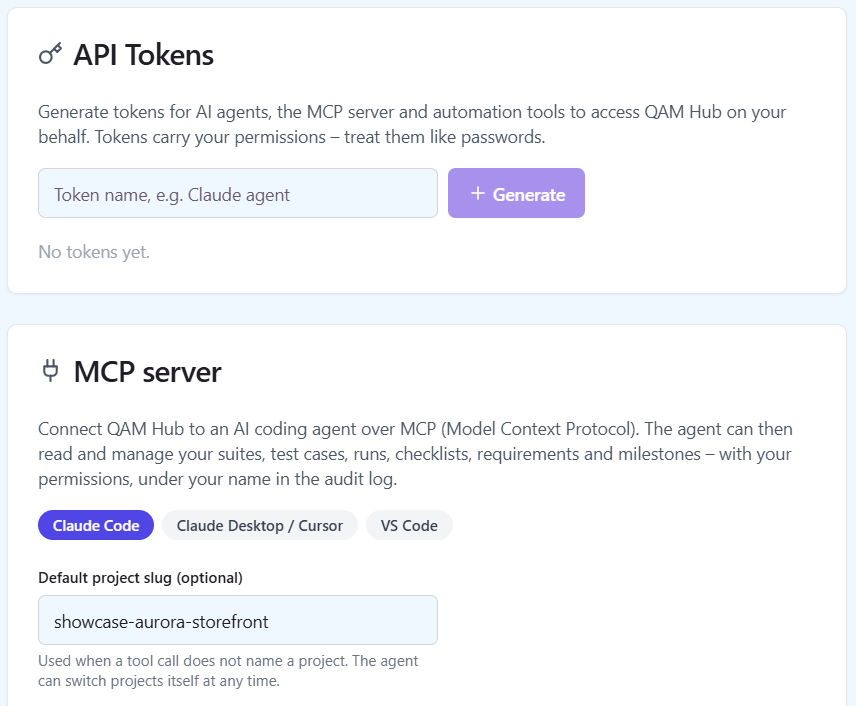
Open the user menu, choose Profile Settings, then API & MCP. Under API Tokens, give the token a name you will recognise later, such as "Claude agent", and click Generate.
The token is shown once, at creation. Copy it straight into the client configuration in the next step. If you lose it, revoke it and generate a new one.
Step 2. Pick your client and copy the configuration#
In the MCP server card on the same page, choose your client: Claude Code, Claude Desktop / Cursor or VS Code. The page shows a ready-made configuration with your server address already filled in. If you generated a token a moment ago, it is filled in too; an existing token cannot be shown again, so in that case replace qam_YOUR_TOKEN by hand.
Optionally set a Default project slug. Tool calls that do not name a project then use it. The agent can still list your projects and switch between them at any time.
Claude Code#
Run the generated command in your terminal. It has this shape:
claude mcp add qam-hub --env QAM_HUB_URL=<your server address> --env QAM_HUB_TOKEN=qam_YOUR_TOKEN --env QAM_HUB_PROJECT=your-project-slug -- npx -y @qamadness/qam-hub-mcpClaude Desktop or Cursor#
In Claude Desktop, open Settings → Developer → Edit Config. In Cursor, edit .cursor/mcp.json. Add the server:
{
  "mcpServers": {
    "qam-hub": {
      "command": "npx",
      "args": ["-y", "@qamadness/qam-hub-mcp"],
      "env": {
        "QAM_HUB_URL": "<your server address>",
        "QAM_HUB_TOKEN": "qam_YOUR_TOKEN",
        "QAM_HUB_PROJECT": "your-project-slug"
      }
    }
  }
}
VS Code#
Add the server to .vscode/mcp.json in your workspace. Note that VS Code uses servers as the top-level key, not mcpServers:
{
  "servers": {
    "qam-hub": {
      "command": "npx",
      "args": ["-y", "@qamadness/qam-hub-mcp"],
      "env": {
        "QAM_HUB_URL": "<your server address>",
        "QAM_HUB_TOKEN": "qam_YOUR_TOKEN",
        "QAM_HUB_PROJECT": "your-project-slug"
      }
    }
  }
}
Copy the configuration from the page rather than from this article: there the server address is already correct for your workspace.
Step 3. Check the connection#
Restart the client so it picks up the new server, then ask something read-only first, for example: "List my QAM Hub projects" or "Show the failed tests in the latest automation run of the checkout project". If the agent answers with your real projects, the connection works. Move on to changes only after that.
What you can ask the agent to do#
- Draft test cases from a ticket or a description, in a suite you name.
- Reorganise a suite: move cases between groups, add tags, fix titles.
- Create a run, set execution results and add comments.
- File a bug for a failure in the tracker connected to the project.
- Explain what failed in the latest CI run and which failures look new.
- Check release readiness or pull the current coverage numbers.
- Add items to a checklist.
Treat generated test cases as drafts for a QA engineer to review, the same as any AI output in the product. How to set up review for agent-written content is covered in Giving AI Agents Write Access to Your TMS.
Keeping the token safe#
- Keep the configuration file out of version control. The token in it acts as your account.
- Use one token per client or machine, named so you can tell them apart.
- Revoke a token in Profile → API & MCP the moment it is no longer needed. Revoking is instant and does not affect your other tokens.
- If you only want the agent to read, connect it with a Viewer account. Permissions follow the account, not the token.
Using the same token for the REST API#
The token also works for direct REST calls with the header Authorization: Bearer <token>, if you prefer to script against the API yourself, and it is the same token the automation CLI and reporters read from QAM_API_TOKEN.
Frequently asked questions#
Do I need my own AI key to use MCP?#
No. The agent runs in your own client, with whatever model that client uses. QAM Hub only provides the tools the agent calls.
Can the agent see projects I am not a member of?#
No. It works with your permissions, in the projects you belong to. An Organization Admin's token can reach every project, because an Organization Admin can.
Which plan includes the MCP server?#
Every plan, including Start.