

Connecting GitLab
To connect GitLab, a Project Admin opens Project Settings → Integrations, clicks Set up on the GitLab card, enters the project ID or path and an access token with the api scope, and saves. It works with GitLab.com and with self-hosted GitLab. Bugs filed from QAM Hub become issues in that project and their state is read back as open or done; on the Standard and Advanced plans, issues can also come in as requirements. How tracker integrations work in general is in Connecting an Issue Tracker.
What you need#
- The project: its numeric Project ID, or the full path such as
group/subgroup/project. - A personal or project access token with the
apiscope, or at least Reporter access to the project. No email is needed. - For self-hosted GitLab, your instance URL. Leave the Base URL at
https://gitlab.com/api/v4for GitLab.com; for your own instance enter its URL and/api/v4is added automatically.
Step 1. Fill in the connection#
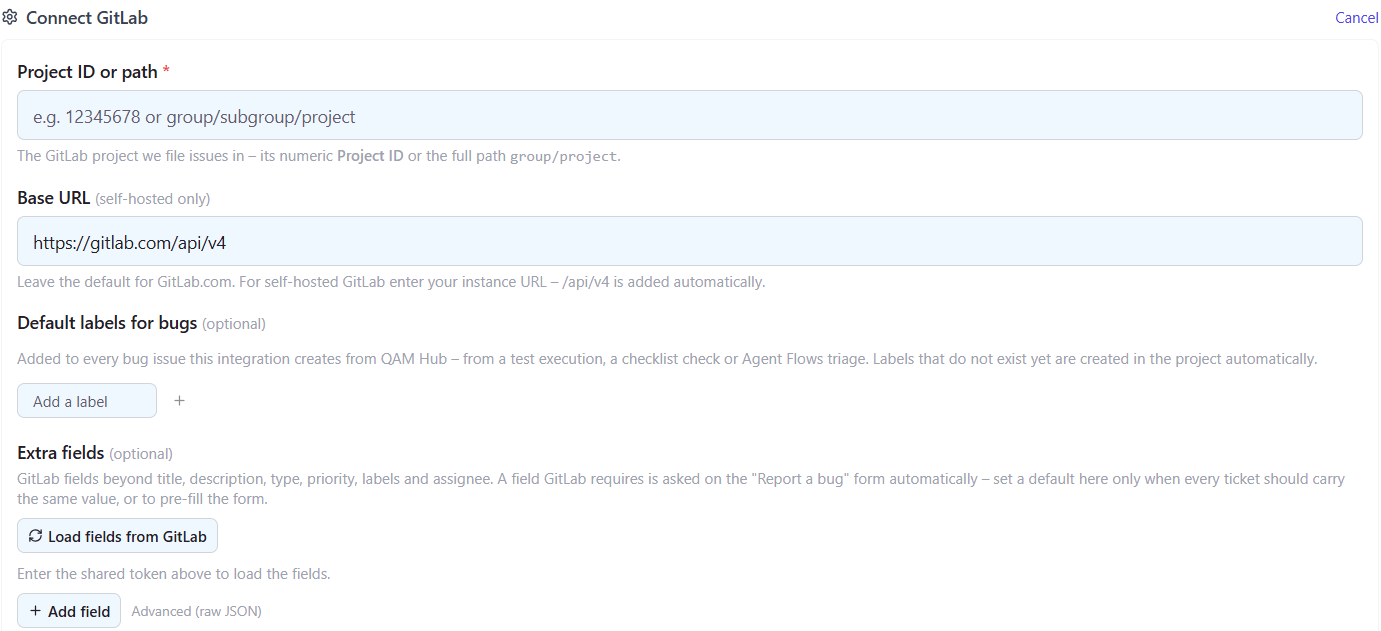
Click Set up on the GitLab card and enter the Project ID or path, the Base URL if you are self-hosted, and optional Default labels for bugs. Labels that do not exist yet are created in the project automatically.
Step 2. Choose the credential mode and add the token#
With a Shared account, one token files every issue for the team. With Personal accounts, each member adds their own token in Profile Settings → Integrations and issues are filed as them. Enter the shared token, verify the connection and save.
Step 3. Preset issue attributes (optional)#
Under Extra fields, click Load fields from GitLab once the token is in. You can then set Milestone (picked from the project's active milestones), Weight, Due date and Confidential either as a fixed value on every issue or as a pre-filled value on the bug form. Other attributes, such as assignee_ids or epic_id, can still be passed as a raw value through Advanced.
A typical use: bugs found during a release run always go to the current release milestone, and sensitive projects mark every QA issue as Confidential.
Filing bugs into GitLab#
A bug becomes an issue in the connected project, with a Markdown description, your default labels and the screenshots uploaded as real attachments. GitLab states are read back as open or done and shown on the test case, in run details and in the Defects report.
Importing issues as requirements (Standard and Advanced)#
On the Requirements page, open GitLab sync and filter issues by labels, state, type (Issue, Incident or Task) and updated date. Preview and import; a sync brings up to 1,000 issues, fetched 100 at a time.
Publishing back to GitLab (Standard and Advanced)#
With Publish on, QAM Hub keeps one comment per issue with the requirement link, the covering test cases and where a bug was found, edited in place and removed when the link goes. It never changes the issue's title, description or state.
Troubleshooting#
- Project not found. Check whether you entered the numeric ID or the full path including all subgroups. For self-hosted GitLab, check the Base URL points at your instance.
- Permission errors on create. The token needs the
apiscope or at least Reporter access to this project. - Extra fields are empty. Enter the shared token first, then click Load fields from GitLab.