

Migration from QaseNew
Import a Qase workspace with suites, cases, steps, runs, results, attachments and your team, after a field mapping you review first.
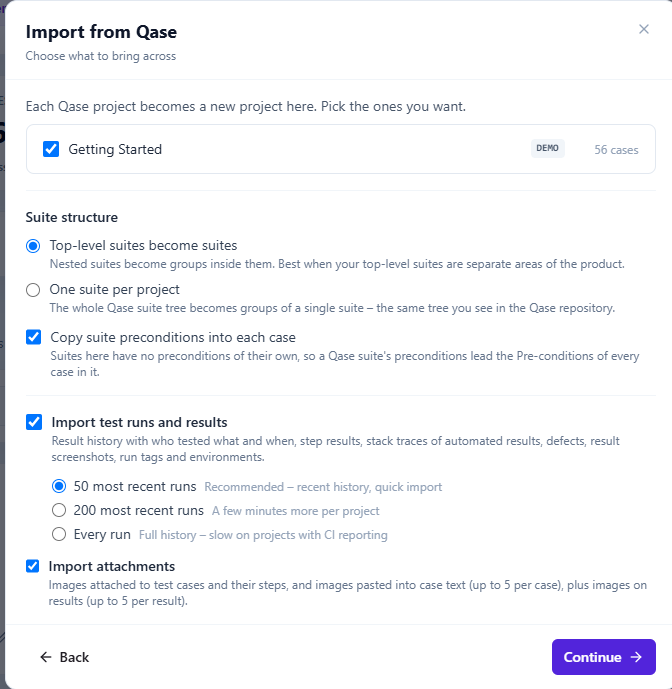
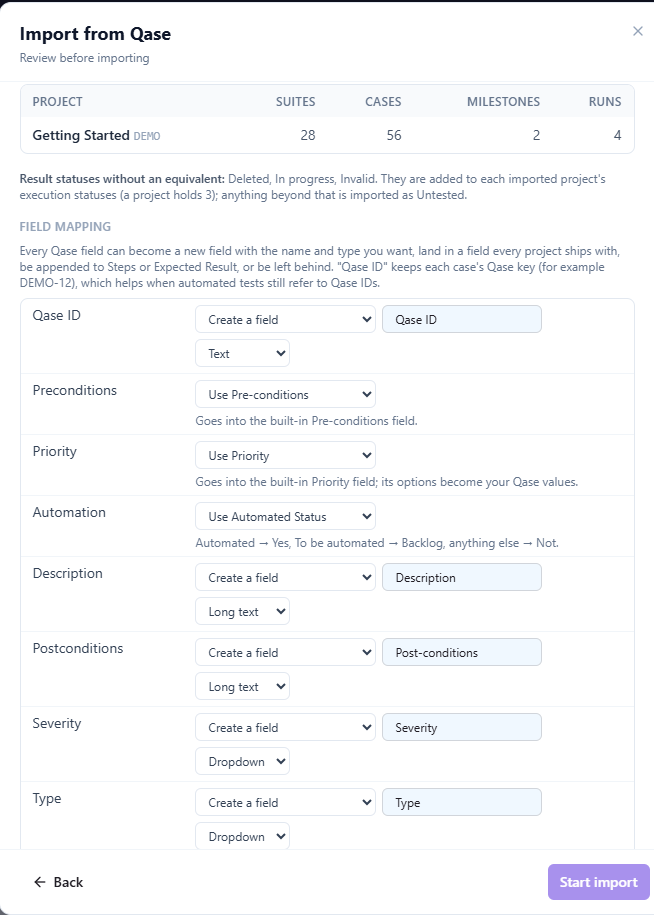
The Qase import is a wizard, not a services project. Paste a Qase API token, pick the projects, review what will happen to every field, and QAM Hub brings the workspace across in the background. Each Qase project becomes one QAM Hub project.
How the import works
- Open Import from other TMS on the Organization Home page and choose Qase. Organization Admins only.
- Paste a Qase API token. Use the token of someone who can see every project you want to move: a workspace owner or admin token also reads your team.
- Review the preview: counts per project, what happens to every Qase field, and any plan limit the selection does not fit.
- Start the import. It runs in the background, so you can close the wizard and come back to its progress.
The token is used for that import only and is deleted from our servers the moment it finishes. Qase Cloud needs nothing else; on Qase Enterprise you enter the API address of your workspace.
What comes across
| In Qase | In QAM Hub |
|---|---|
| Suites | Each top-level suite becomes a suite with nested suites as groups, or one suite per project with the whole tree as groups. You choose. |
| Test cases | Title, description, preconditions, postconditions, steps with test data and expected results, original dates and the author when that person is in the workspace. |
| Shared steps | Expanded inline into every case that uses them. |
| Priority, Automation | The built-in Priority field and Automated Status. |
| Severity, Type, Layer, Behavior, Status, Flaky and your custom fields | Custom fields. The original id is kept in a Qase ID field. |
| Tags | Tags. |
| Runs and results | The 50 or 200 most recent runs per project, or every run, with each result's history, tester, date, comment, failed step notes and time spent. |
| Custom result statuses | Up to three custom execution statuses. |
| Attachments | Images on cases, steps and results, up to five per case and per result. |
| Team | Matched to your members by email. Everyone else can be invited as a member or a viewer. |
You review the field mapping first
Nothing is written until you have seen the mapping. Any row can be changed: create a field with your own name and type, send it to Pre-conditions or Priority, append it to Steps or Expected Result, or skip it. A field that no case fills is not created at all, so an empty Qase field never becomes an empty column. If the selection does not fit your plan limits, the import is refused up front instead of stopping halfway.
Good to know
- One import (TestRail or Qase) runs per organization at a time.
- Nothing links back to Qase ids, so importing the same project twice creates a second copy. Move each project once.
- Non-image files are not imported; images hosted outside Qase stay in the text as links.
- Coming from TestRail instead? The TestRail wizard works the same way.