

Test case templates and custom fields
Define the fields your team actually fills in, and start every case from a template instead of a blank page.
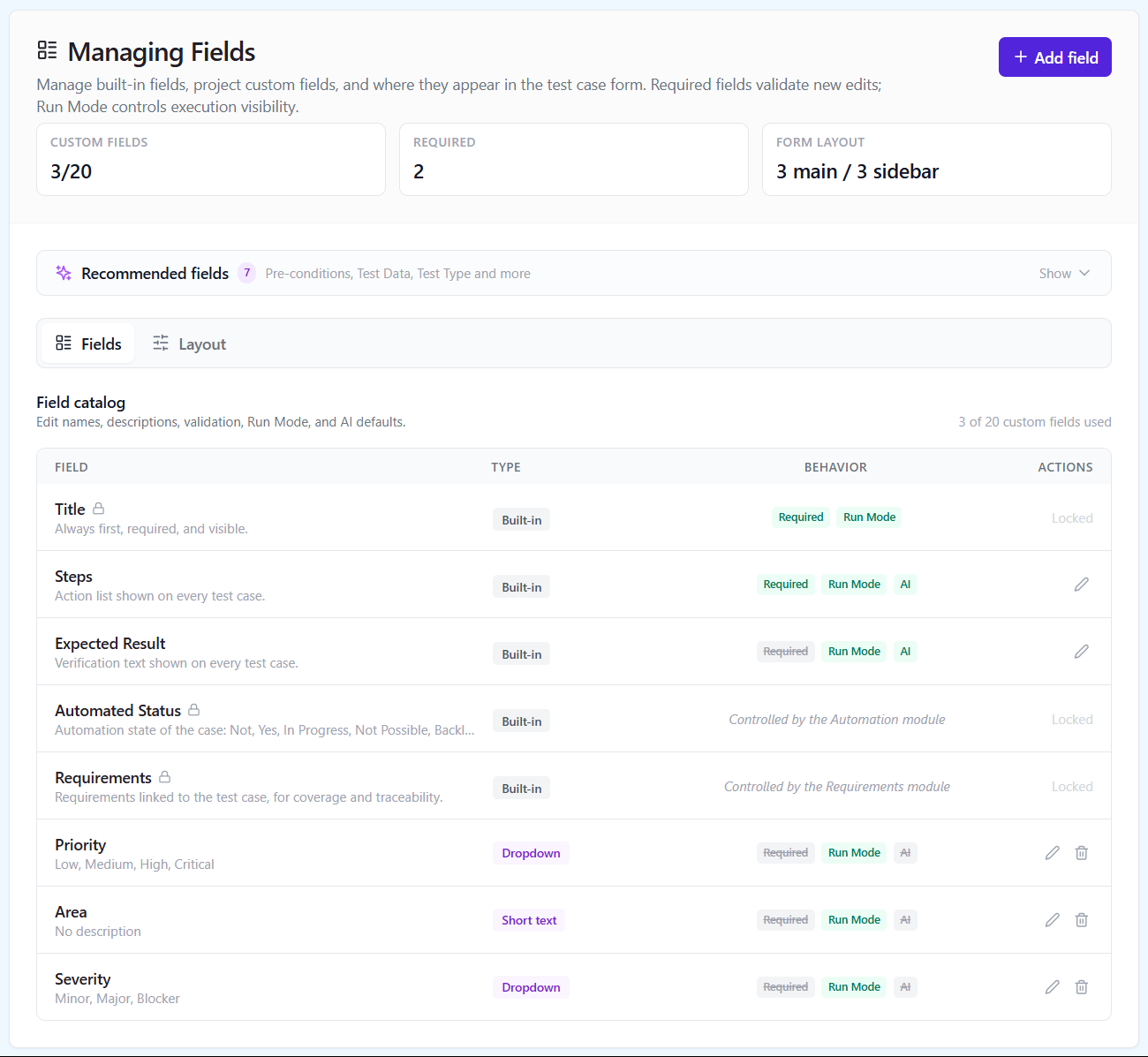
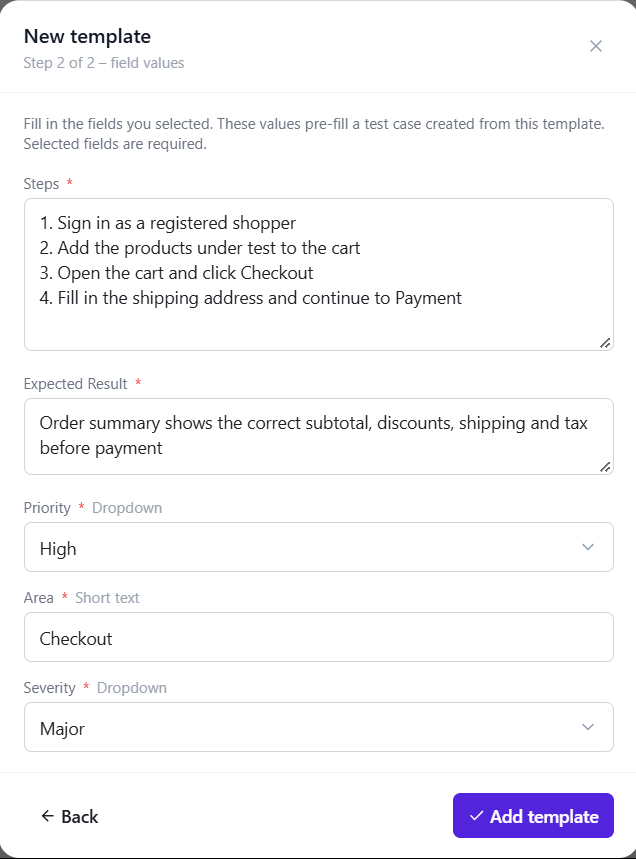
A test case template in QAM Hub presets the fields and the starting text of a new case, so a tester begins from the format the team agreed on instead of a blank editor. Custom fields give that format typed slots: component, environment, severity, regression flag, as a dropdown or a checkbox rather than a convention buried in the description. Both are per-project settings, so two teams in one organization can structure their cases differently without arguing about a shared schema.
Which custom fields you can add
| Field type | Use it for |
|---|---|
| Text | A short value: a build number, a ticket key, a component name typed freely |
| Long text (textarea) | Multi-line content such as test data or notes; Markdown when it is switched on for the project |
| Checkbox | A yes or no flag: regression, smoke, needs a data reset |
| Dropdown | One value from a fixed list: environment, severity, test type, layer |
| Number | A numeric value: an estimate in minutes, a risk score, an order |
Every field can carry a description that tells the author what belongs in it, and three switches set how it behaves:
- Required: the field has to be filled in, and the Quality Analyzer later reports any case where it is empty.
- Show in Run Mode: the value is shown to the tester in Run mode with the steps and expected result, so an environment or a test account is on screen while the case is executed, not two clicks away.
- Include in AI: the field is included in AI generation by default, so cases produced by AI test generation arrive with it filled in rather than blank.
Field order is set per project, and a value can be set across a whole selection of cases at once, which is how an existing suite picks up a new field without opening every case.
Recommended fields: presets in one click
A "Recommended fields" panel creates the fields other test management tools ship by default, Severity, Test Type, Environment and more, in one click, with their options already filled in. It is the quickest way to give a new project a usable schema on day one, and every field it creates is an ordinary custom field you can rename, extend or delete afterwards.
Built-in fields and "Manage fields"
Pre-conditions, Priority, Automated Status and the other built-in fields are not fixed furniture. "Manage fields" lets a project reorder them and hide the ones the team never uses, so the editor shows the fields in the order people fill them in and nothing else. Steps and Expected Result are the core of every case; the conventions for writing them well are in steps and expected results.
How a test case template works
A template bundles a field set and starting content. Pick it when you create a case and the editor opens with the template's fields in place and its text already written: a numbered Steps skeleton for a regression case, a Pre-conditions block that names the test account, an Expected Result phrased the way the team phrases it. The author fills in the specifics instead of reproducing the format from memory, and cases written by five people read as if one person wrote them.
Templates are per project and a project can have several: one for UI cases, one for API cases, one for exploratory sessions, each with its own fields. A template is a starting point, not a lock: everything it prefills can be changed on the case. Setup is described in test case templates.
Markdown, CSV import and bulk edits
Markdown can be switched on per project for Steps, Expected Result and multi-line custom fields, so lists, emphasis and code spans can be used where a plain line is not enough. CSV import maps the columns of your file to fields, custom fields included, so a spreadsheet with an Environment column lands in the Environment dropdown rather than in a note. A selection of cases in a suite can have a field value set in bulk. The field-level details are in using custom fields.
Quality checks on custom fields
The Quality Analyzer reads custom fields along with the case text and reports three kinds of problem: a required field that is empty, a dropdown value that is outside the field's options, and a non-numeric value in a Number field. The last two typically appear after an import or after a field's options were edited; the first is how a required field stays required over time rather than only on the day it was created.
What changes on a downgrade
Nothing is deleted. Existing custom fields keep their values, stay visible and stay editable, and existing templates keep working. What is blocked is creating a new template, or a new field above the plan's cap, until the plan allows it again, so a team that moves to a smaller plan loses no data and no structure.
Plans. Custom fields are included on every plan (Start allows 5 per project, Standard and Advanced 20). Test case templates are part of the Standard and Advanced plans.
Frequently asked questions
Can I make a custom field mandatory?
Yes. Switch on "Required" on the field and it has to be filled in. The Quality Analyzer reports any case where a required field is empty, so cases that arrived through an import or a bulk edit are caught too.
Do custom fields show up while a tester runs a case?
Only the ones you choose. Switch on "Show in Run Mode" for a field and its value appears in Run mode with the steps and expected result. Fields that only matter to the author stay out of the tester's way.
Can AI generation fill custom fields?
Yes. Generated cases follow the project's structure, including its custom fields, and a field with "Include in AI" switched on is included in generation by default. You review every proposed case before it enters the suite.
What happens to our fields and templates if we move to a smaller plan?
Nothing is removed. Existing fields keep their values and existing templates keep working. Only creating new templates, or new fields above the plan's cap, is blocked.
Can we hide built-in fields we never use?
Yes. "Manage fields" in the project lets you hide and reorder built-in fields such as Pre-conditions, Priority and Automated Status, so the editor shows only what your team fills in.