

Jira test management integration for QA teams
File Jira bugs from failed executions, sync Jira issues as requirements and publish test coverage back onto the issue, from one project connection.
QAM Hub connects each project to one Jira project and uses that connection in three directions: a failed test files a bug in Jira with the evidence attached, Jira issues come in as requirements that your test cases cover, and the coverage goes back onto the issue as a comment anyone in Jira can read. This page describes how the Jira test management integration is set up, what a tester sees in the bug dialog and exactly what is written to Jira, so you can judge whether it fits the way your team already works.
How the Jira connection is set up
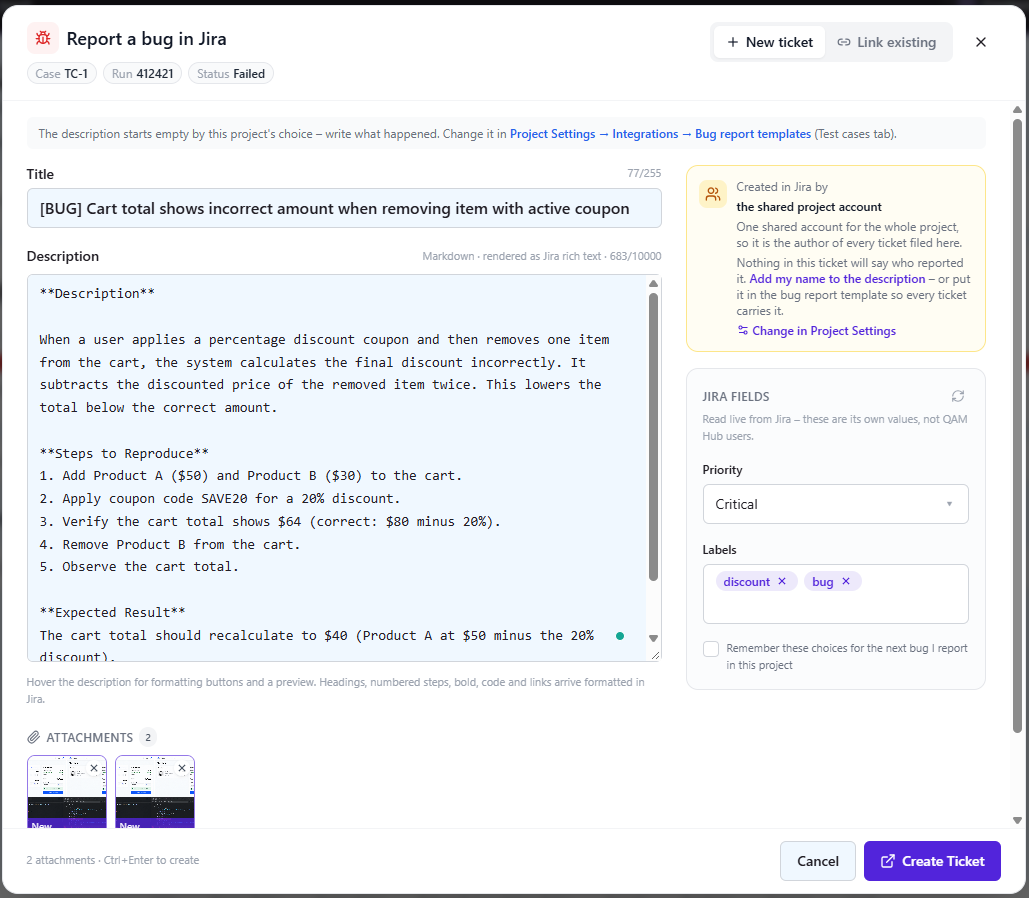
The connection is made in a setup wizard. You enter the Jira site, choose the Jira project and decide who the integration acts as: either one shared account files every bug under a project-wide identity, or each tester connects a personal account and every bug is authored in Jira by the person who found it.
The configuration is verified before it is saved, so a wrong site or a project the account cannot see is caught in the wizard rather than on the first failed test. Project priorities are read from Jira during setup and kept in sync with "Refresh", so a priority added in Jira later is available in the bug dialog after one click.
How a Jira test management integration reports a bug
"Report a bug in Jira" is available on a failed test execution, a failed checklist cell and an Agent Flows triage card. The dialog opens with the title and a Markdown description already filled from the project's bug report template. The template carries variables for the case, its steps and expected result, the actual result, the run and the reporter, and each project edits it once. The execution's screenshots are attached, and the description arrives in Jira as rich text with headings, numbered steps and code blocks rather than as pasted Markdown.
The template, the preview and the attachment handling are shared with every other tracker; the defect tracking page covers the variables and the one-bug-for-many-cases flow in detail.
Jira's required fields, read live per issue type
Jira projects rarely accept a bare summary and description. QAM Hub reads the fields of the chosen issue type from Jira when the dialog opens, so a required component, fix version or custom field is asked for in the dialog with Jira's real options, and the bug cannot be created until it is filled. A tester never learns about a required field from a rejected request.
Defaults are set per project and work in two modes: a fixed default is applied silently and hidden from the dialog, a pre-filled one is shown and can be changed. "Remember these choices" keeps a tester's picks for the next bug, so the second report of the day is a title check and one click.
Link an issue that already exists
Not every failure is a new bug. "Link existing" attaches an issue that is already in Jira to the execution. The relation is not one-to-one in either direction: one Jira issue can cover many test cases, and one execution can carry several issues when a single test uncovers more than one problem. Linked issues appear on the case, on the run and on the requirement the case traces to.
Sync Jira issues as requirements
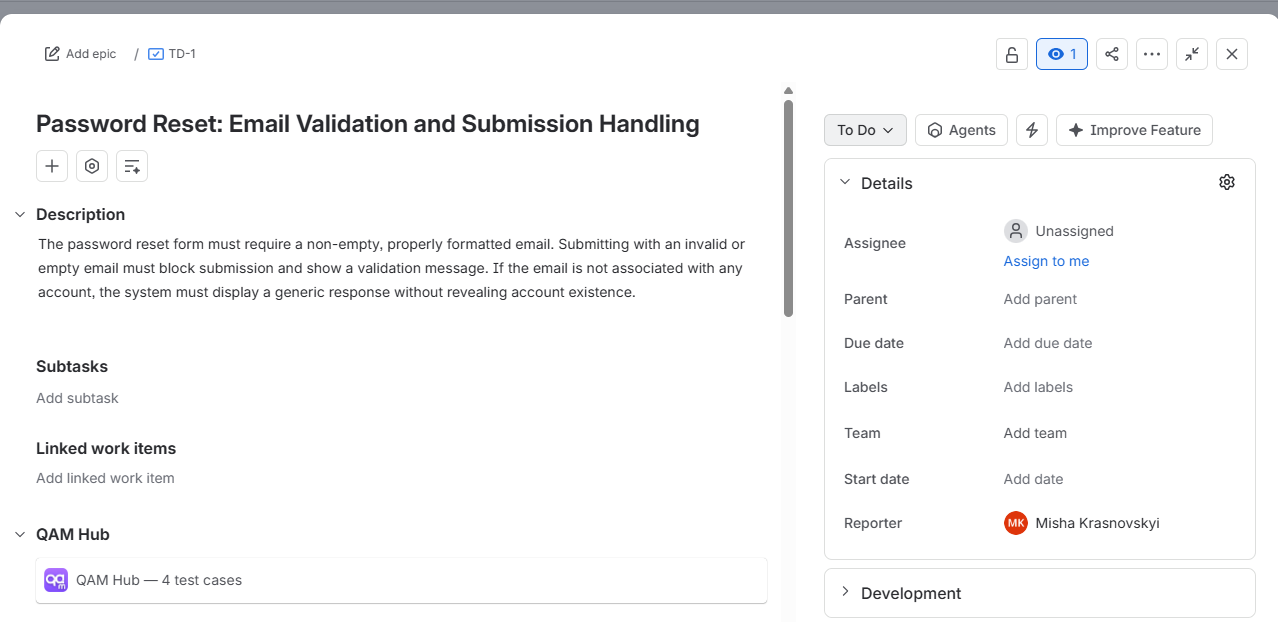
Requirements are pulled from Jira by filter, shown in a sortable preview and imported with their key, title, description and a link back to the issue. Each requirement can be refreshed from Jira on demand, so a reworded story is updated in QAM Hub without a second import. Once a requirement is linked to the test cases that prove it, the requirements page shows which Jira issues are covered, which are not, and the latest result of every covering case. The requirements traceability page describes the coverage views and the CSV export.
Publish test coverage to Jira
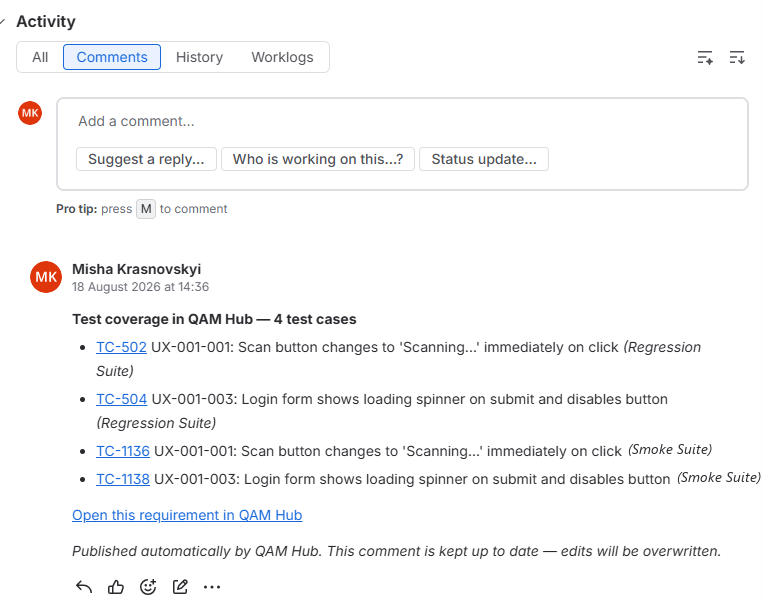
"Publish to Jira" is opt-in and switched on per project. When it is on, each linked issue gets exactly one QAM Hub comment that lists the test cases covering the requirement and, for a bug, where it was found. The comment is edited in place as links change, so an issue never collects a trail of outdated comments. A remote issue link is added to the issue's link panel as well, pointing at the test case in QAM Hub.
The boundary is deliberate: nothing is read back from Jira when publishing, and Jira's own fields, the summary, the description and the status, are never written. A product manager who never opens a test tool sees the coverage on the story, and the story itself stays theirs.
What QAM Hub writes to Jira, and what it leaves alone
| In Jira | What the integration does |
|---|---|
| Summary and description | Written once when a bug is created from the dialog. Never edited afterwards. |
| Required and default fields | Filled from the dialog at creation, with Jira's own options. |
| Attachments | The selected screenshots are uploaded as files when the bug is created. |
| Comments | One QAM Hub comment per issue when publishing is on, edited in place. |
| Issue links | One remote issue link per issue when publishing is on. |
| Status and workflow | Never written. The current state is read for the Defects report. |
| Priorities | Read from the Jira project and refreshed on request. |
Every Jira issue raised from testing, in one report
The Defects report lists every issue raised from testing in the project with its current state, whether it came from a test run, a checklist run or an agent run. It answers "what did this cycle find and what is still open" without anyone building a query in Jira.
The same workflow for the other trackers
The bug dialog, requirement sync and publishing exist for GitHub, GitLab, Linear, Asana, Redmine, Trello, Azure DevOps, ClickUp, YouTrack, Shortcut and ServiceNow as well, behind one interface, so a team that keeps bugs in Jira and a team that keeps them in GitHub use the same screens. One tracker is active per project. The integrations overview lists what each provider supports.
If you are still choosing a test management tool to sit next to Jira rather than evaluating this integration, the guide to test management tools for Jira is written for that decision.
Plans
Creating and linking Jira issues is included on every plan. Requirement sync from Jira is part of the Standard and Advanced plans; publishing back to Jira is part of the Advanced plan.
Frequently asked questions
Does QAM Hub change the fields of my Jira issues?
No. A bug's summary, description, fields and attachments are written once when you create it from the dialog. Publishing adds one QAM Hub comment and one remote issue link per issue and edits that comment in place; the summary, description and status of the issue are never written.
Can each tester file bugs under their own Jira account?
Yes. The setup wizard offers a shared account for the whole project or a personal account per tester. With personal accounts, each bug is authored in Jira by the person who found it.
Can one Jira issue be linked to several test cases?
Yes. "Link existing" attaches an issue that already exists, and the same issue can be linked from many executions. One execution can also carry several issues when a test uncovers more than one problem.
Can I use Jira for both bug reports and requirements in the same project?
Yes. The same connection files bugs from failed executions and syncs issues from Jira as requirements by filter, each refreshed on demand. Creating and linking bugs is included on every plan, while requirement sync is part of the Standard and Advanced plans.