

Test execution management for QA teams
Pick the cases, assign testers, and record Pass, Fail, Blocked, Retest, Skipped or a status of your own, with comments and screenshots.
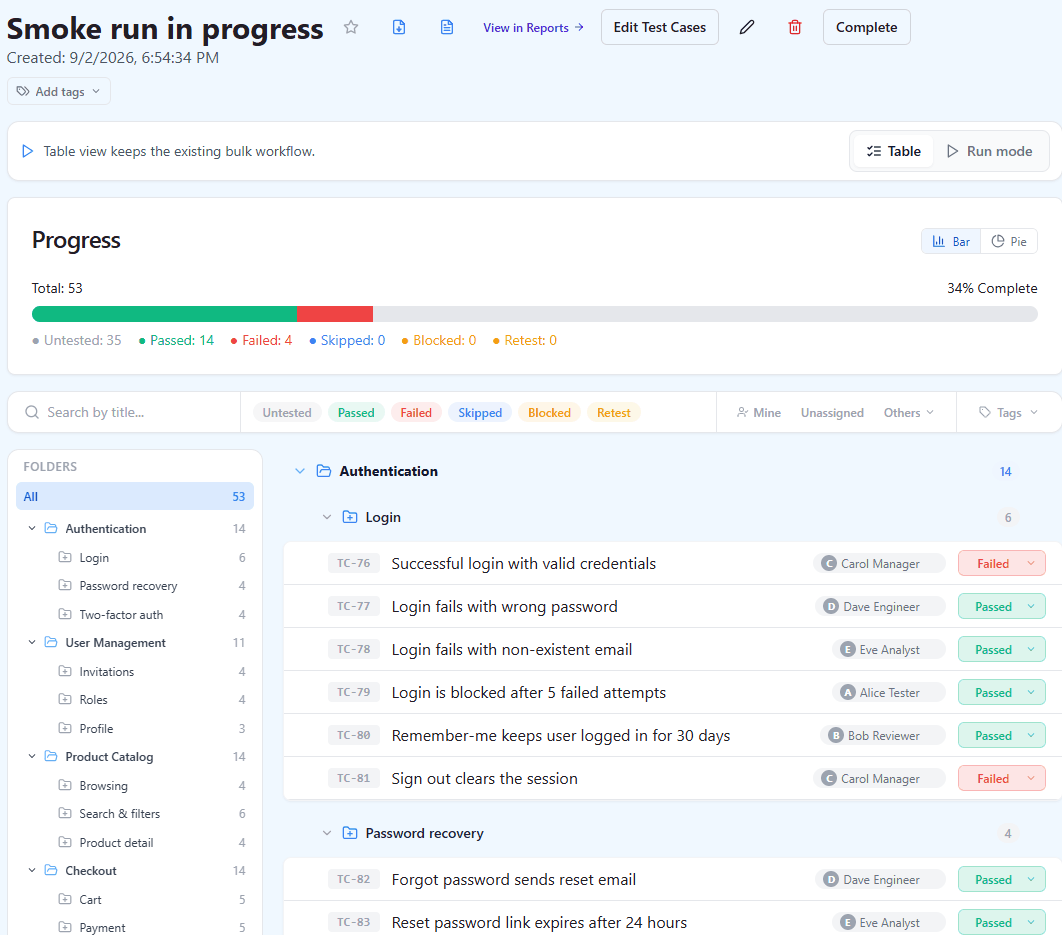
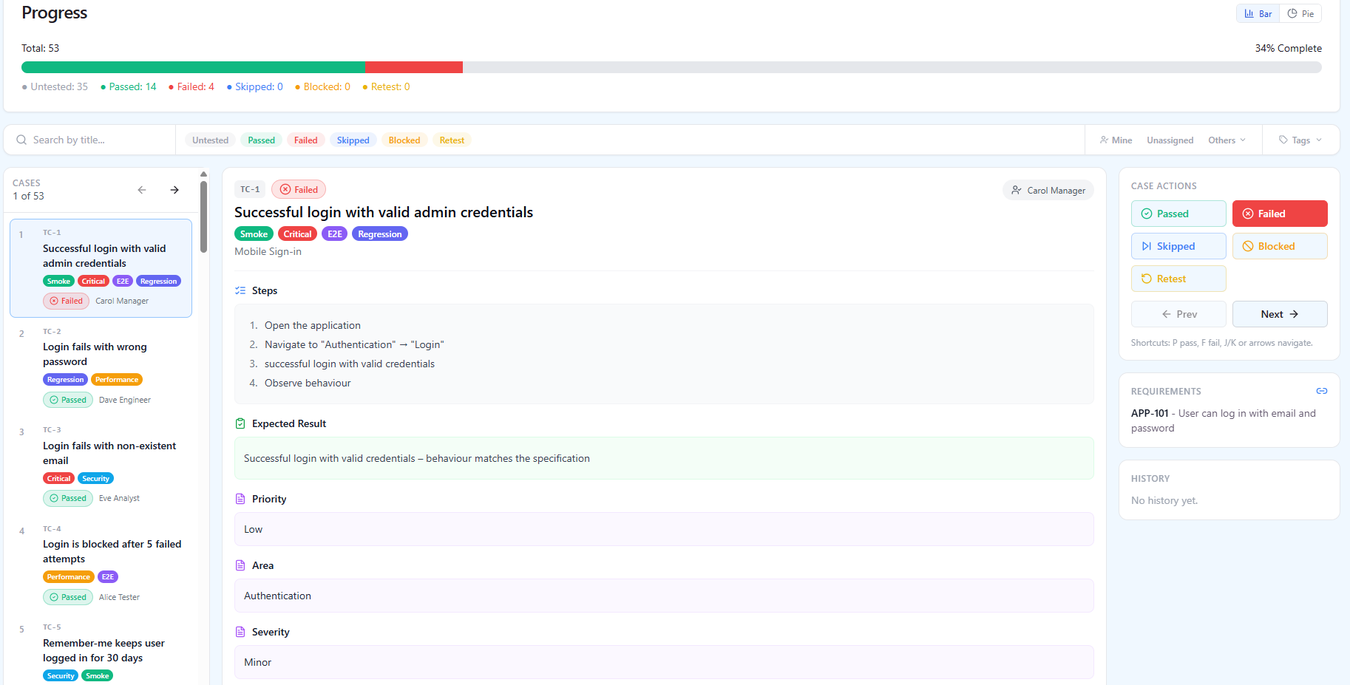
Test execution management is the part of a test management system your team touches every day: pick what to test, hand it out, record what happened and act on the failures. In QAM Hub a test run has a scope of its own, is assigned per tester, is worked through in a table or one case at a time, and closes as a record a release review can read later. Bugs are filed from the failing execution, and the run counts toward the milestone it belongs to.
How a run is created and what it holds
You create a run from whole suites, selected cases, groups or tags. From that moment the run keeps its own scope: editing a suite later does not silently change a run that is in progress. When the scope should change, "Edit Test Cases" on the run changes it deliberately, so a tester never finds cases appearing or disappearing halfway through a regression round.
A run carries run tags, kept in their own dictionary separate from case tags, so labels such as a release name or a hotfix marker never mix with the tags you use to organize cases. Runs can be marked as favorites, and a progress bar per status shows from the runs list how far along each run is.
Assign test cases to testers
Every case in a run can be assigned to a tester, one at a time or in bulk from a selection. The filters on the run follow the same idea: "Mine" shows your own cases, "Unassigned" shows what still needs an owner, and you can filter by any other tester, by status, by tags, or search by title. A lead hands out the work in a few minutes, and each tester opens the run and sees their share. The assigning testers article walks through the exact clicks.
Test execution management in two views
The run offers two views for two kinds of work.
- "Table" is for bulk work: filter, select many cases, then set a status, assign or comment on all of them at once.
- "Run mode" shows one case at a time with its steps, expected result, custom fields, linked requirements, history and the status buttons, so the tester reads the case and records the result without leaving the screen.
Run mode is built for the keyboard: P marks the case passed, F marks it failed, and J/K or the arrow keys move to the previous or next case. Steps are split automatically so Run mode shows one step per row. Linked requirements are shown on the case, so the tester sees what the case proves, not only what to click.
Execution statuses, built in and custom
Six statuses are built in, and a project can add up to three custom statuses with their own colors. Custom statuses are neutral: they are never counted as passed or failed, and they appear in the run, in Run mode, in the history and in every report. The colors of the built-in statuses are customizable per project as well. The execution statuses article explains each one in detail.
| Status | In the pass rate | Comment prompt |
|---|---|---|
| Untested | Left out of the denominator | Never |
| Passed | Counted as passed | Off by default, per project |
| Failed | Counted as failed | On by default, per project |
| Skipped | Left out of the denominator | On by default, per project |
| Blocked | In the denominator, not passed | On by default, per project |
| Retest | In the denominator, not passed | Off by default, per project |
| Custom, up to 3 per project | Neutral, never passed or failed | Chosen when the status is created |
Because Untested and Skipped stay out of the denominator, a run that is half done never reads as a quality drop in the progress bar or in a report.
Record results fast, keep the comment where it matters
Each status carries its own "Ask for a comment" setting in Project Settings. Out of the box Failed, Skipped and Blocked open the comment prompt, because a failure without a note is a failure somebody has to reproduce twice, while a pass is one click or one key press. A project can switch the prompt on or off for any status, custom ones included; the comment itself stays optional, and the execution detail page always has a comment field.
Bulk actions on a selection cover set status, assign and comment. Setting a status on many cases opens a comment queue: "Save & Next" writes the comment for the current case and moves to the next, and "Apply to all N remaining" uses the same comment for the rest of the selection. The running tests and recording results article covers the whole flow from the first case to the last.
What every execution keeps
An execution is more than a status. Each one keeps its screenshots, its comments, its linked bugs and a full status history with who set each status and when. The history outlives the run: after the run is completed, the record of what was executed, by whom and with which result stays readable on the test case and in every report.
From a failed execution to a bug
From a failed execution, "Report a bug" files an issue in Jira, GitHub, GitLab, Linear, Asana, Redmine, Trello, Azure DevOps, ClickUp, YouTrack, Shortcut or ServiceNow, pre-filled from the case, or links an issue that already exists. The bug stays attached to the execution and the case, so the Defects report later lists what testing actually found. Templates, required tracker fields and screenshots are described on the defect tracking page.
Close, export and compare runs
"Complete" closes the run; reopen it when a late fix needs a retest. A run exports as PDF or CSV for the people who do not log in. Runs can belong to a milestone and count toward its burndown and readiness, which is how a set of runs becomes a release picture.
"Compare runs" puts 2 to 6 runs side by side, case by case, with an "Only differing results" filter that hides every case whose result did not change between them. It is the fastest way to answer what broke between two regression rounds.
Plans
Test runs are included on every plan. Custom execution statuses are part of the Standard and Advanced plans.
Frequently asked questions
Does editing a suite change a run that is already in progress?
No. A run keeps its own scope from the moment it is created, so editing or reorganizing a suite later does not silently change a run in progress. If the scope of a run should change, "Edit Test Cases" on the run changes it deliberately.
Can I add my own execution statuses?
Yes. A project can add up to three custom statuses with their own colors next to the built-in Untested, Passed, Failed, Skipped, Blocked and Retest. Custom statuses are neutral, never counted as passed or failed, and appear in the run, in Run mode, in the history and in every report. Custom execution statuses are part of the Standard and Advanced plans.
How do I assign test cases to testers?
Every case in a run can be assigned to a tester, one at a time or in bulk from a selection. Each tester then opens the run with the "Mine" filter to see their own cases, and a lead uses "Unassigned" to find the cases that still need an owner.
Does a failed test always require a comment?
By default Failed, Skipped and Blocked open the comment prompt and Passed does not, so a pass is one click. The project decides per status in Project Settings → Execution Statuses, custom statuses included. The comment stays optional.
Can I compare two regression runs?
Yes. "Compare runs" shows 2 to 6 runs side by side, and the "Only differing results" filter hides every case whose result is the same in all of them, so only the changes remain on screen.