

Test reporting tool for QA teams and stakeholders
10+ report types – coverage, traceability, release readiness, defects, team activity – with PDF and CSV export.
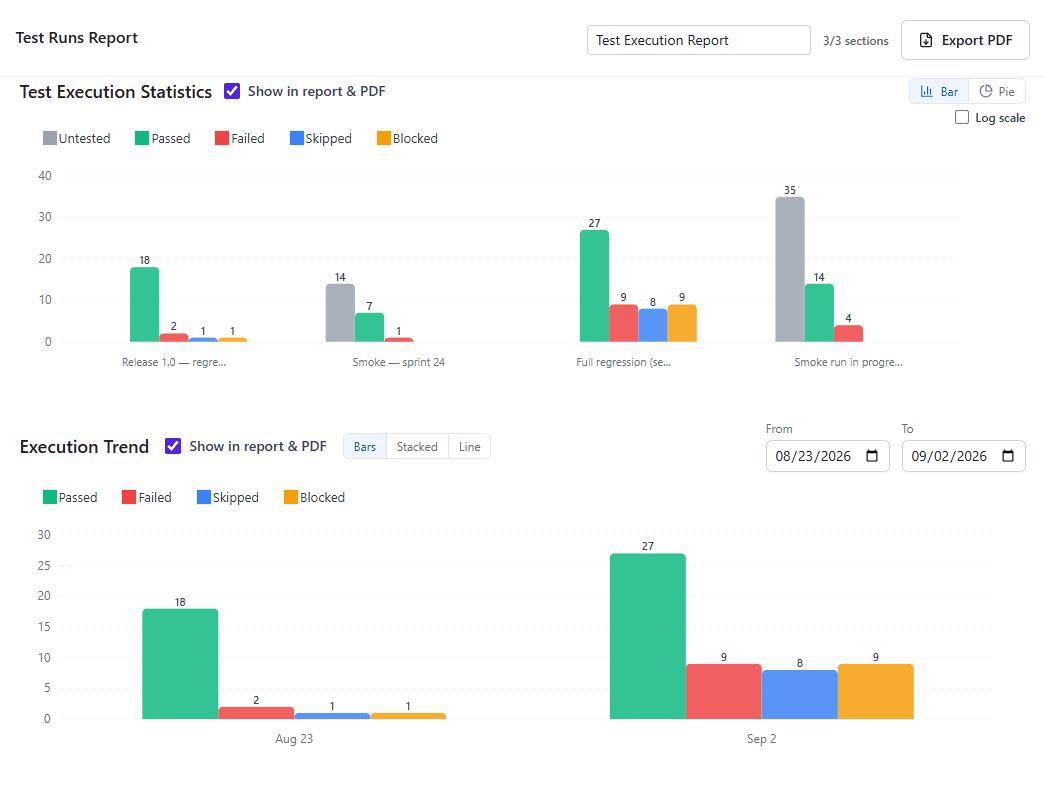
A test reporting tool has two audiences: the QA team that needs the numbers right now, and the people outside it who need the same numbers in their inbox, in a PDF, or in a link that opens exactly what you saw. QAM Hub reports serve both from one catalog, with a command bar that is the same on every report, exports that respect what you chose to include, and three deliberately separate things: saved reports, snapshots and email digests. Which numbers are worth reporting is a different question, answered in QA metrics that matter for engineering leaders.
What the test reporting tool shows first
The Reports page opens on a landing, not on an empty picker. It shows presets for the common questions, so the first result is one click away, then the project's saved reports, then the full catalog. A tester who wants "how did the last regression go" and a lead who wants "requirement coverage for the next release" both start from the same page and reach their report without configuring anything.
The report catalog
| Report | What it answers |
|---|---|
| Manual Runs | How test runs and checklist runs went: executions, statuses and pass rate over the chosen runs |
| Automation Runs | How the Playwright, Cypress and JUnit XML runs went over time |
| Defects | Every issue raised from testing, including bugs filed from checklist cells, with its current state |
| Test Base | What the selected suites contain: cases by suite, group, tag, automation flag, author and age |
| Automation Coverage | Which manual test cases have automated results linked to them, and which do not |
| Requirement Coverage | Which requirements are covered by test cases and what those cases returned last |
| Release Readiness | A milestone against its quality gates, with a go or no-go verdict |
| Team Activity | Who did what in a period |
| Retrospective | The AI Run Retrospective of a run, as Markdown or PDF |
| Quality Analyzer | The findings of the Quality Analyzer on your test cases |
| Organization | Every project of the organization aggregated in one report |
Release Readiness is described on the milestones page and the Quality Analyzer report on the Quality Analyzer page.
One command bar on every report
Every report has the same command bar, so learning one report means learning all of them.
- A picker to switch to another report.
- Chips that show the applied scope: the mode, the type and the number of runs the report is computed over, so nobody reads a number without knowing what it covers.
- "History": the earlier results of this report.
- "Share": a link that reopens the same report, with the same scope and the same snapshot, for a colleague.
- "Email": send it, or set up a digest.
- "Export": PDF or CSV.
- "Configure": the report's own settings.
Each section of a report has an "In PDF" switch, so the exported PDF contains the sections you chose and leaves out the ones that would only confuse the reader.
Saved reports, snapshots and digests are three different things
Most reporting tools blur these together, and the result is a "report" nobody knows whether to trust. QAM Hub keeps them apart.
| Thing | What it is | When to use it |
|---|---|---|
| Saved report | A reusable setup: the report, its scope and its configuration, rerun in one click. It can be pinned to the project dashboard with its key numbers. | The report you look at every Monday |
| Snapshot | A result frozen as it was at that moment. Snapshots can be compared with each other. | The numbers quoted in a release meeting |
| Email digest | A short templated email sent on a schedule. Every delivery is kept as a snapshot. | The stakeholders who never log in |
A saved report always shows current data; a snapshot never changes. Comparing two snapshots is how you show what moved between two points in time without anyone recomputing anything.
Scheduled email digests
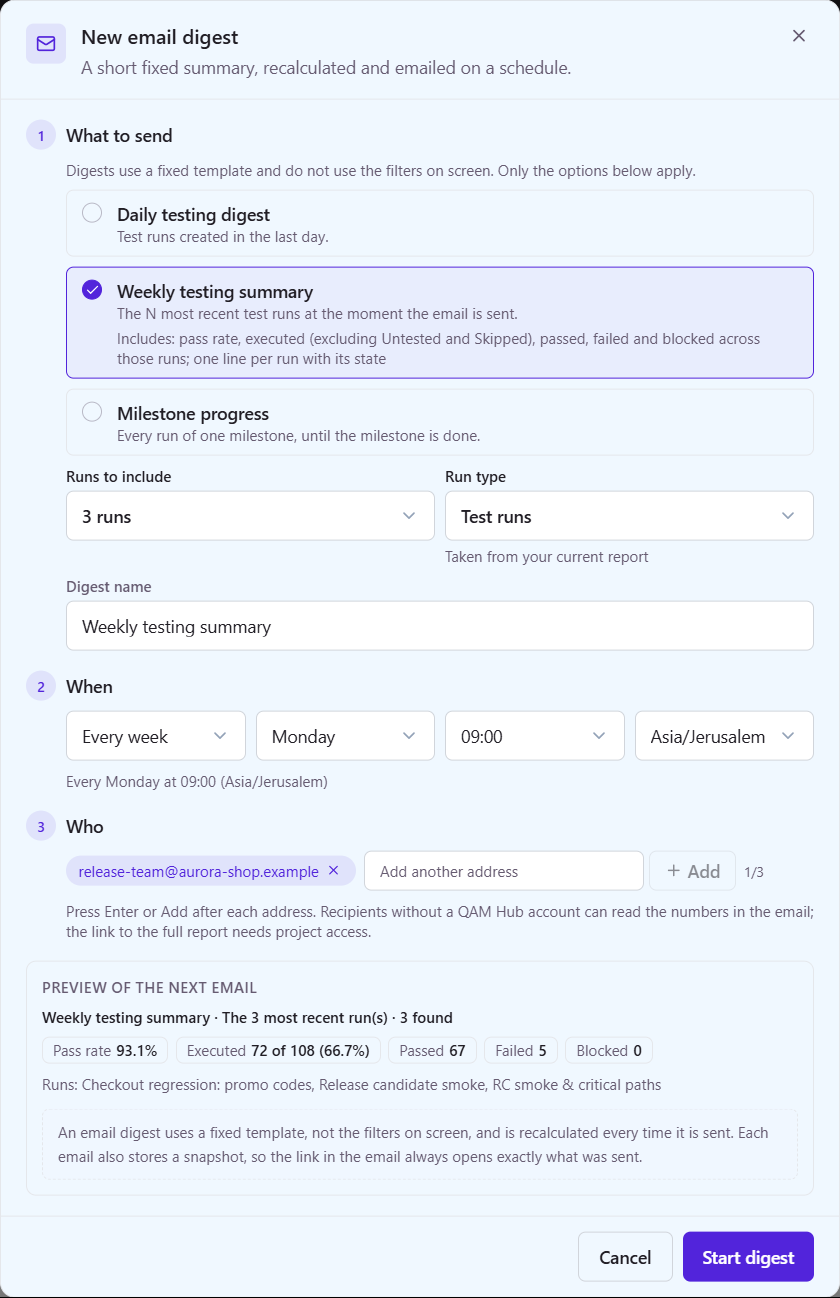
A digest is not a full report in an email. It is a short, fixed template, so a reader learns to scan it in the same order every time. Seven templates exist:
- Daily testing digest
- Weekly testing summary
- Milestone progress
- Daily automation digest
- Weekly automation summary
- Weekly defects overview
- New defects daily
You pick the template, the schedule and the recipients, and a live preview shows the exact email before you save. Recipients do not need an account, which is what makes digests the right channel for a product owner or a client. Every delivery is kept as a snapshot, so a number quoted from last Tuesday's email can be re-read later exactly as it was sent.
Compare runs and the AI Run Retrospective
"Compare runs" puts 2 to 6 runs side by side, case by case, for the "what changed since the last round" question. The AI Run Retrospective summarizes a run in prose and can be copied as Markdown into a wiki or a ticket, or exported as PDF.
How the pass rate is computed
In manual reports, the pass rate excludes Untested and Skipped from the denominator. A run that is half executed therefore does not read as a quality drop: the rate describes the cases that were actually executed, and the execution completeness is reported separately where it matters, for example in release readiness. Trend versions of these numbers live on the project dashboard.
Organization-wide reports
Organization reports aggregate every project of the organization. An "Include checklists" switch lets a team that reports test-run numbers only leave checklist runs out, and a checklist-driven team keep them in, without two versions of the same report.
Plans
Reports with PDF and CSV export are included on every plan. Saved reports, snapshots, organization-wide reports and scheduled email digests are part of the Standard and Advanced plans.
Frequently asked questions
Can I send a test report to someone who does not have an account?
Yes. Export the report as PDF, or add the person as a recipient of a scheduled email digest; digest recipients do not need an account. For colleagues who do log in, "Share" produces a link that reopens the same report, scope and snapshot.
What is the difference between a saved report and a snapshot?
A saved report is a reusable setup that reruns on current data in one click and can be pinned to the project dashboard. A snapshot freezes a result as it was at that moment and never changes, and two snapshots can be compared with each other.
Why does an unfinished run not lower the pass rate?
Because the pass rate in manual reports excludes Untested and Skipped from the denominator. It describes the cases that were actually executed, so a run that is half done shows the quality of what was tested rather than a misleading low number.
Can I schedule a test report by email?
Yes. Choose one of the seven digest templates, such as the Weekly testing summary or the Milestone progress digest, set the schedule and the recipients, and check the live preview before saving. Every delivery is kept as a snapshot.
Can I report across all projects of my organization?
Yes. Organization reports aggregate every project, with an "Include checklists" switch that decides whether checklist runs are part of the numbers. Organization-wide reports are part of the Standard and Advanced plans.