

Azure DevOps test management integration for QANew
File Bugs in Azure Boards from failed executions, sync work items as requirements by WIQL and publish test coverage back onto the work item.
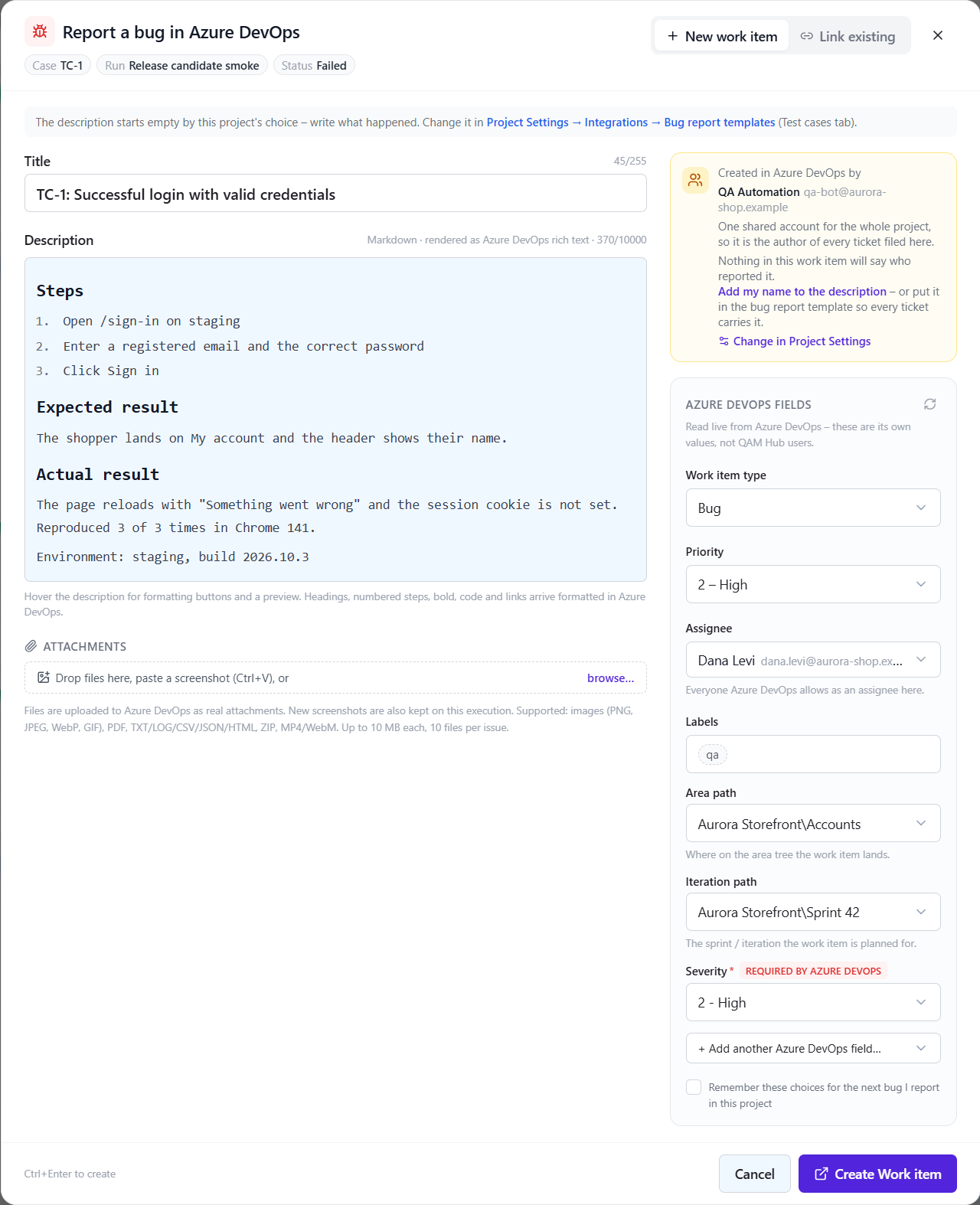
QAM Hub connects a project to Azure DevOps Services and uses the connection the way your team already uses Azure Boards: a failed test files a Bug with the evidence in Repro Steps, work items come in as requirements that test cases cover, and the coverage is published back onto the work item as a comment. This page covers how the Azure DevOps test management integration is set up, what it asks a tester for, and exactly what it writes to a work item.
How the Azure DevOps connection is set up
The integration supports Azure DevOps Services, the cloud service at dev.azure.com or <org>.visualstudio.com. Paste any project URL and QAM Hub derives the organization URL from it. On-premises Azure DevOps Server is not supported.
Authentication is a Personal Access Token, stored encrypted per project. A project uses either one shared token, so every Bug is created under one identity, or a personal token per tester, so a Bug in Azure Boards is created by the person who found it.
The work item type for bugs is chosen from the project's real, non-hidden types: Bug, Issue, Task or a custom type of your process. "Verify" then dry-runs a create with Azure's validate-only mode, which checks the token, the project and the type's rules without creating a test work item that someone would have to delete afterwards.
How an Azure DevOps test management integration files a bug
"Report a bug" opens from a failed test execution, a failed checklist cell or an Agent Flows triage card, pre-filled from the project's bug report template. The description is written as rich text into Repro Steps when the work item type has that field, which a Bug does, and into Description otherwise. Screenshots are uploaded as attachments of the work item and shown inline in the description, so whoever triages the Bug sees the failure without opening the attachments one by one.
| Work item type | Where the report goes |
|---|---|
| Bug, or any type with a Repro Steps field | Repro Steps, as rich text, with the screenshots inline. |
| Issue, Task or a custom type without Repro Steps | Description, as rich text, with the screenshots inline. |
| Every type | Screenshots are also attached to the work item as files. |
The template with its variables, the preview and the one-bug-for-many-cases flow are the same for every tracker; the defect tracking page describes them.
Azure's fields, read live per work item type
Process rules differ per project, so the dialog reads the fields of the chosen type from Azure when it opens. Required fields are asked for with their allowed values, including fields that a process rule makes required and that have no default. Area Path and Iteration Path are pickers over the project's real trees rather than text boxes. If Azure rejects the create because of a rule, the error is shown on the exact field it concerns, not as a generic failure.
Project defaults are set per field: fixed and hidden from the dialog, or pre-filled and editable. A tester's choices are remembered for the next bug.
Link a work item that already exists
Work item ids in Azure DevOps are organization-wide, so an issue key is a bare number: #123. AB#123 and work item URLs are accepted too, so a tester can paste whatever the pull request or the chat message contained. "Link existing" attaches a work item that is already in Azure Boards to the execution, and one work item can cover many test cases.
The status of a linked work item is read by state category (Proposed, In Progress, Resolved, Completed, Removed), so the state is understood whatever the state names of your process are, and it is shown on the linked issue.
Azure Boards work items as requirements
Requirements are synced by a WIQL filter with work item type, tags, state, area path and iteration path, so "every User Story in this area in the current iteration" is one filter. A parent work item is kept as the requirement's parent, so a Feature and its stories keep their hierarchy in QAM Hub. Each requirement can be refreshed on demand when the work item changes. Linking requirements to the test cases that prove them gives you covered and uncovered counts per work item; the requirements traceability page describes the coverage views.
Publish coverage onto the work item
Publishing is opt-in per project. When it is on, each linked work item gets one QAM Hub comment with the covering test cases and the defects found, edited in place as links change so the discussion does not fill with outdated comments, plus a hyperlink relation pointing at the test case in QAM Hub. Nothing human-owned is written: the title, the description, the state and the fields of the work item stay as your team left them.
What QAM Hub writes to a work item, and what it leaves alone
| In Azure Boards | What the integration does |
|---|---|
| Title, Repro Steps or Description | Written once when a Bug is created from the dialog. Never edited afterwards. |
| Required and default fields, Area Path, Iteration Path | Filled from the dialog at creation, with Azure's allowed values. |
| Attachments | The selected screenshots are uploaded when the Bug is created. |
| Comments | One QAM Hub comment per work item when publishing is on, edited in place. |
| Links | One hyperlink relation to the test case when publishing is on. |
| State | Never written. Read by state category and shown on the linked issue. |
Azure Pipelines results in the same project
Automated results from an Azure Pipelines job reach QAM Hub as well. JUnit XML from any framework is uploaded with the QAM Hub CLI, and the branch, commit and build link are detected from the pipeline, so an automation run in QAM Hub links back to the build that produced it. The JUnit XML and CLI page has the pipeline snippet.
Every work item raised from testing, in one report
The Defects report lists every work item raised from testing in the project with its current state, whether it was filed from a test run, a checklist run or an agent run. It answers "what did this regression find and what is still open" without a query in Azure Boards.
The same workflow in Jira and the other trackers
The bug dialog, requirement sync and publishing follow the same shape for Jira, GitHub, GitLab, Linear, Asana, Redmine, Trello, ClickUp, YouTrack, Shortcut and ServiceNow; the Jira integration page shows the Jira side, and the integrations overview lists what each provider supports. One tracker is active per project, so a project on Azure Boards is configured once and every tester in it files bugs the same way.
Plans
Creating and linking Azure DevOps work items is included on every plan. Requirement sync from Azure Boards is part of the Standard and Advanced plans; publishing back onto the work item is part of the Advanced plan.
Frequently asked questions
Does the integration work with on-premises Azure DevOps Server?
No. QAM Hub connects to Azure DevOps Services, the cloud service at dev.azure.com or your organization's visualstudio.com address. Azure DevOps Server is not supported.
Does "Verify" create a work item in my project?
No. Verify dry-runs a create with Azure's validate-only mode, so the token, the project and the rules of the chosen work item type are checked without a test work item ever being created.
Can bugs be filed as a type other than Bug?
Yes. The work item type is chosen from the project's real, non-hidden types, so Issue, Task or a custom type of your process all work. The description goes into Repro Steps when the type has that field and into Description otherwise.
What does publishing change on a work item?
One QAM Hub comment, edited in place, with the covering test cases and the defects found, and one hyperlink relation to the test case. The title, description, state and fields are never written.