

TestRail migration: import your projects into QAM Hub
Move TestRail projects into QAM Hub with a wizard: suites, cases, shared steps, runs with results, attachments and your team, after a mapping you review.
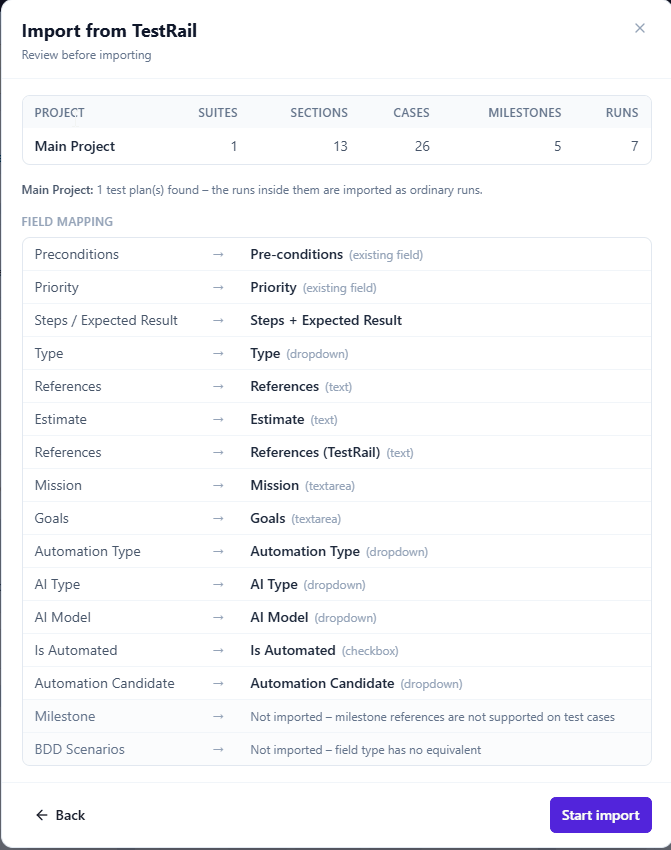
A TestRail migration into QAM Hub is a wizard your Organization Admin runs, not a spreadsheet exercise. You connect with the TestRail URL, a user and an API key, pick the projects, check what will happen to every field, decide who from the TestRail side joins the workspace, and the import runs with live progress. One TestRail project becomes one QAM Hub project, runs and result history included.
How the TestRail migration works
- Open "Import from other TMS" on Org Home and choose TestRail. Organization Admins only.
- Connect with the TestRail URL, the user name and that user's API key. Use a user who can see every project you want to move.
- Pick the projects. Each one becomes a new QAM Hub project.
- Review the preview: what each project contains and what happens to every field. Change the mapping where the automatic plan is not what you want.
- Decide on the team: which TestRail users are already members of your workspace and who should be invited.
- Start the import and follow the live progress. The report at the end lists what was imported and what was skipped, per item.
The wizard works with current TestRail, which pages its API responses, and with older versions that return everything in one response. Requests are paced so TestRail's rate limit is respected and a large project does not get throttled halfway through.
What comes across from TestRail
| In TestRail | In QAM Hub |
|---|---|
| Suites | Suites, one for one. |
| Sections | Groups inside the suite. Very deep section trees are folded so they stay navigable. |
| Cases | Title, steps and expected result, with the created and updated dates and the author when that person is in the workspace. Separated steps become a numbered list. |
| Shared steps | Expanded inline into every case that uses them. |
| Preconditions, Priority | The built-in Pre-conditions and Priority fields. |
| Type, Estimate, custom fields | Custom fields, or whatever you map them to. |
| References | Requirements, linked to the case. |
| Labels | Tags. |
| Milestones | Milestones. |
| Runs and results | Test runs with the full result history and who executed what. The most recent 50 or 200 runs per project, or all of them. |
| Test plans | Flattened into runs, with the plan name and the configuration carried in the run name. |
| Result defects | Linked issues on the execution. |
| Images on cases and results | Attachments. |
| Custom result statuses | Up to three custom execution statuses. |
| Users | Matched to workspace members by email; everyone else can be invited as a member or a viewer. |
How cases, steps and runs are converted
A case keeps its title, steps and expected result. Cases written with TestRail's separated steps become a numbered list, so the order survives and each expected result stays with its step. Shared steps are expanded inline into every case that uses them, which means a case reads the same on its own as it did inside TestRail. Preconditions and priority go into the built-in fields; type, estimate and your custom fields become custom fields. The created and updated dates are preserved, and so is the author whenever that person is in the workspace.
References on a case become requirements in QAM Hub, linked to that case, so the traceability you kept in a text field becomes a coverage view with covered and uncovered counts. Labels become tags.
Runs are imported with their full result history, including who executed what and when, so the test runs you closed last quarter read the same way as runs executed in QAM Hub. Test plans are flattened into runs, with the plan name and the configuration in the run name, so a plan with three configurations becomes three runs you can tell apart. Result defects become linked issues, and up to three of TestRail's custom result statuses become custom execution statuses in the project. You choose how far back to go: the most recent 50 runs, the most recent 200, or every run.
You review the field mapping first
Nothing is written to the workspace until you have seen the field mapping. Every TestRail field has a row in the preview, and every row can be changed: create a custom field with your own name and type, map the field into an existing one, append its content to Steps or to Expected Result, or skip it. The import then writes exactly what the table shows, so a field you never used in TestRail does not become a column every tester scrolls past.
Your team comes with the projects
The Team step reads TestRail's users and matches them to workspace members by email. Everyone else is listed with an invite offer, as a member or a viewer, pre-ticked up to the seats that are still free. Invited people get access to the imported projects they had in TestRail, so a tester opens the same projects on the first morning and finds their own execution history under their own name.
What happens when something fails
Partial failures are per item: an image that cannot be fetched or a result that does not parse is counted and listed in the summary, and the rest of the project continues. A project that fails entirely is removed again, so nothing half-imported is left for someone to find later.
Good to know
- A re-import creates a second copy, because no link back to TestRail ids is stored. The preview warns about it; move each project once.
- One import of any tool (TestRail, Qase, Zephyr Scale or Xray) runs per organization at a time.
- Case numbers in QAM Hub are never reused, so a link to a case keeps pointing at that case, whatever is deleted later.
- Coming from Qase instead? The Qase import follows the same steps.
- The step-by-step guide is in the knowledge base: Importing from TestRail. If you want a plain export out of TestRail for your own records first, read exporting test cases from TestRail.
Plans
The TestRail import is included on every plan and in the free trial.
Frequently asked questions
Does the import bring my run history and who executed each test?
Yes. Runs come across with their full result history, including the tester and the time of each result, and test plans are flattened into runs with the plan name and configuration in the run name. You choose the most recent 50 runs, 200, or every run per project.
Can I change how TestRail fields are mapped?
Yes. The preview shows a row per field, and any row can create a new custom field with your own name and type, map into an existing field, append to Steps or Expected Result, or skip the field. Nothing is written until you have seen the mapping.
Does it work with an older TestRail version?
Yes. The wizard handles current TestRail, which pages its API responses, and older versions that return everything in one response. Requests are paced to respect TestRail's rate limit either way.
What happens if I import the same project twice?
You get a second copy. No link back to TestRail ids is stored, so the import cannot recognize a project it has already moved; the preview warns before it happens.