

How to Migrate Test Cases from Spreadsheets to a Test Management System

To migrate test cases from a spreadsheet into a test management system, flatten the sheet into one row per test case, audit and deduplicate it before you touch the importer, map every column to a real field in the target tool, import a pilot batch of 20-30 cases first, then reconcile counts against the original file before you let anyone write to the sheet again. The import itself takes minutes. The work is in the two hours before it and the two hours after it, and that is where most migrations quietly lose data.
The takeaway in 30 seconds
- Clean first, import second. A spreadsheet that has grown for three years carries duplicates, dead cases and half-written rows, and an importer will happily create all of them as real test cases.
- A CSV carries text. Cell colours, merged cells, conditional formatting, embedded screenshots, comment threads and revision history do not cross the boundary. Decide in advance which of those you rebuild and which you abandon.
- Pick the method by volume: under 500 cases is one clean CSV pass, 500-5,000 wants batching by module and a pilot, over 5,000 wants a script against the API with a staging table keyed on the original row ID.
- Keep a legacy ID column, mapped to a custom field you create before the import. It is the only cheap way to prove afterwards that all 1,847 rows became 1,847 test cases, and to name the ones that did not.
- Name your headers after the target tool's fields. Automatic column matching then does most of the mapping, and the columns you forgot to map are ignored without an error.
- Historical run results are usually not worth migrating. Archive the old sheet read-only and start clean runs in the new tool.
We have run this migration for client teams and for our own QA department, and the pattern repeats: the tooling is not the hard part. Below is the sequence we use, the exact column layout to normalise into, the CSV mechanics that break imports, and the validation checklist that catches a bad import while it is still cheap to undo.
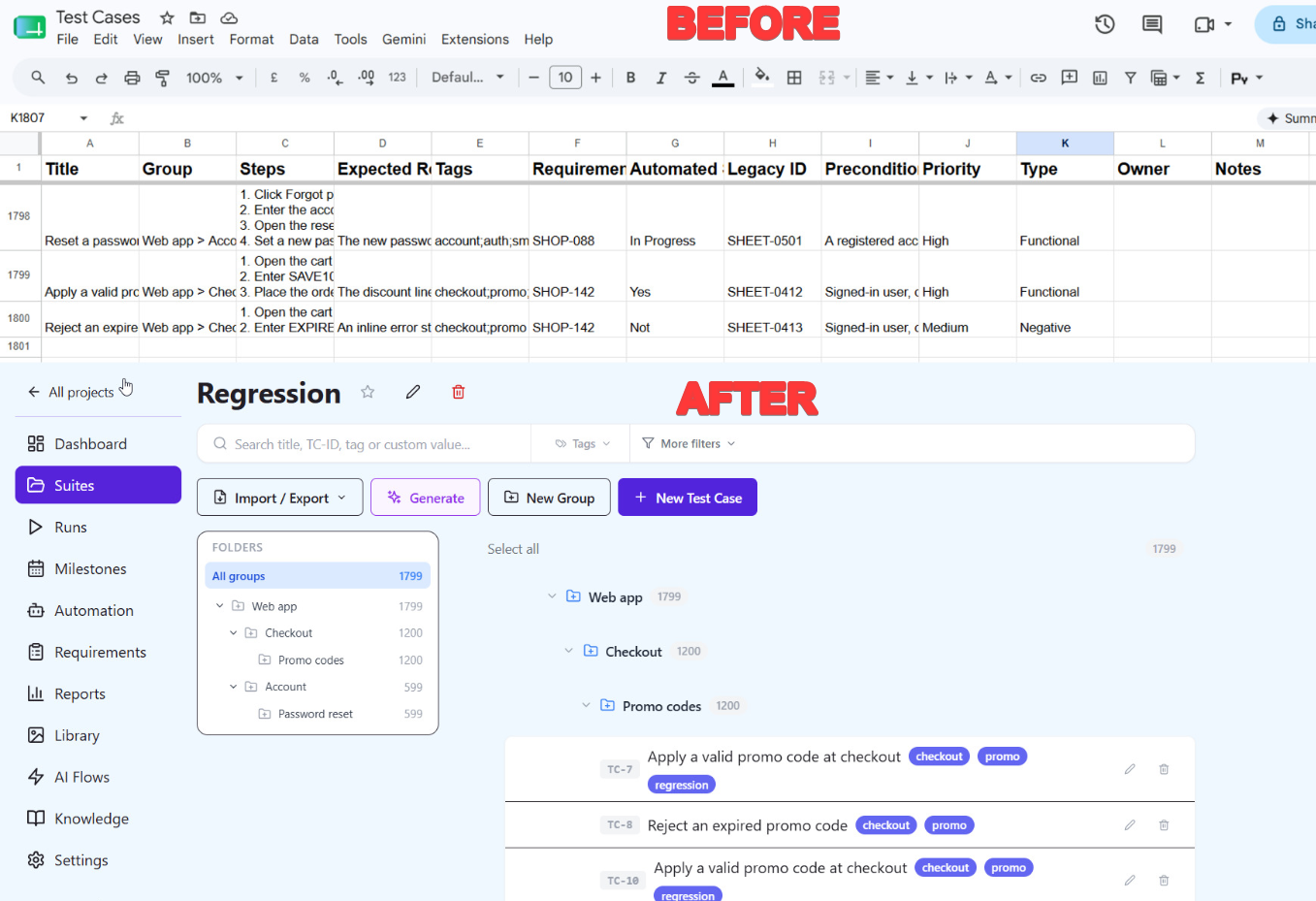
Why spreadsheet migrations lose data
Two things are true at once. Spreadsheets are excellent at holding text, and they are unreliable as a system of record. Raymond Panko's review of the research, "What We Don't Know About Spreadsheet Errors Today" (2015), reports that across 85 intensive inspection studies auditors found errors in 94% of the spreadsheets examined, with cell error rates in field audits of 0.9-2.5% and an average of 3.9% in controlled development studies. Panko's subject was financial models, not test suites, and a wrong cell in a test case does not compound the way a wrong cell in a formula does. The relevant part is the base rate: in any human-maintained grid of a few thousand rows, some percentage of rows is wrong, and nobody knows which ones.
That matters at migration time because an import is a faithful copier. It does not evaluate whether a case is still relevant, whether two rows describe the same scenario in different words, or whether row 812 has an expected result that was true two releases ago. Import first and you have paid to move your mess into a tool where it is now harder to bulk-edit. Our longer argument about where sheets stop working is in Test Management vs Spreadsheets: When Sheets Break. This article is the mechanical half of that pair.
Step 1: Audit the sheet before you open the importer
Set a fixed cut-off. Announce that the sheet is frozen for edits on a specific date and time, and that anything added after that has to be re-entered in the new tool. Migrations that run against a moving spreadsheet produce two sources of truth and a week of arguments about which is current.
Then work through the sheet with four questions:
- Is this a duplicate? Sort by title and read the neighbours. Near-duplicates rarely share wording, so also sort by the first step. Teams that split a suite across tabs by tester almost always carry the same login and search cases three times over. Our method for finding these at scale is in How to Find Duplicate and Low-Quality Test Cases.
- Is this still true? Any case referencing a screen, endpoint or feature flag that no longer exists is dead weight. Delete it. Migrating it with a "check later" note does not work, because nobody checks later.
- Is this executable by someone who did not write it? Rows with a title and no steps, or an expected result of "works correctly", are placeholders. Either finish them now or leave them behind.
- Does this belong in a test case at all? Environment notes, credentials, release dates and open questions accumulate in the same grid. They go to a wiki, a checklist or a password manager, not into the test case importer.
Two habits make the audit defensible. Work on a copy, and record what you removed with the reason in a separate tab. When someone asks in October why their case is gone, the answer should take thirty seconds to find.
Expect the sheet to shrink. In our migrations the audit consistently removes more rows than the team predicted at kick-off, and the removals are concentrated in the oldest tabs. Budget the time for it: this is the step that pays for itself, and it is the step most often skipped when someone treats the migration as an IT task with a deadline.
Step 2: Decide what you migrate and what you archive
Migrate the test cases. Archive nearly everything else. Testmo's own migration guide for teams coming from Excel and Google Sheets gives the same advice and explains why: the old tool structures runs and results differently, so reformatting history into the new schema costs real effort and produces reports nobody trusts.
A workable split:
| Content in the sheet | Decision | Why |
|---|---|---|
| Test cases (title, preconditions, steps, expected results) | Migrate | This is the asset. Everything else is metadata about it. |
| Suite / module / feature grouping | Migrate as a hierarchy path | Cheap to carry in one column, expensive to rebuild by hand afterwards. |
| Priority, type, tags, owner | Migrate if the values are consistent | Inconsistent free-text values arrive as inconsistent field values. Normalise them in the sheet first. |
| Requirement or ticket references | Migrate, but import the requirements first | Importers match references against requirements that already exist and skip the rest. Load the requirements, then the cases, and the links form during the import instead of by hand afterwards. |
| Pass/fail columns per release | Archive | Colour-coded run columns are a report, not data. They do not map to a run model. |
| Defect notes written inside cells | Archive, extract anything open | Open bugs belong in the tracker. Closed ones are history. |
| Embedded screenshots | Rebuild selectively | They do not survive CSV. Re-attach only to cases where the image is the expected result. |
| Comment threads and revision history | Archive | Nothing carries them across. Keep the original file read-only if there is any audit obligation. |
Keep the frozen original somewhere permanent and read-only. It costs nothing and it ends every "we lost something" conversation in the first month.
What does not survive a spreadsheet export
A CSV is plain text with delimiters. Everything a spreadsheet layers on top of text is gone the moment you export, and this surprises people who have only ever exported small files. Testiny's import documentation states plainly that attachments, images and history cannot be imported. That is not a gap in one vendor's product. It is what the format is.
| Lost on export | What to do instead |
|---|---|
| Cell colours and conditional formatting | Convert the meaning into a real column before exporting. If yellow meant "needs review", add a status column and fill it. |
| Merged cells | Unmerge and repeat the value down every row. Merged cells produce empty fields on the second and later rows, which is how half a suite ends up with no suite path. |
| Embedded images and screenshots | Export them to a folder named after the cases, then upload them to the project's image library and reference them from the text. See the section on image markers below, because this is the one attachment path a CSV can carry. |
| Formulas | Paste as values into the export copy. A formula exports as its result at best, and as an error string at worst. |
| Comments and threaded replies | Nothing to do. If a comment holds a real instruction, move it into the case text before you export. |
| Revision history | Nothing to do. The new tool starts its own history from the import forward. QAM Hub keeps the last 20 versions per case with rollback, counting from version one after import. |
| Multiple tabs | A CSV export takes one sheet. Export each tab separately, or consolidate into one sheet with a suite path column first. |
| Hyperlinks and rich text | The display text usually survives, the target usually does not. Paste full URLs as visible text where they matter. |
| Data validation and dropdown lists | Recreate as custom fields in the target tool before importing, or the values arrive as free text. |
Step 3: Normalise into one flat table
The importer wants a rectangle. One header row, no merged cells, no blank spacer rows, no totals row at the bottom, one sheet. Name the headers after the fields you are importing into, because most importers match a column to a field automatically when the names agree, which removes most of the manual mapping work. The layout below is built against CSV import in QAM Hub, and the same shape works for any tool that models a case as a title, a group and a block of steps.
| Column header | What it holds | Required | Rules worth knowing |
|---|---|---|---|
| Title | One scenario, phrased as an action | Yes | Up to 300 characters. Rows with an empty title are skipped and listed in the import report. |
| Group | Full folder hierarchy in one cell | For hierarchy | Use > between levels, e.g. Web app > Checkout > Promo codes. Missing groups are created for you. |
| Steps | All steps for the case in one cell, numbered on separate lines | In practice yes | Up to 5,000 characters. Can be switched off per project, in which case the column is ignored. |
| Expected Result | The outcome that decides pass or fail | In practice yes | Up to 5,000 characters. Also switchable per project. |
| Tags | Tag names for filtering and grouping | No | Separate several with a semicolon. Tags that do not exist yet are created. Names up to 25 characters. |
| Requirements | References to requirements that already exist in the project | No | Semicolon separated, matched by external key such as PROJ-123 or by title. Unmatched references are skipped and reported, never created. |
| Automated Status | Whether the case is automated | No | Not, Yes, In Progress, Not Possible, Backlog. Anything empty or unrecognised becomes Not. |
| Legacy ID | The original row identifier from your sheet | Recommended | Needs a custom text field created before the import, otherwise the column is ignored. |
| Preconditions | State the system must be in before step 1 | No | A custom text-area field, up to 5,000 characters. |
| Priority | Your priority scale | No | A custom dropdown. Values have to match the configured options, matched case-insensitively. |
| Type | Functional, regression, smoke, negative | No | Custom dropdown, same matching rule. |
| Owner | Who maintains the case | No | Custom text or dropdown field, depending on whether you want a fixed list. |
| Notes | Anything with no field yet | No | Custom text area. Review it after the import and empty the column. |
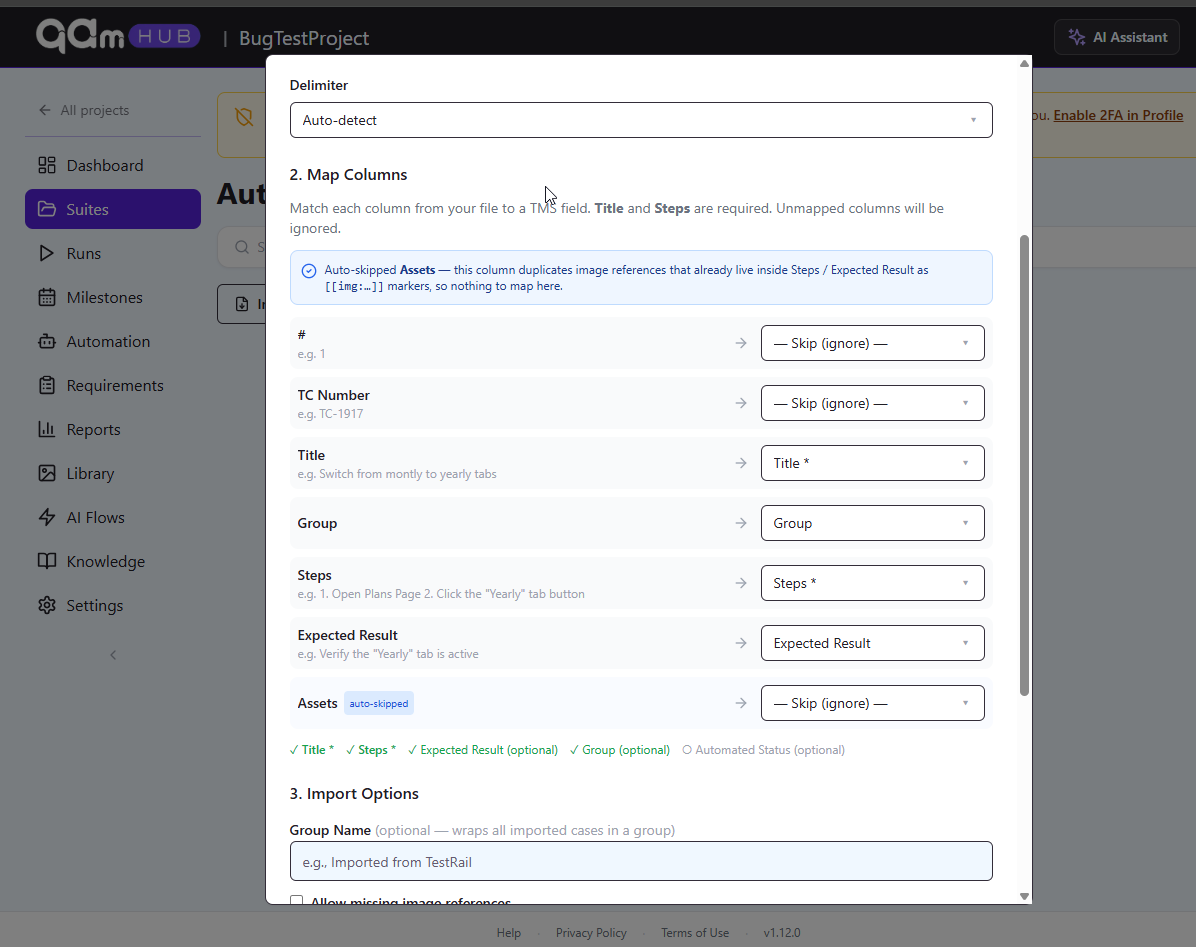
Two details in that table cost people a re-import. Semicolons separate multiple tags and multiple requirement references, so a comma-separated tag list arrives as one long tag. And requirements are matched, never created, so import your requirements into the project first if you want the references to land as links instead of being reported as misses.
Three decisions inside that layout carry most of the risk.
One row per case, or one row per step
This is the decision that differs most between tools, and getting it wrong means re-importing. QAM Hub takes one row per test case, with all steps in a single Steps cell of up to 5,000 characters and one Expected Result for the case. Number the steps on separate lines inside the cell and keep the formatting boring.
Other tools model it differently, which matters if your sheet was itself exported from a TMS. TestRail's documentation describes both shapes: its text template uses "standard one row format", where everything for a case sits in one row, while its steps template uses a multi-row layout in which the first row carries the case fields plus step one and each following row adds another step. Testiny goes further and offers seven ways to parse steps out of a cell, including newline-separated, numbered prefixes such as "1." or "(1)", bracketed numbers and a leading asterisk. A file built for a multi-row importer will produce one case per step in a single-row importer, so check the shape before you check anything else.
The practical consequence for a spreadsheet migration: if your sheet already has one row per step, consolidate the steps into one cell per case before exporting. A short script or a concatenation in a helper column does it in minutes, and it is far cheaper than deleting several thousand one-step cases afterwards.
Hierarchy in one column
Nested groups are expressed as a path in a single cell, and the separator is a convention, not a standard. QAM Hub uses > in the Group column, as in Web app > Checkout > Promo codes, creates any missing group in the path automatically, and recognises a TestRail "Section Hierarchy" column without being told. TestRail itself uses >, Testomat's documentation shows forward slashes as in /suite name/sub-suite name, and Testiny defaults to > with the separator configurable. Never use the separator character inside your own group names, and keep the tree shallow. QAM Hub nests about six levels deep; two or three levels usually reads better in a run than six.
Custom fields have to exist first
An importer can only map a column to a field that already exists, and unmapped columns are ignored without stopping the import. That is the quiet failure mode in every tool we have tested: QAM Hub states it in its own import help, and Testiny's docs say the same. Nothing errors, the import reports success, and the column is simply not there afterwards.
So build the target project before you build the file. Create the custom fields you need, then check your sheet against what each type accepts.
| Field type | Accepts | What happens to a bad value |
|---|---|---|
| Text | Free text up to 300 characters | Longer content is a truncation risk, so check your longest cell first. |
| Text area | Free text up to 5,000 characters | Same, with far more headroom. Use this for preconditions and notes. |
| Number | A numeric value | Text in a numeric column is the usual reason a column arrives half empty. |
| Dropdown | One of the field's configured options, matched case-insensitively | A value matching nothing is dropped and the field is left empty. The case still imports, and the report warns you how many rows were affected. |
| Checkbox | Yes or No, true or false, 1 or 0 | Anything else counts as unchecked and is reported as a warning. |
The behaviour on a bad dropdown value is worth sitting with, because it is the most common way a migration looks successful and is not. "High" and "high" both match a High option, "Hi" matches nothing, and the case still imports with an empty priority. Nothing fails. You find out when someone filters by priority in September and half the suite is missing. Normalise the values in the sheet or extend the option list before you import, and read the warning counts in the report afterwards.
Screenshots: the one attachment path a CSV can carry
A CSV cannot hold an image, but it can hold a reference to one. QAM Hub writes screenshots into the Steps and Expected Result text as markers in the form [[img:ASSET-ID]], and its own CSV export uses the same notation. On import the marker is stripped out of the text and the matching asset from the project's image library is attached to the case. Up to 5 images attach per block, so a Steps field with eight markers attaches five and skips the rest.
Two constraints decide whether this helps you. Asset IDs are scoped to a project, so a marker copied into a different project resolves to nothing, and moving screenshots between projects needs the ZIP export instead. And the assets have to be in the library already, which means a first migration out of Excel still starts with exporting the images from the workbook and uploading them. Once they are in, the marker approach beats attaching images by hand to several hundred cases.
There is a setting for the messy reality of a partial migration: allowing missing image references makes the importer skip markers that match no asset instead of failing the file. Turn it on when you are importing text first and images later, which is the usual order. The duplicate assets column that our own export produces is skipped automatically, so a round-trip does not double anything.
The CSV mechanics that break imports
Most failed imports are not tool problems. They are file problems, and they repeat across every team.
| Symptom | Cause | Fix |
|---|---|---|
| Accented characters and Cyrillic arrive as garbage | Encoding mismatch. Excel on Windows writes Windows-1252 by default, most tools read UTF-8 | Save as "CSV UTF-8" from Excel, or pick the matching encoding in the importer. TestRail's import wizard lets you choose Windows-1252 or UTF-8 for exactly this reason. |
| Columns shift halfway down the file | An unescaped delimiter or quote inside a cell | Quote every text field, escape internal quotes, and check the row where the shift begins rather than the whole file. |
| One case becomes several, or steps land in the wrong case | Line breaks inside cells combined with a step-parsing mode that splits on newlines | Decide whether newlines mean "new step" or "same step, new line", and make the file consistent with that setting. |
| Long steps arrive truncated | Field limits, not file limits. Excel caps a cell at 32,767 characters per Microsoft's published limits, and the target field is usually far smaller: in QAM Hub a title holds 300 characters and Steps or Expected Result hold 5,000 each | Check your longest cells before exporting. A case whose steps need more than 5,000 characters is two or three cases wearing one title. |
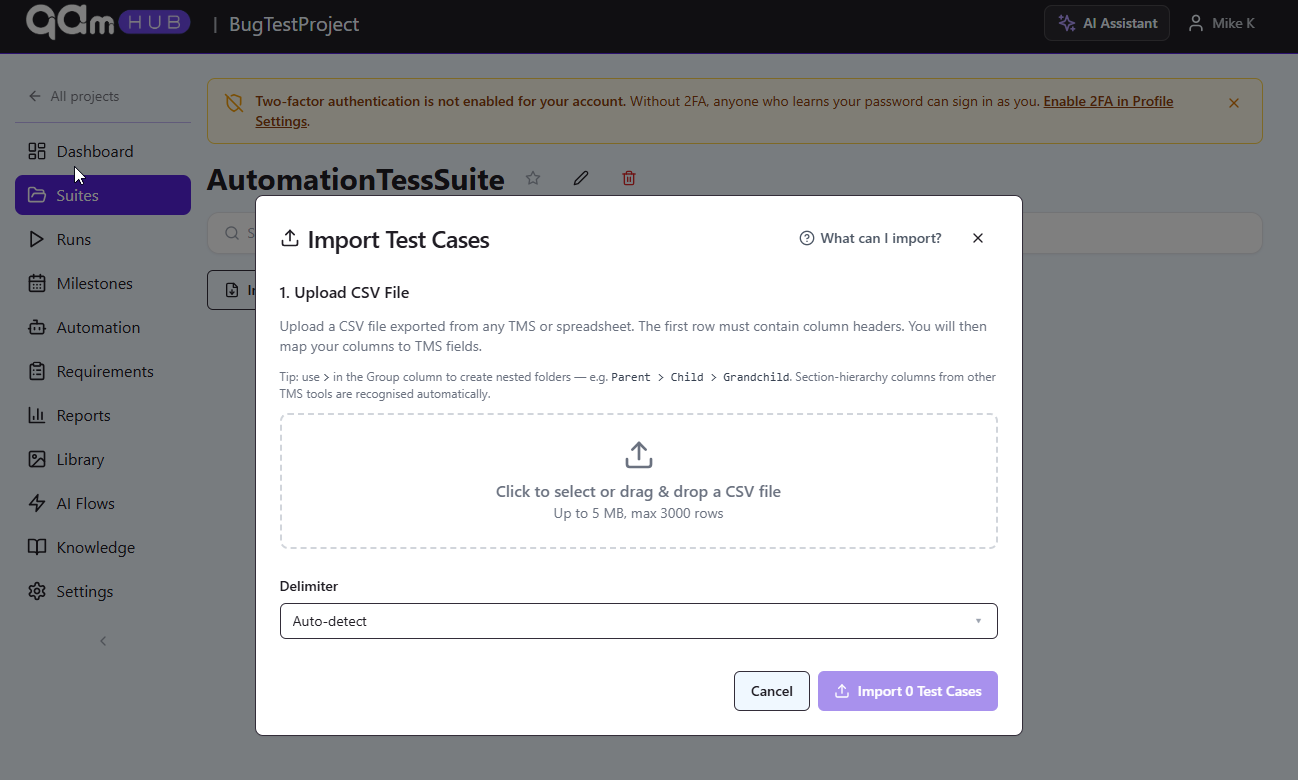
| Import rejected before it starts | File limits. QAM Hub accepts up to 5 MB and a maximum of 3,000 rows per file; TestRail documents a 10 MB cap | Split into batches under the row cap. Batching by module is a good idea above a couple of thousand rows anyway. |
| All tags arrive as one long tag | Wrong separator inside the cell. QAM Hub splits tags and requirement references on a semicolon | Use checkout;promo;regression, not commas, and keep each tag name under 25 characters. |
| Requirement references vanish | They are matched against requirements that already exist in the project and never created by the import | Import or create the requirements first, then the test cases. Unmatched references are listed in the import report, so read it. |
| Version numbers become dates | Spreadsheet type coercion, the classic "1.10" to 1 October problem | Format the column as text before entering values, or prefix with an apostrophe in the sheet. |
| Leading zeros disappear from IDs | Same coercion, numeric interpretation | Text-format the column, or use a non-numeric prefix such as SHEET-0412. |
| Duplicates created on a re-run | Duplicate detection is off, or keyed on a field you changed between runs | Know the detection rule. Testiny defaults to matching on folder and title, with title-only and off as alternatives. Do not rename cases between a failed import and its retry. |
| Curly quotes and non-breaking spaces in titles | Autocorrect in the source document | Find and replace before export. They make later search and deduplication unreliable. |
One security note that has nothing to do with test management and everything to do with CSV: a cell starting with =, +, - or @ can be interpreted as a formula by whatever spreadsheet opens the file next. If your test data includes such strings, prefix them with an apostrophe in the export copy.
Step 4: Pick the method by volume
Three approaches, chosen by how many cases you are moving. The durations are our own planning figures from QA Madness migrations, not vendor numbers, and they assume the audit is done and the target project already exists.
| Volume | Method | Realistic effort | Main risk |
|---|---|---|---|
| Under 500 cases | One normalised CSV, single import pass, manual column mapping in the wizard | Half a day to a day of normalisation, minutes to import, 2-4 hours to validate | Skipping the audit because the volume feels small |
| 500-5,000 cases | Batch by module or by template. 5-10 files, pilot batch first, then the rest in sequence | 3-5 working days of hands-on effort, usually spread across two calendar weeks | Inconsistent field values across tabs written by different people |
| Any volume above the file cap | Batching stops being optional. QAM Hub takes 3,000 rows and 5 MB per file, so a 4,000-case suite is at least two files whatever else you decide | Adds an hour or two of splitting and per-batch validation | Losing track of which batch covered which module |
| Over 5,000 cases | Script it. Load the sheet into a staging table, transform there, push through the API keyed on legacy_id so reruns are idempotent | 2-4 weeks including reconciliation and a parallel-run period | Partial failures halfway through a batch with no way to tell what landed |
Two notes on the large case. First, build the script so it can run twice without creating anything twice. Keying on legacy_id and checking for an existing record is a few extra lines and it converts a catastrophic partial failure into a re-run. Second, do the transformation in the staging table, not in the spreadsheet. Once the data is queryable you can answer "how many cases have no expected result" in one statement instead of by scrolling.
Batching by template rather than by module has one advantage worth knowing: Testmo's guide recommends splitting the export into several CSV files by template precisely because different templates need different column layouts. If half your cases are step-based and half are single-block text, that split is doing real work.
Step 5: Run a pilot batch
Import 20-30 cases before you import 2,000. Build the pilot file with the same headers as the real one, so the automatic column matching behaves identically. Choose them deliberately: the longest case in the suite, one with special characters in the title, one with fifteen steps, one with an empty preconditions field, one from the deepest suite level, one with every custom field populated, and one from the oldest tab nobody has touched in a year. Those seven rows exercise more failure modes than a random sample of 200.
Then open them in the UI and read them as a tester would. Specifically:
- Are the steps readable as a sequence, with the numbering and line breaks intact inside the Steps field?
- Did the Group column build the tree you expected, or did it create one flat group named
Web app > Checkout > Promo codes? - Are priority and type real dropdown values, or did they fall out because the option was not configured?
- Did tags split on the semicolon, or arrive as a single tag?
- Did the requirement references match, or does the report list them as skipped?
- Is anything truncated at the 300-character title limit or the 5,000-character steps limit?
If the pilot is wrong, fix the file and delete the pilot cases. Fixing 25 cases by hand is fine. Fixing 2,000 is a second migration.
Step 6: Validate after the full import
Run this list the same day the import finishes, while you still remember which batch was which.
- Read the import report first. It names what the importer refused: rows skipped for an empty title, requirement references that matched nothing, dropdown values outside the configured options. This is the cheapest five minutes in the whole migration and it is the step people close without reading.
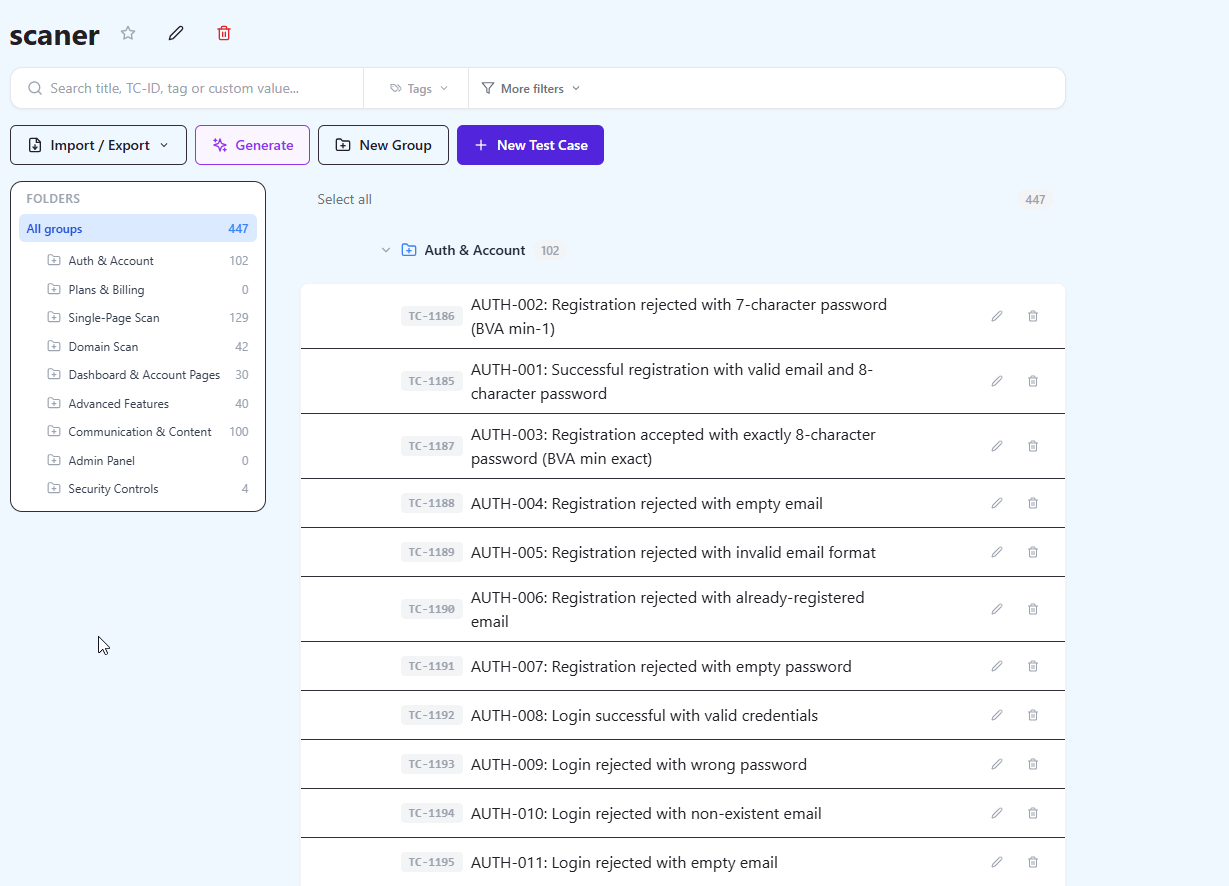
- Counts. With one row per case, rows in the source file minus deliberate exclusions should equal cases in the target. Compare the Legacy ID values present in the tool against the sheet to find which specific rows are missing, not just how many.
- Spot-check by sampling. Ten cases picked at random per batch, read end to end against the sheet. Ten is enough to catch systematic damage, which is the only kind an importer produces.
- Hierarchy. Walk the group tree. Look for groups with one case in them, and for a single group literally named
Web app > Checkout > Promo codes, which means the path was taken as a name instead of a hierarchy. - Automated status. Filter for cases marked as not automated. Anything the importer could not recognise defaults to Not, so a column of "automated: y" values silently becomes a suite with no automation coverage.
- Empty required content. Filter for cases with no steps or no expected result. These are either placeholder rows that survived the audit or rows damaged by a merged cell.
- Field values. Open the priority and type filters and look at the distinct values. "High", "high" and "Hi" as three separate values means normalisation was incomplete.
- Duplicates. QAM Hub's importer detects duplicates by title, which catches a batch imported twice but not two cases describing the same scenario in different words. For those, run the Quality Analyzer over the fresh import; it flags duplicate and vague cases, and it is the fastest way to find what the manual audit missed.
- Encoding. Search for the replacement character and for
Ã. Either one means an encoding mismatch you have not noticed yet. - Permissions and ownership. Confirm the right people can see and edit the project before you tell the team to switch.
Only after that list passes do you make the spreadsheet read-only and announce the switch. Doing it in the other order gives you a week of parallel edits in two places.
Step 7: Close the spreadsheet down properly
This step gets skipped and it is the reason migrations fail six weeks after they technically succeeded. The old sheet is convenient, it is already open in someone's browser, and it has no permissions. If it stays writable, people will use it.
What works: set the file to view-only for everyone including its author, rename it with an ARCHIVED prefix and the freeze date, put a first-row note pointing at the new project, and move it out of the shared folder people browse. If your team keeps a link to it in a runbook or an onboarding doc, update those the same day. One team we worked with found six months later that new joiners were still being pointed at the archived sheet by an onboarding page nobody had edited.
Rebuilding what the CSV could not carry
After the import you have clean text in a structured tool and a list of things that did not come along. In priority order:
Requirement links. The text in requirement_ref is a reference, not a link. Converting those into real traceability is what makes coverage reporting possible, and it is worth doing while the migration still has attention on it. The method, including how to keep the matrix accurate afterwards, is in Requirements Traceability Matrix: How to Build One That Stays Accurate.
Attachments and screenshots. Upload the ones worth keeping to the project's image library, then reference them from the case text with image markers, five per block at most. Be selective: most screenshots in an old spreadsheet document a UI that has already changed, and re-attaching them buys you a suite full of misleading pictures.
Automation links. If some of these cases have automated counterparts, connect them now while the mapping is fresh in someone's head. QAM Hub links an automated test to its manual case through a TC- prefix in the test title, and one automated test can cover several manual cases.
Structure you deferred. Milestones, checklists for release readiness, and any grouping you flattened to get the import through. Building suites and cases from scratch in the tool is covered in Creating Test Suites and Test Cases.
The reverse trip: CSV as a bulk-editing tool
One thing changes after the migration that nobody mentions in migration guides. Once the cases are in a structured tool, the spreadsheet becomes useful again in a narrower role, as an editing surface rather than a system of record.
In QAM Hub, exporting a suite to CSV and re-importing it round-trips every field the importer reads, including automated status, requirements and tags. That makes the sheet the fastest way to do work the UI is slow at: retagging four hundred cases, renaming a naming convention across a module, setting automated status in bulk after an automation sprint, or fixing the priority values that arrived empty because the dropdown option did not exist yet.
Two cautions. Export, edit, re-import is a change with no undo button beyond the version history on each case, so do it on a suite rather than a whole project the first time. And since duplicate detection keys on the title, a re-import behaves differently depending on whether you changed the titles. Test that on a handful of cases in a scratch suite before you run it over four hundred, and confirm what your own project does with a title that no longer matches.
A realistic two-week plan for a mid-size suite
For roughly 1,500-3,000 cases, with one person owning it and a QA lead available for decisions:
| When | Work |
|---|---|
| Days 1-2 | Announce the freeze date. Copy the sheet. Inventory tabs, columns and value lists. Decide the target structure. |
| Days 3-5 | Audit: deduplicate, delete dead cases, finish or drop placeholders, normalise priority and type values, log every removal. |
| Day 6 | Create templates, custom fields and statuses in the target project. Build the flat file with the column layout above. |
| Day 7 | Pilot import of 20-30 deliberately awkward cases. Read them in the UI. Fix the file. Delete the pilot. |
| Days 8-9 | Full import in batches. Validation checklist per batch, same day. |
| Day 10 | Rebuild requirement links and re-attach the screenshots that matter. Set permissions. |
| Days 11-12 | Archive the sheet read-only. Update runbooks and onboarding docs. Walk the team through the new structure. |
| Days 13-14 | First real test run in the new tool. Fix what the run exposes, because a run always exposes something a review does not. |
Under 500 cases this compresses to three or four days. Over 5,000 the audit and the reconciliation both stretch, and the scripted path adds its own development time.
Where QAM Hub fits
QAM Hub is a test management system built by QA Madness, the company that publishes this guide, so treat this section as what it is. The features relevant to a spreadsheet migration: CSV import and export for test cases, nestable suites and groups, templates and custom fields with several field types, tags, requirements and traceability, and version history that keeps the last 20 versions of a case with rollback. The importer matches a column to a field automatically when the header matches the field name, creates missing groups from the Group path, and creates tags that do not exist yet, which removes most of the manual mapping for a well-named file. The Quality Analyzer flags duplicate and vague cases, which is useful both before a migration when it runs on an early import and after one as a validation pass. Execution uses pass, fail, blocked, skip and untested statuses, with per-tester assignment and full execution history per case across runs, so the run history you build after the import stays queryable in a way a colour-coded column never was.
Three honest limits. The importer reads CSV only, so an XLSX workbook needs an export step, and it takes 5 MB and 3,000 rows per file, so large suites arrive in batches. It is a newer product with a smaller community than the incumbents, so there is less third-party material to search when you get stuck. And it is not a Jira-native app, so teams that want test cases living inside Jira issues will prefer a Jira app instead. Pricing is two straightforward per-user plans in the mid-market range. If you want the direct comparison, we keep QAM Hub vs spreadsheets and the wider category overview in What Is a Test Management System.
Coming from a tool rather than a sheet changes the calculus, because an export from a TMS carries fields a spreadsheet never had. We cover that case separately in What You Actually Lose When You Export Test Cases from TestRail.
Frequently asked questions
How do I import test cases from Excel into a test management system?
Save the sheet as CSV UTF-8 with one header row and no merged cells, make sure the columns match fields that already exist in the target tool, then use the tool's import wizard to map each column to a field. Import a pilot batch of 20-30 cases first, check them in the UI, and only then import the rest. Most tools read CSV rather than XLSX directly, so the export step is not optional.
Can I keep my test execution history when I move from spreadsheets?
Practically, no. Pass/fail columns per release are a report rather than structured run data, and there is no clean mapping from a coloured cell to a test run with an assignee, a timestamp and a result. Archive the old sheet read-only and start clean runs in the new tool. Within one or two release cycles the new history is more useful than the old one was.
What is the best CSV format for importing test cases?
UTF-8 encoded, comma delimited, every text field quoted, one header row, one sheet, no merged cells and no blank spacer rows. Name the headers after the fields in the target tool so automatic matching does the mapping. Use one column for the full group path with the separator the tool expects, keep a legacy ID column for reconciliation, and check which character separates multiple values inside a cell: QAM Hub splits tags and requirement references on a semicolon, so commas there produce one long tag. Decide up front whether a case occupies one row or one row per step, and apply that consistently.
Can I import an Excel file directly, or does it have to be CSV?
It depends on the tool, and CSV is the safer assumption. QAM Hub's importer reads CSV, so an XLSX workbook needs a save-as step first, and only the active sheet is exported each time. Testomat accepts XLSX but labels CSV and XLSX import as experimental in its own documentation. Keeping the master file as a spreadsheet and exporting a CSV per batch works well, because the spreadsheet is where you fix things between attempts.
Why does my test case import fail or create duplicates?
Failures are usually encoding mismatches, unescaped delimiters inside cells, or a file over the size or row limit. Silent partial losses are more common than outright failures: a row with an empty title is skipped and listed in the report, a requirement reference that matches nothing is skipped, a dropdown value outside the configured options does not arrive, and an unmapped column is ignored altogether. Duplicates usually mean the detection is keyed on a field that changed between attempts. QAM Hub matches on the title, Testiny on folder and title by default, so renaming cases between a failed import and its retry defeats the check either way. Fix the file, not the import settings, and delete a bad batch completely before retrying.
Should I clean up test cases before or after migrating?
Before. An importer copies faithfully, so duplicates and dead cases become real records that are then harder to bulk-edit. The exception is near-duplicate detection at scale, which is easier with a tool's analysis features than by eye, so a reasonable hybrid is a manual pass for obvious dead weight before the import and an automated duplicate pass immediately after.
How long does it take to migrate test cases from a spreadsheet?
The import runs in minutes. The project around it takes three to four days under 500 cases, roughly two calendar weeks for 1,500-3,000 cases with one person owning it, and two to four weeks above 5,000 where scripting and reconciliation dominate. The audit is the largest single block of time in every one of those, and cutting it is what produces migrations that have to be redone.
Do images and attachments transfer from Excel?
No. CSV carries text only, and embedded images are dropped at export. Export the images to a folder named after the cases, then re-attach after the import to the cases where the image genuinely is the expected result. QAM Hub allows up to 5 images per block and 10 per case, and most screenshots in an old sheet show a UI that has already changed.
Can I migrate directly from Google Sheets?
Yes, and the encoding is usually easier because Google Sheets exports UTF-8 by default, which is the source of fewer garbled-character problems than Excel's Windows-1252 default. The catch is the same: a CSV export covers one sheet at a time, so a workbook with a tab per tester or per module needs either one export per tab or a consolidation pass into a single sheet with a suite path column.
What should I do with the old spreadsheet after the migration?
Freeze it, set it view-only for everyone, rename it with an ARCHIVED prefix and the freeze date, add a first-row note pointing at the new project, and move it out of the folder people browse. Then update any runbook or onboarding page that links to it. A writable old sheet is the most common reason a technically successful migration stops being used.
References
- Raymond R. Panko, "What We Don't Know About Spreadsheet Errors Today: The Facts, Why We Don't Believe Them, and What We Need to Do", 2015. https://arxiv.org/pdf/1602.02601
- Microsoft, "Excel specifications and limits", Microsoft Support, accessed August 2026. https://support.microsoft.com/en-us/office/excel-specifications-and-limits-1672b34d-7043-467e-8e27-269d656771c3
- TestRail Support Center, "Import test cases from CSV or Excel", accessed August 2026. https://support.testrail.com/hc/en-us/articles/7101779988372-Import-test-cases-from-CSV-or-Excel
- Testiny Documentation, "Import & Export Test Cases", accessed August 2026. https://www.testiny.io/docs/test-management/test-cases/import-export/
- Testomat.io Docs, "Import from CSV/XLSX", accessed August 2026. https://docs.testomat.io/project/import-export/import/import-tests-from-csv-xlsx/
- Testmo, "How to Migrate to Testmo from Excel or Google Sheets", accessed August 2026. https://www.testmo.com/guides/how-to-migrate-to-testmo-from-excel-or-google-sheets/
- QAM Hub Knowledge Base, "Importing & Exporting Test Cases via CSV", August 2026. https://www.qam-hub.com/kb/import-export-csv